People often ask me one question. Is a bookmark bar at the top better than a side panel? They are two different shapes, and each costs something. I wanted real numbers instead of opinions, so I ran a test.
This review covers three tools:
- Second Bookmark Bar (SBB) 3.1.131. An always-visible second row above the page.
- Bookmark Sidebar 2.5.7. A popular extension that opens a panel on the left edge.
- Chrome’s built-in bookmarks side panel. Free, and already in the browser.
Short version
- Chrome’s panel: free and it stays open, but it costs 386 px of width (20% at 1080p, 29% on a 1366 px laptop).
- Bookmark Sidebar: no cost while closed and the whole tree in one panel, but it closes after every click and needs 4 clicks the first time.
- Second Bookmark Bar: 34 px of height on every page and no width. 2 clicks, then 1. It is missing on the New Tab page and in PDFs.
- Speed: all three were within noise on the heavy pages. Both extensions added a few tens of milliseconds on a light page.
- Memory: after a browser restart, SBB added somewhat less than Bookmark Sidebar in my test. Before the restart they were about even. I corrected a flaw in my first run. Details below.
- Features: I compared 49 features, checked against each tool’s code and settings. The full table is below.
Claims I checked
Before the test, several claims were floating around. Here is what the evidence supports.
| Claim | Verdict | Evidence |
|---|---|---|
| Side panels shrink the page. | True for Chrome’s panel. Not true for Bookmark Sidebar’s default overlay. | Chrome’s panel cut the viewport by 386 px. Bookmark Sidebar’s overlay left it unchanged. |
| Side panels break page proportions. | Partly true. | Pages reflowed rather than broke. On Wikipedia the content shifted about 200 px to the left as its side margins disappeared. On NPR at 1366 px wide the logo shrank from 150 to 72 px and the menu collapsed. No horizontal overflow in the second run. |
| Side panels must be opened and closed all the time. | True for Bookmark Sidebar’s overlay. Not true for Chrome’s panel. | The overlay closes on every page load. Chrome’s panel stayed open across a new tab and a navigation. |
| SBB is a 34 px row that is always there. | Confirmed, with exceptions. | It was missing on the browser’s New Tab page and in the PDF viewer, and hidden by default on four Google sites. |
| SBB shrinks screen space. | Partly true. | It takes 34 px of height, and no width. |
| Bookmark Sidebar is more accessible. | Not established. | Both can be used from the keyboard in part. I did no screen reader test. |
| SBB slows down page loading. | Not supported on the heavy pages. A small, consistent cost on the light page. | NPR and MDN differences were inside run-to-run noise. On Wikipedia both extensions added a few tens of milliseconds (SBB +33 ms load and +96 ms LCP, Bookmark Sidebar +35 and +86), which you are unlikely to notice. |
| SBB uses more memory than Bookmark Sidebar. | Not supported by the corrected test. About level, slightly lower for SBB after a restart. | My first run had a flaw that inflated SBB (see the memory section). Re-measured after a restart, SBB added +153 to +294 MB working set at 1 to 10 tabs, Bookmark Sidebar +208 to +352. Gaps under about 30 MB are noise. |
Screen space
This is the heart of the top bar versus side panel question. The three tools pay in three different ways.
Chrome’s side panel takes width. At 1920x1080 the page viewport fell from 1904 to 1518 px. That is 386 px, or 20.3%. At 1366x768 it fell from 1350 to 964 px, or 28.6%.
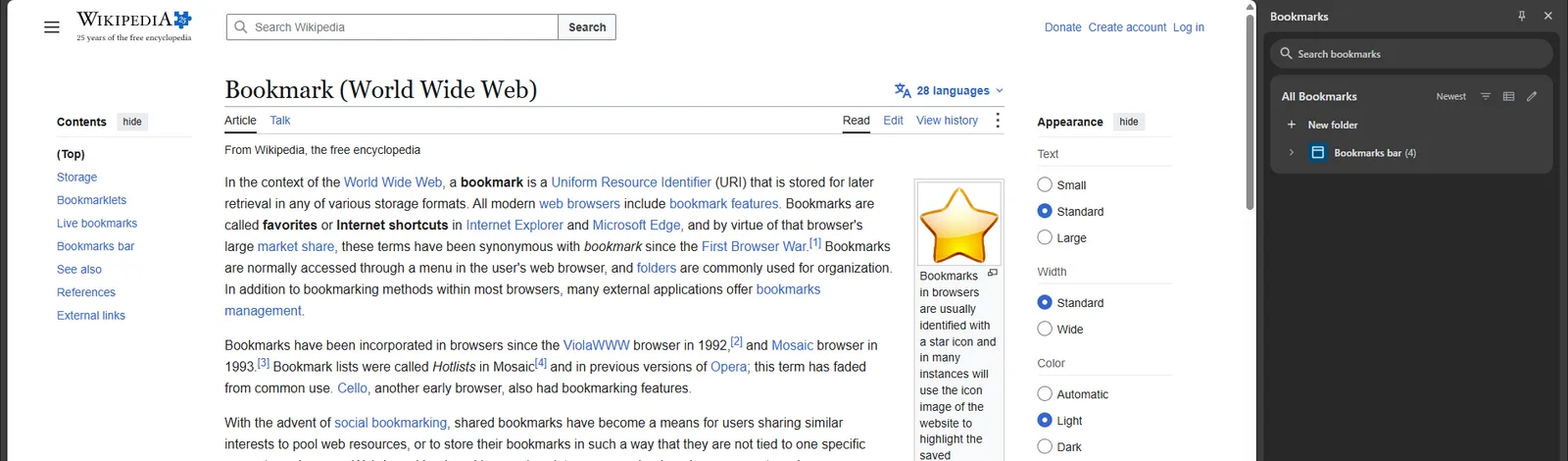
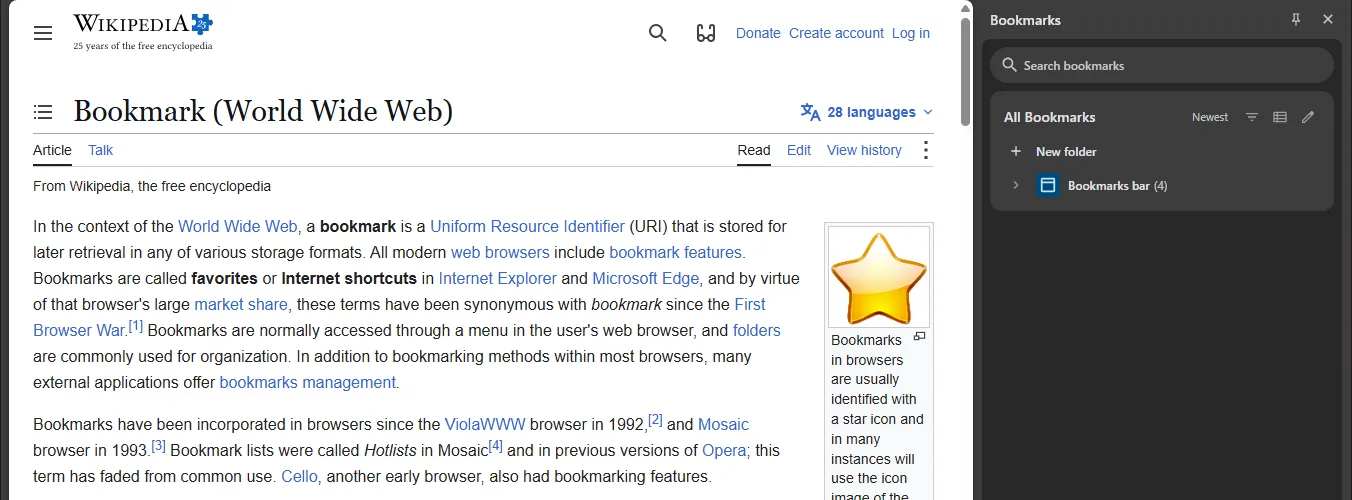
The pages coped by reflowing. On Wikipedia the content shifted about 200 px to the left as its side margins disappeared. On NPR at 964 px, the logo shrank from 150 to 72 px and the menu became a hamburger. I saw a horizontal scrollbar on NPR in the first run. It did not come back in the second run, so we do not count it.
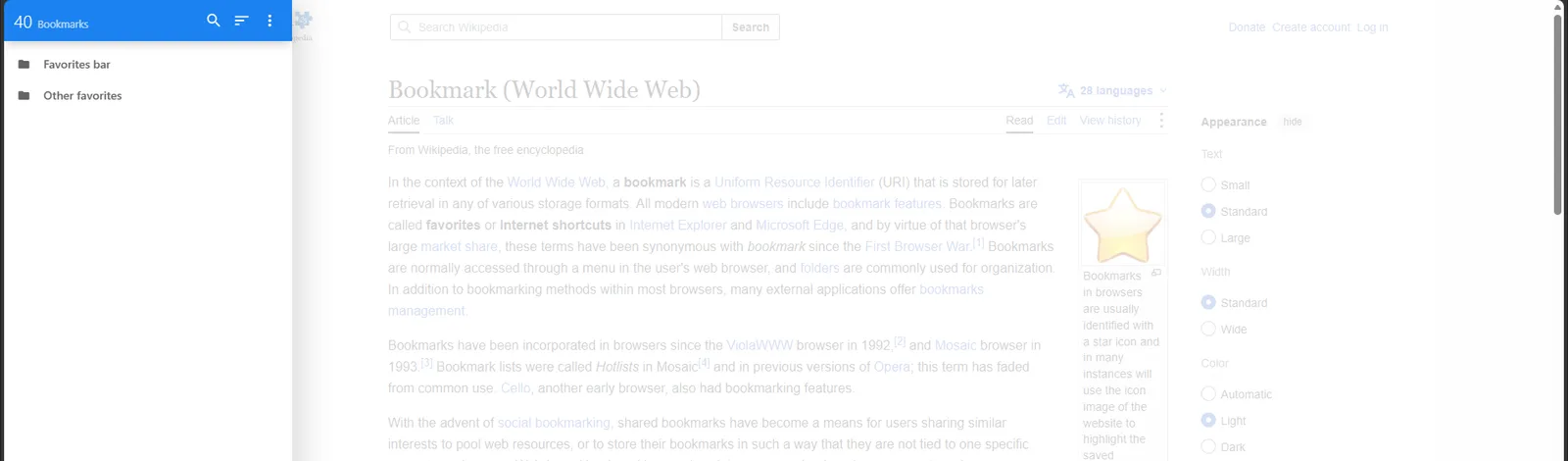
Bookmark Sidebar costs nothing while it is closed. Only a 1 px click strip sits at the left edge. When open, its default overlay covers 350 px of the page and dims the rest with a white mask. The page does not reflow, and the viewport stays at 1896 px. At 1366 px wide, 350 px is 26.4% of the width. It can also run in the browser’s side panel. I did not measure that mode, but it would reflow like Chrome’s panel.
Second Bookmark Bar takes height. The row is 34 px tall and it pushes the page down by 34 px. At 1920x1080 that is 3.4% of a 988 px viewport. At 1366x768 it is 5.0% of 676 px. It takes no width, and it covers nothing. All ten chips of the Work folder still fit on one row at 1366.

One gap in my test. A site header that is fixed to the top of the window might overlap the bar. None of my test pages had one, so I did not check it.
Does it stay open?
A tool you must reopen on every page is a toolbar you stop using. I checked what happens after you open a bookmark.
- SBB: the row was there on every normal web page I tried. A normal bookmark opens in a new tab, and the row is on that tab too.
- Bookmark Sidebar (overlay): closed on every page until clicked. Because it opens bookmarks in the same tab, the page navigates and the sidebar disappears. You reopen it with one click at the left edge. It remembers which folders you had expanded.
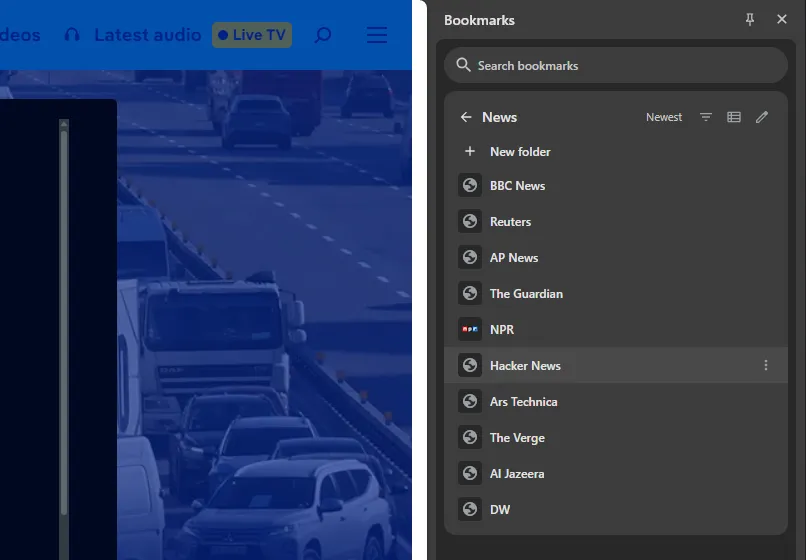
- Chrome’s panel: it stayed open on a new tab and after navigation, still inside the folder I had picked.
Second Bookmark Bar: the bookmark opened in a new tab

Bookmark Sidebar: the same tab navigated

Chrome side panel: still open on a new tab
“Always there” has gaps for SBB. It does not appear on the browser’s New Tab page or in the PDF viewer. By default it is also hidden on meet.google.com, gemini.google.com, aistudio.google.com and console.cloud.google.com. You can change that list.
Clicks to a bookmark in a folder
The task: open Hacker News, which sits in the News folder, from a normal page.
Second Bookmark Bar 2 clicks, then 1 while the News slot stays active
- Slot 3 (News)
- Hacker News
Bookmark Sidebar 4 clicks, then 2 (folders stay expanded)
- Left edge
- Favorites bar
- News
- Hacker News
Chrome side panel 6 clicks, then 1 while the panel is open
- Chrome menu
- Bookmarks and lists
- Show bookmarks in side panel
- Bookmarks bar
- News
- Hacker News
The first-time numbers are not a fair picture of daily life. Chrome’s panel is slow to start and fast once open. Its one-click repeat only counts while the panel stays open, and that costs 386 px. Bookmark Sidebar’s repeat path is also short once its folders are expanded. SBB is short from the start, because the folder stays selected from page to page. Chrome’s own menu also reaches the folder directly in 4 clicks without opening the panel. I saw that path but did not click through it.
Keyboard
Of the two extensions, neither has a default shortcut that takes you to a bookmark from scratch. I did not test Chrome’s panel from the keyboard. Here is what I saw.
- SBB: Alt+1 to Alt+3 switch slots by default. I could not test them, because the session was locked. I did test arrow keys. Shift+Tab from the first link on the page focused the bar. Arrow keys, Home and End moved across slots and chips, and Enter opened a chip. A plain forward Tab from the page reached the bar but did not land on a chip. The search panel has no default shortcut, but you can assign one.
- Bookmark Sidebar: no default shortcut to open it, but you can assign one. Once open, you type to search, press Tab, then Enter. That worked. The first characters were lost when I typed right after opening, and it worked after a one second pause.
- Chrome’s panel: its menu item shows no shortcut, so there is no default key to open it. Its code has arrow-key navigation inside the panel. I did not test it with real keys.
These keys were sent through the debug protocol, so real keys may behave differently. I did no screen reader test.
Speed
I loaded each of three pages 10 times per setup, in fresh tabs, over two rounds. The table shows medians.
| Page | No extension | SBB | Bookmark Sidebar |
|---|---|---|---|
| Wikipedia, load | 259 ms | 292 ms | 294 ms |
| NPR, load | 1513 ms | 1409 ms | 1632 ms |
| MDN, load | 494 ms | 486 ms | 526 ms |
| Wikipedia, script time | 130 ms | 220 ms | 166 ms |
On NPR and MDN, the differences changed sign between rounds, which is what noise looks like. On the light Wikipedia page, both extensions cost a few tens of milliseconds. SBB’s script time was higher than Bookmark Sidebar’s (about +90 ms versus +36 ms over no extension). You are unlikely to notice that, but it is a real difference in this test. I did not measure Chrome’s panel for speed.
Memory, and a correction
I also measured browser memory. My first run of that test was unfair to Second Bookmark Bar, so I want to say exactly what went wrong.
My setup script opened SBB’s settings page about 10 seconds before it measured. That page leaves roughly 60 MB behind in SBB’s extension process for a few minutes. Bookmark Sidebar had no matching step. The script also counted its own PowerShell process. So SBB looked about 60 to 100 MB heavier than it is.
I fixed the method and ran it again. The new script writes SBB’s settings without opening any extension page. It counts only the browser’s own processes. It uses fixed local test pages, one site per tab, so ads on news sites cannot swing the totals. And it restarts the browser first, because that is the state you are in after install day. Each figure is the median of two runs.
The table shows how much memory each extension added over a browser with no extension. The two numbers are working set and private memory, in MB.
| Open tabs | Second Bookmark Bar | Bookmark Sidebar |
|---|---|---|
| 1 | +153 / +92 | +208 / +145 |
| 3 | +185 / +110 | +268 / +188 |
| 10 | +294 / +166 | +352 / +197 |
In this test, after a restart, SBB’s overhead was lower than Bookmark Sidebar’s at every tab count. I would not call that a win. Differences under about 30 MB are noise, and some of these gaps are not much larger. Before the restart, on the same machine, the two came out about even. SBB added +134, +177 and +340 MB working set at 1, 3 and 10 tabs, and Bookmark Sidebar added +166, +172 and +325.
Here is where SBB’s memory goes. The bar lives in its own frame inside the extension process, and that costs about 3.5 to 4 MB for every open tab. That is the one real per-tab cost I found that is specific to SBB. On top of that, each web page grows by about 15.5 MB working set and 8 MB private with SBB. With Bookmark Sidebar it is about 19 and 9.5. I found no leak. After opening and closing 40 tabs, the background script’s heap went from 1.6 to 1.9 MB.
One more caution. On live news pages, the same setup moved by 100 to 170 MB between two runs, which is more than the gap between the two extensions. That is why I used fixed local pages for the table. The raw numbers are in the published data.
Features
What I used, and what I only saw.
- Search. All three have it. I used SBB’s search panel with sort and folder filters and Bookmark Sidebar’s type-to-search. Chrome’s panel searches titles, addresses and folder names.
- Multiple bars. SBB has switchable slots, one folder each. I used four. The other two show one folder tree.
- Site rules. SBB has an excluded-sites list, a “show only on these sites” mode and auto-switch rules that change the folder by domain. I saw them in the settings and did not exercise them. Bookmark Sidebar has a block list and an allow list that turn it on or off by site. It does not switch folders by site.
- Save all tabs. Used in SBB: it asks for a folder, skips tabs it cannot save and can close the tabs afterwards. Chrome has its own Bookmark all tabs command.
- Link check. Used in SBB: 40 bookmarks, 38 sites, 0 not answering. It checks the front page of each site, and the free tier covers 300 bookmarks per run (Pro 5,000). In Bookmark Sidebar the link checker is a Premium feature, according to the Premium page inside the extension (version 2.5.7).
- Not exercised: drag and drop in all three, SBB’s YouTube resume and scheduling from start to finish, and Bookmark Sidebar’s side-panel mode.
Privacy and permissions
These are the exact values from each manifest.
| SBB 3.1.131 | Bookmark Sidebar 2.5.7 | |
|---|---|---|
| Permissions | activeTab, bookmarks, storage, favicon, identity, alarms | bookmarks, storage, favicon, contextMenus, scripting, unlimitedStorage, fontSettings, sidePanel |
| Optional | tabGroups | tabs, history, topSites |
| Host access | One backend domain | All sites (<all_urls>) |
| Content script | Every http and https page | Every page |
Both inject a content script on every website. SBB does not ask for access to all sites or for the scripting permission. It does have an identity permission, and it talks to its own Supabase backend for sync. Chrome’s panel is part of the browser and needs no permission at all.
On analytics, the code differs. SBB has no analytics code. Bookmark Sidebar’s code sends a small daily record to its developer’s server by default: browser, operating system, version and language. Sharing your settings and your bookmark count is opt-in, and it asks you about that after a week.
Where Bookmark Sidebar is better
- It uses no screen space while closed. SBB always costs 34 px of height.
- It shows the whole folder tree in one panel. SBB shows one folder per slot.
- It remembers expanded folders, so repeat access is two clicks.
- There is no search box to click. You just start typing, after a short pause in my test.
- It opens bookmarks in the same tab by default, and one setting switches that to a new tab. SBB always opens normal bookmarks in a new tab, with no setting, which some people dislike. Only SBB’s video bookmarks open in the same tab by default.
- Drag and drop moves bookmarks between folders, several at a time.
- You can add a note to each bookmark, and search finds it.
- It comes in 39 languages. SBB has 13.
- Its Premium upgrade is a one-time payment where you choose the amount, according to the Premium and checkout text inside the extension (version 2.5.7). It unlocks the link checker, the duplicate finder, settings export, extra themes and custom CSS. In SBB, link check, duplicate cleanup, file backup and themes are already free.
- It offers both an overlay and a native side-panel mode.
- It is one of the most used bookmark sidebars on the Chrome Web Store. I could not load the store listing from the test machine, so I quote no number.
Where Chrome’s panel is better
- It is free, built in and needs no permission.
- It is part of the browser, so it is not limited to web pages the way an extension is. I did not test it on the New Tab page, the PDF viewer or chrome:// pages.
- It stayed open across tabs and navigations in my test.
- Its menu opens a bookmark in a new window, split view or Incognito, and a folder in a new tab group.
- It has nothing to install and nothing to trust.
Its cost is width. 386 px is a lot on a 1366 px screen. For the native toolkit around it, see Second Bookmark Bar vs Chrome’s own bookmarks.
Where Second Bookmark Bar is better
- It is there on every normal page with no click, and it stayed there after you opened a bookmark.
- It takes no width. The page does not reflow, and nothing is covered or dimmed.
- Two clicks the first time, and one while the folder stays active.
- Slots let you keep several folders one click apart.
- Site rules and auto-switch can change the folder by site.
- Link check, duplicate cleanup, file backup, themes and save-all-tabs are free. In Bookmark Sidebar, the link checker, duplicate finder, export and extra themes are Premium.
- Pro adds things the others do not offer at all: your own cloud sync across computers and shared team folders.
- Video folders resume where you stopped, play in order and can trim a start and end. Neither of the others has video features.
- Scheduled bookmarks, tags and categories, and restore points before bulk changes.
- No analytics code.
Side by side: what I measured
| Second Bookmark Bar | Bookmark Sidebar | Chrome side panel | |
|---|---|---|---|
| Screen space used | 34 px of height, always | 0 px closed. 350 px overlay when open | 386 px of width while open |
| Stays visible | Yes, on normal pages | No. Closes on page load | Yes, across tabs |
| Clicks to a bookmark in a folder | 2, then 1 | 4, then 2 | 6, then 1 while open |
| Opens in | New tab for normal bookmarks, with no setting. Videos open in the same tab by default (a setting changes that) | Same tab by default. A setting switches to a new tab | Same tab on a click |
| Keyboard | Arrow keys work. Alt+1 to 3 slot keys not tested | Type to search, Tab, Enter. No default open key | Not tested |
| Page-load impact | Within noise on two of three pages. About +90 ms script time on Wikipedia | Within noise on two of three pages. About +36 ms script time on Wikipedia | Not measured |
| Memory added in test, after a restart (1 / 3 / 10 tabs, working set) | +153 / +185 / +294 MB. About even before the restart | +208 / +268 / +352 MB. About even before the restart | Not measured |
| Search | Yes, with filters | Yes, type to search | Yes |
| Multiple bars | Slots (I used 4) | One tree | One tree |
| Site rules | Hide or show by site, and switch folder by site (seen, not exercised) | Block list or allow list. No folder switching | No |
| Link check | Free to 300 per run. Pro to 5,000 | A Premium feature | No |
| Permissions | 6, plus 1 optional. One backend domain (Supabase) | 8, plus 3 optional. All sites | None |
| Price | Free covers all core features, including link check, duplicate cleanup and backup. Pro (EUR 4.99 a month or EUR 47.90 a year) adds cloud sync, shared folders and more video folders | Free. Premium is a one-time payment of your choice and unlocks link check, duplicates, export and extra themes | Free |
Every feature, side by side
The table above covers what I measured. This one covers what each tool can do. I checked every cell against the tool’s own code and settings: SBB 3.1.131 from its source, Bookmark Sidebar 2.5.7 from its official package (settings pages, English text and code), and Chrome 154.0.8037.95’s side panel page. Where something is a Chrome feature outside the panel, the cell says so. Where I could not check, it says Not verified.
Yes means it is there. Partial means part of it, with the limit in the note. Premium is Bookmark Sidebar’s paid tier. Pro is SBB’s paid tier. On a phone, swipe the table sideways.
| Feature | Second Bookmark Bar | Bookmark Sidebar | Chrome side panel |
|---|---|---|---|
| Layout and access | |||
| Where it sits | A 34 px row at the top of the page | Overlay at the left or right edge, or the browser's side panel | Browser side panel |
| Visible without a click | YesOn normal web pages. Not on the New Tab page or in PDFs | PartialOverlay opens on click, hover at the edge or the icon. Side panel mode stays open | YesOnce opened, it stays open across tabs |
| Screen space | 34 px of height, always. No width | None while closed. 350 px overlay while open (width slider) | 386 px of width while open |
| Move or resize it | NoFixed at the top, fixed height. Text size 10 to 18 px | PartialLeft or right, width slider. Drag-to-resize is Premium | PartialLeft or right in Chrome's settings. Width can be dragged |
| Several separate bars or sets | YesUp to 7 slots, one folder each, switch with a click | NoOne tree. Pinned entries at the top instead | NoOne tree |
| Whole folder tree at once | PartialOne folder per slot. Subfolders open as drop-down menus | YesRemembers open folders and scroll position | YesOpen a folder or expand it in place |
| Opens a bookmark in | Normal bookmarks: always a new tab, no setting. Videos: the same tab by default, with an "Open videos in a new tab" setting | The same tab by default. A setting switches to a new tab. Ctrl or middle click opens a new tab | The same tab on a click. Its menu also offers a new tab, new window, split view or Incognito |
| Open all bookmarks in a folder | YesIn a new window, or in a tab group | YesMiddle or Ctrl click on a folder, with a warning above 10 | YesOpen all, in a new window, or in a new tab group |
| Keyboard shortcuts | Yes7 commands. Alt+1 to 3 and Ctrl+Shift+A set by default. Arrow keys on the bar | YesOne open command (you pick the key). Full keyboard control inside | PartialNo default key to open it. Arrow keys work inside |
| Search | YesSearch panel across all folders, with sort and filters | YesType to search titles, URLs, folders and notes | YesTitles, addresses and folder names, across all folders |
| Hide on chosen sites | YesExcluded sites (whole site or a path), or show only on listed sites. Incognito choice | YesBlock list or allow list with URL patterns | NoPart of the browser, not tied to sites |
| Switch folder by website | YesAuto-switch rules by domain and path | NoIts site list only turns the sidebar on or off | No |
| Icons only (hide names) | YesSeparate switches for bookmarks and for folders | PartialOnly through Expert settings, which are Premium | NoCompact or visual view only |
| Custom folder icons | YesA Material icon per folder, and an icon per slot button | Partial3 folder icon styles and a colour, for all folders | No |
| Themes and colours | YesLight, dark or system. 4 styles. Custom text and background colours | PartialLight, dark or auto and colours are free. Glass and Focus themes and custom CSS are Premium | Follows Chrome's theme |
| Interface languages | 13 | 39 | Chrome's own languages |
| Organizing | |||
| Drag and drop | YesReorder chips on the bar. Drop links, tab addresses or videos onto it to save them. Moving into another folder is not done by drag | YesReorder and move between folders, several at once | PartialInto folders only, from its code. Lists are always sorted, so no manual order |
| Edit, rename and delete in place | YesFrom the right-click menu, with undo on delete | YesEdit dialogs and multi-select | YesEdit mode with multi-select |
| Sorting | YesSort a folder by date or name, with undo | YesCustom, name, URL, most used, recently used or added | YesNewest, oldest, last opened, A to Z, Z to A |
| Pin favourites | YesPin up to 10 bookmarks to the bar | YesPin to the top of the sidebar | No |
| Tags and categories | YesUp to 32 tags and 24 categories | No | No |
| Notes on a bookmark | No | YesAn "Additional info" text, kept on the device | No |
| Most used and recent | YesMost used and Recent menus on the bar, plus your own Low, Mid, Top rank | YesClick counts drive most-used and recently-used sorting | PartialSort by last opened. No most-used list |
| Import from other tools | YesRaindrop, Toby, Pocket and HTML bookmark files | NoPoints to the browser's own import | NoNot in the panel. Chrome itself imports HTML files and other browsers |
| Video | |||
| Video folders with thumbnails | YesFree: 1 video folder. Pro: 7 | No | No |
| Resume where you stopped | YesOn by default, Shift+Click starts from 0:00 | No | No |
| Start and end time (clips) | Yes | No | No |
| Play a folder in order | YesPlay all, in the current tab | No | No |
| Continue watching and unwatched filters | Yes | No | No |
| Video tags and playlists | YesFree: 2 tags and 2 playlists per video. Pro: 32 and 24 | No | No |
| Saving and productivity | |||
| Save the current page | YesQuick save button or shortcut, with undo. Already saved pages are flagged | YesAdd bookmark, filled in from the page | YesAn Add current tab button |
| Save all open tabs | YesOne button or Ctrl+Shift+A. Pick a folder, optionally close the tabs | No | PartialNot in the panel. Chrome's menu has Bookmark all tabs (Ctrl+Shift+D) |
| Scheduled and repeating bookmarks | YesDaily, weekly, monthly or custom. Free: 3 active. Pro: 50 | No | No |
| Different folder per window | YesOptional | No | Not verified |
| Quick hide for screen sharing | YesA hide shortcut you choose, off by default | PartialIts open shortcut also closes it | You close the panel by hand |
| Cleanup, safety and backup | |||
| Duplicate finder | YesFree | PremiumPart of the Premium link checker | No |
| Broken link check | YesFree: 300 bookmarks per run. Pro: 5,000 | Premium | No |
| Undo and restore points | YesUp to 24 restore points before bulk changes, plus undo on delete, sort and save | Partial9 second undo after deleting one bookmark. No undo for folders | PartialUndo after a delete. No restore points |
| Backup to a file | YesSettings, bookmarks or both. Free | PremiumSettings only. Bookmarks go through the browser | PartialNot in the panel. Chrome's bookmark manager exports an HTML file |
| Sync and teams | |||
| Bookmarks on all your devices | YesThey are normal browser bookmarks, so browser sync covers them | YesSame, it shows your browser bookmarks | YesThrough Chrome sync, after you sign in |
| Settings sync | YesThrough the browser's sync storage. Free | YesThrough the browser's sync storage. Free | Not applicable |
| Own cloud sync and backup | ProSign in with Google | No | NoUses Chrome sync |
| Shared team folders | ProShared spaces with invites and seats | No | No |
| Privacy, platforms and price | |||
| Usage analytics | NoNo analytics or tracking code | PartialA daily basic record (browser, OS, version, language) is sent by default. Settings and bookmark counts only if you opt in | Covered by Chrome's own settings |
| Access to websites | Runs on every http and https page. No all-sites permission | All sites (<all_urls>) | None needed |
| Browsers | Chrome, Edge and Firefox | Chrome, Edge and Opera | Chrome only |
| Admin policies for companies | YesTurn off cloud sync, preset excluded sites | No | Chrome's own policies |
| Price | Free covers all core features, including link check, duplicate cleanup, backup and themes. Pro is EUR 4.99 a month or EUR 47.90 a year | Free. Premium is a one-time payment, amount of your choice | Free |
| What the paid tier adds | Cloud sync, shared folders, 7 video folders and higher limits | Themes, drag-to-resize, link and duplicate checker, custom CSS, settings import and export, expert settings | No paid tier |
Checked on October 2, 2026. Free tier limits for SBB are in the notes. Bookmark Sidebar's Premium list comes from the Premium page inside the extension. Tell me if a cell is out of date and I will fix it.
Who should pick which
- Pick Chrome’s panel if you want zero installs, you use a wide screen and you are fine giving up about a fifth of it while it is open.
- Pick Bookmark Sidebar if you have a large, deep folder tree, you only need it now and then, and you want the screen space back the rest of the time. Pick it too if you only want its paid extras and prefer to pay once.
- Pick Second Bookmark Bar if you want the least friction between you and your sites. Your bookmarks sit one click away on every page, with nothing to open or close first. Slots keep several folders a click apart, and site rules switch the folder for you as you move between sites. Drag a YouTube video onto the bar to save it, and it picks up where you stopped. It takes 34 px of height and no width, so pages keep their full layout, even on a small laptop. Link check, duplicate cleanup and backup come free.
- Try two. They are separate extensions and nothing stops you installing both, but I did not test them together. Some people keep a sidebar for the big tree and a bar for the daily few.
Where Second Bookmark Bar is weak
I would rather you hear it from me.
- It always costs 34 px of height (3.4% to 5.0% of the viewport in my test), even when you are not using it.
- It shows one folder at a time. To reach another folder you switch slots or search.
- Normal bookmarks always open in a new tab, and there is no setting to change that. Video bookmarks are the exception. They open in the same tab by default, and the “Open videos in a new tab” setting changes that.
- Keyboard use is partial. A forward Tab from the page reached the bar but not a chip, and the search panel has no default shortcut.
- It is missing on the New Tab page and in the PDF viewer, and hidden by default on four Google sites.
- On first run, the onboarding tab opened in front of the page even when I had marked onboarding as done.
- In a fresh profile, never-visited bookmarks had blank icons. Bookmark Sidebar did the same.
- Pro is a subscription, where Bookmark Sidebar’s Premium is a one-time payment. Pro mainly pays for cloud sync and shared folders, which run on a server; the tools Bookmark Sidebar sells in Premium are free in SBB.
- Its script time on Wikipedia was higher than Bookmark Sidebar’s.
Method notes and data
The screen space, speed and memory measurements are published as raw files. The scripts and full-size screenshots are available on request through the contact page. If you spot a mistake, tell me, and I will fix it and note the change here.
For the wider argument about rows, sidebars and dashboards, read the paradigm essay. For a short, table-first version of this test, see Second Bookmark Bar vs Bookmark Sidebar.