Help center
How to get the most out of your bar
Short, task-shaped articles, each with a real screenshot of the extension. Can't find what you're after? Contact us — we read every message.
Jump to a topic
Start here
New to the bar? These three cover the first ten minutes.
 Getting started
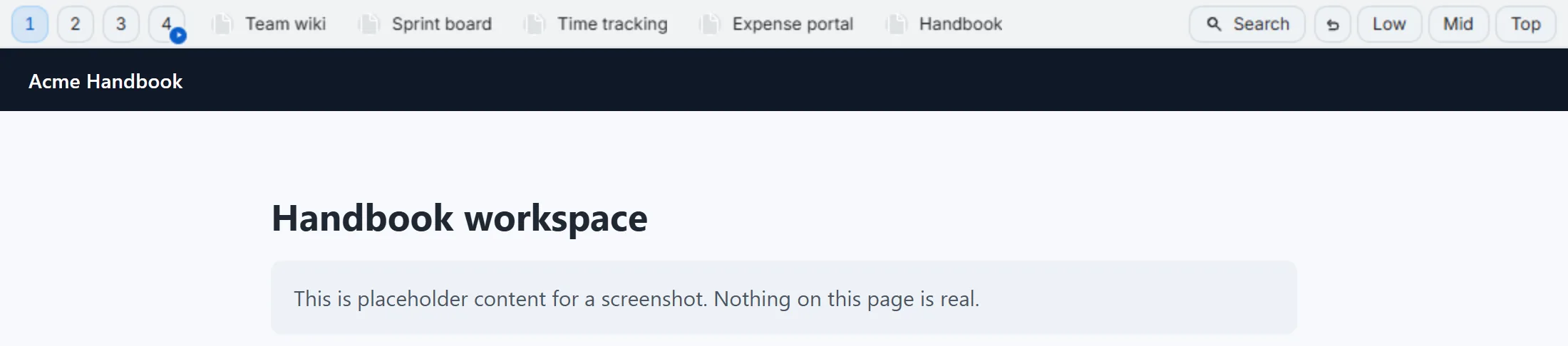
 Install Second Bookmark Bar and set up your first folders
The three-minute path from the Chrome Web Store to a second bookmark bar showing your own folders, plus where its settings live.
 Using the bar
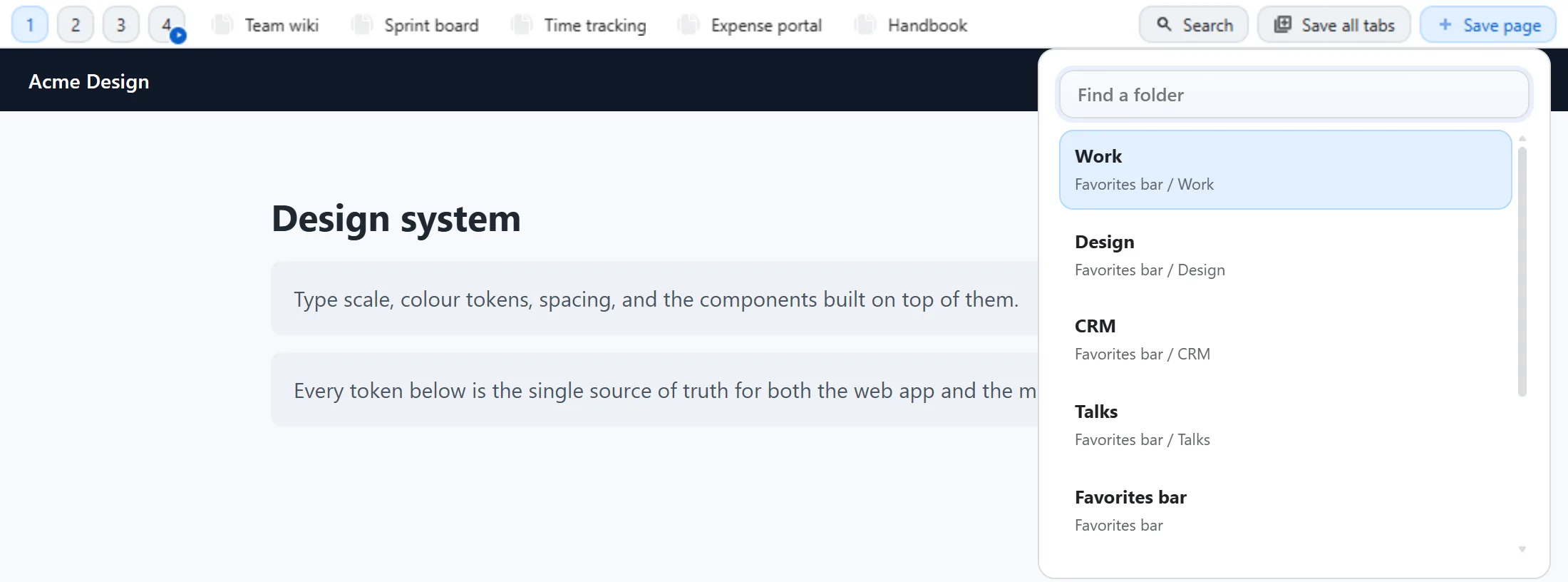
 Save pages to the bar: button, shortcut, drag, or all tabs at once
The four ways a page ends up on the bar, what happens if it's already saved, and how to save every open tab in one move.
 Video library
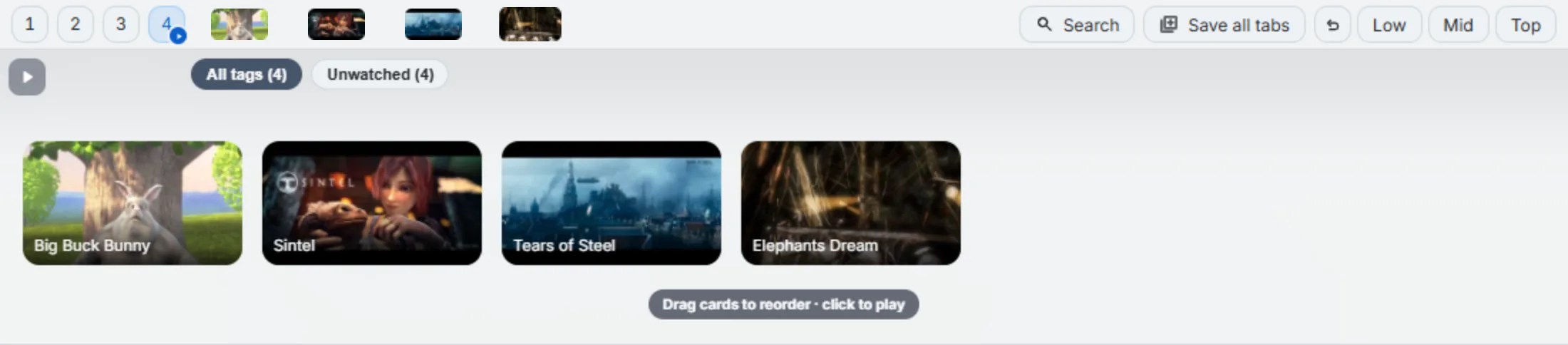
 Turn a folder into a video library
How to make any bookmark folder show video thumbnails instead of text links, and what the hover panel reveals about progress and playback.
Getting started
Installing the extension, seeing the bar for the first time, and where its settings live.
Topic page →Install Second Bookmark Bar and set up your first folders
The three-minute path from the Chrome Web Store to a second bookmark bar showing your own folders, plus where its settings live.
The bar isn't showing: a quick checklist
Installed Second Bookmark Bar but no bar appears? Work down the checklist: page type, hidden or excluded, Site access, private windows, and the folder.
Every keyboard shortcut (and how to set the ones that aren't bound yet)
Which Second Bookmark Bar shortcuts are bound by default, which ones need to be assigned yourself, and exactly where to do it.
Using the bar
Quick-switch slots, saving pages, and finding a bookmark again without opening Bookmark Manager.
Topic page →Quick-switch slots: up to seven folders, one click apart
What the seven numbered quick-switch buttons on the bar do, how to assign a folder to each one, and every keyboard and click way to switch between them.
Save pages to the bar: button, shortcut, drag, or all tabs at once
The four ways a page ends up on the bar, what happens if it's already saved, and how to save every open tab in one move.
Save all tabs: sweep a whole window into one folder
What the Save all tabs panel really does: the count, the skipped tabs, an existing folder or a new dated one, closing tabs after, and undoing a whole sweep.
Search from the bar: sorting, filters, and finding one bookmark fast
How the bar's search panel works: the seven sort orders, the five filters, what each result row tells you, and the keyboard-only way through the whole thing.
Video library
Turning a folder into a video library, saving YouTube videos, and playing them back in order.
Topic page →Turn a folder into a video library Free, with a limit
How to make any bookmark folder show video thumbnails instead of text links, and what the hover panel reveals about progress and playback.
Save a YouTube video, resume where you stopped, and set a start & end
How to drag a video onto the bar, why it remembers your playback position, and how to trim a clip to a specific start and end time.
Play all, video tags, and playlists Free, with a limit
Play a whole video folder in order, tag individual videos, group them into your own playlists, and where the free-plan video-folder limits sit.
Categories and tags: Folder, Category, Tags
The three ways Second Bookmark Bar lets you organize a bookmark — folders, categories, and tags — and when to reach for each one instead of the others.
Scheduled bookmarks: give a bookmark a time to come back Free, with a limit
Set a one-off or repeating reminder on any bookmark, what it looks like when it's due, and how missed schedules are handled.
Where the bar appears
Auto-switching folders by site, and keeping the bar out of the way on the sites where you don’t want it.
Topic page →Auto-switch: the bar changes folder by site, on its own
Set up rules that switch the active folder automatically based on which domain you're on, plus the one-click Work sites rule pack.
Hide the bar on some sites (or show it only on some)
Every way to keep the second bookmark bar out of the way: excluded sites, path-limited entries, allowlist mode, and the quick hide shortcut.
Cleanup & recovery
Finding dead links, merging duplicates, and undoing a cleanup that went further than you meant.
Topic page →Link check: find bookmarks whose site no longer answers Free, with a limit
Run a link check across every saved bookmark, read the dead-link results honestly, and delete the broken ones safely with a restore point and an undo.
Duplicates, restore points, and backup
How the extension's safety net works: what creates a restore point automatically, how to roll one back, and exporting everything to a file.
Still stuck? Contact us — we read every message.