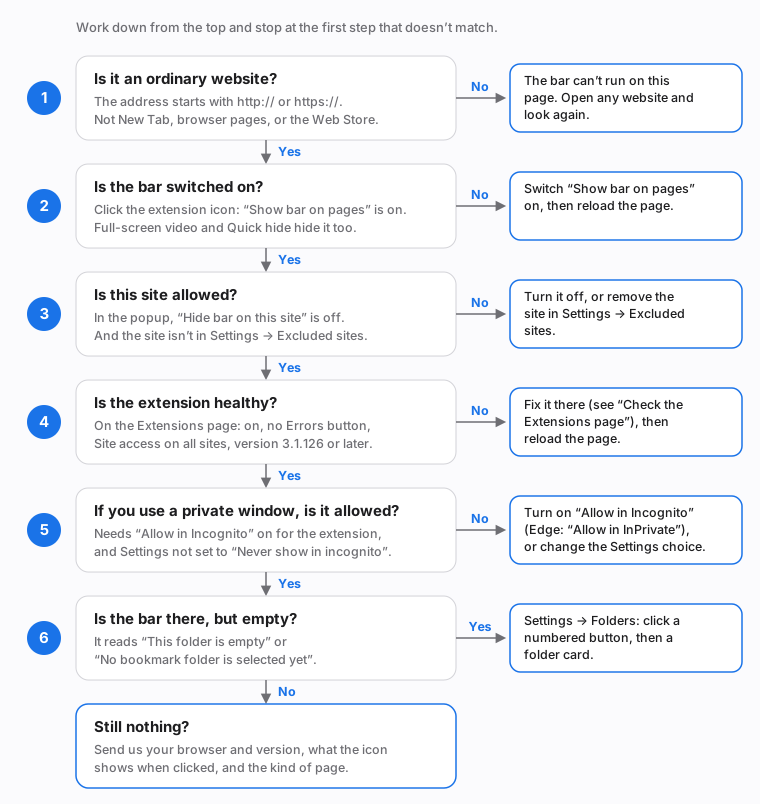
Most of the time, “installed it, nothing shows up” comes down to one of a handful of causes, and each takes under a minute to check. Work through the list below from the top. The picture after it shows the same order, so you can follow either one.
Start here
Do these in order and stop at the first one that doesn’t match what you see. After each change, reload the page.
- Open an ordinary website in a normal tab, such as any news site. The New Tab page and the browser’s own pages never show the bar. More on this.
- Click the extension’s icon in the toolbar and check that Show bar on pages is on. If the icon isn’t there, click the puzzle-piece button next to the address bar and pin the extension. If the popup says Not available on this page, you are on a page where no extension can draw a bar, so go back to step 1. More on this.
- Check the site itself. In the same popup, Hide bar on this site should be off. More on this.
- Open the Extensions page and check the extension is switched on, has no Errors button, has Site access set to On all sites, and is version 3.1.127 or later. More on this.
- Using a private window? The extension has to be allowed there. More on this.
- Is the bar there, but empty? Then it just needs a folder. More on this.
Pages where the bar can never appear
The bar is added to ordinary web pages, the ones whose address starts with http:// or https://. Browsers don’t allow any extension to add anything to their own pages, so on these the bar is simply not there, and nothing is broken:
- The New Tab page, in both Chrome and Edge.
- Browser pages such as
chrome://extensions,chrome://settings,edge://settingsandabout:blank. - The Chrome Web Store.
- The developer tools window itself. The page you are inspecting still gets its bar.
- Local files opened from your computer (addresses starting with
file://). The bar does not run on these even if you allow the extension to access file URLs. - PDF documents shown in the browser’s built-in PDF viewer. The bar stays out of PDFs on purpose, because adding a bar to that viewer can leave the document blank.
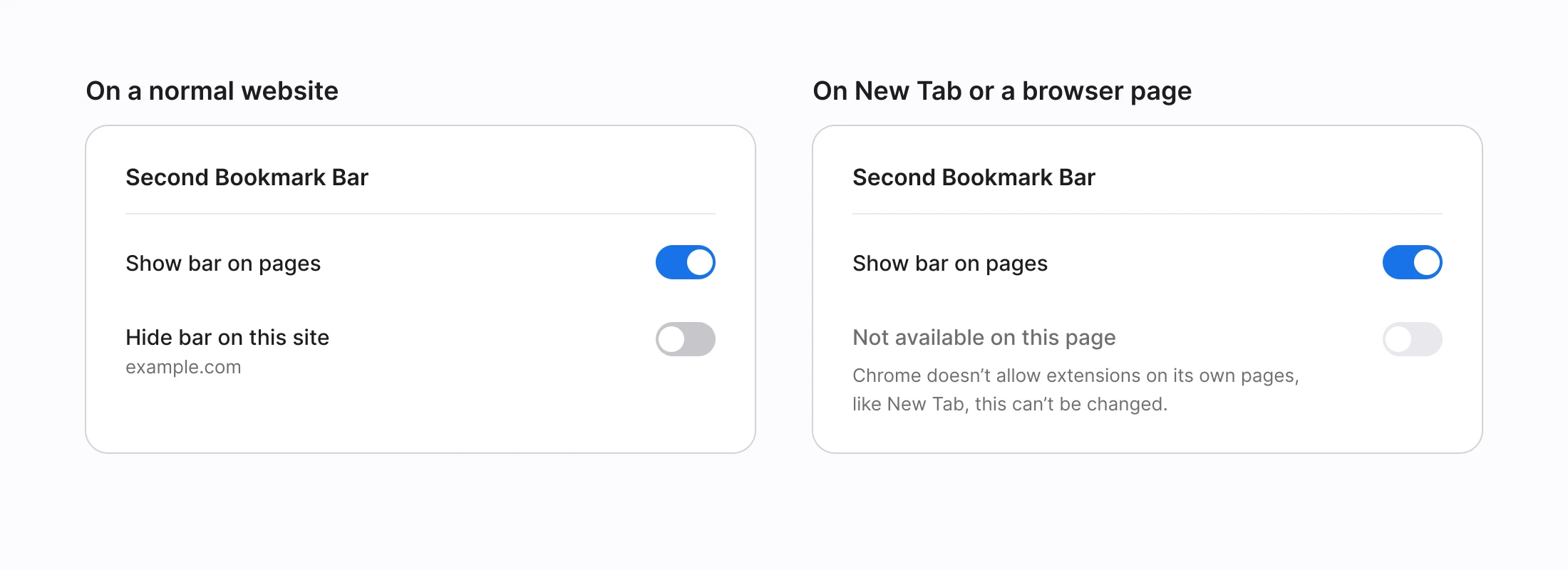
On New Tab, browser pages, the Web Store and local files, the toolbar popup tells you straight away: the site row reads Not available on this page, with a note that Chrome doesn’t allow extensions on its own pages, like New Tab.
"The bar disappears when I open a new tab": this is the New Tab page in the list above. The popup's Show bar on pages switch can still look on there, but it can't do anything on that page. There's nothing to turn back on: open any ordinary website and the bar is there again. (If you did switch it off while troubleshooting, switch it back on.)
The bar has been hidden
Four things hide the bar on purpose. Each one is easy to trigger without noticing.
- The main switch. Click the extension’s icon and turn Show bar on pages on. The same switch lives in Settings → Bar setup, called Secondary bar visible. It applies to every page and every window.
- The show/hide shortcut. There is a shortcut called Show or hide the bookmark bar. It has no keys assigned until you assign some, at
chrome://extensions/shortcuts, so it can only be a cause if you set it up. Pressing it flips the main switch above, so press it again, or use the popup, to bring the bar back. See every keyboard shortcut. - Quick hide. In Settings → Quick hide you can choose a key combination (Ctrl+Shift with
.,,or/; Cmd+Shift on a Mac) that hides the bar on the page you’re looking at. It starts switched off. Press the same keys again to bring the bar back, or reload the page. - Full-screen. When a video or a page goes full-screen using its own full-screen button, the bar steps out of the way, and comes back when you leave full-screen.
The site is on the excluded list
If the bar shows on most sites but not on one, that site is probably excluded.
Seven Google properties are excluded when you install, because a second bar tends to get in the way of tools that already use every pixel: meet.google.com, gemini.google.com, aistudio.google.com, console.cloud.google.com, accounts.google.com, docs.google.com and drive.google.com. You can remove any of them if you’d like the bar there.
To check and change it:
- Click the extension’s icon. If Hide bar on this site is on, switch it off.
- Or open Settings and choose Excluded sites on the left. Find the site in the list and remove it. An entry for a domain also covers its subdomains, so
example.comcoversmail.example.comtoo. - If the popup says Hidden here by a path rule, the site has a rule for just one part of it. Remove that rule under Settings → Excluded sites.
Two less obvious causes on the same page:
- Show the bar only on these sites. If you switched the mode to this, the bar is hidden everywhere that isn’t on your list. An empty list means it is hidden everywhere, and Settings warns you about it. Add the sites you want, or switch back to Show the bar everywhere except.
- A work computer. An IT administrator can keep the bar off certain sites through a managed policy. Those sites stay off whatever your own list says.
The full picture, including path rules, is in Hide the bar on some sites. To open Settings, click the extension’s icon and choose Open settings, or right-click the icon and choose Options.
Check the Extensions page
Open chrome://extensions (in Edge, edge://extensions) and find Second Bookmark Bar. Click Details for the full list.
Is it switched on? The switch on its card should be on. If the card shows a warning or an Errors button, that’s worth noting down for us.
Site access. Under Site access, the choice should be On all sites. With On click or On specific sites, the browser blocks the extension on any page you haven’t allowed, so the bar can’t appear there until you allow it (or switch to On all sites).
Version. The Details page shows the version number. It should be 3.1.127 or later.
Version 3.1.125: the package we published on 17 September 2026 was the wrong build. It installed without any error but never showed the bar. That was our mistake, fixed in version 3.1.127. If you see 3.1.125 (or 3.1.126), the steps below get you the fixed version.
Updating: ask for the new version now
Browsers update extensions on their own, but on their own schedule. You don’t have to wait for it. The five steps below take under a minute and work in both browsers — although the two controls you need sit in different corners in each.
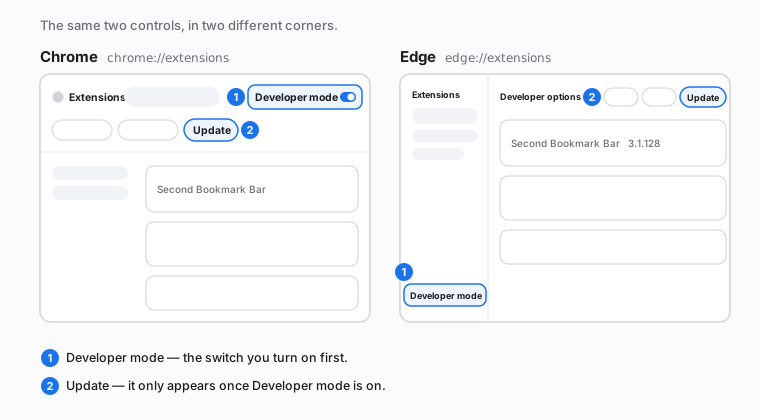
- Open the Extensions page. Type
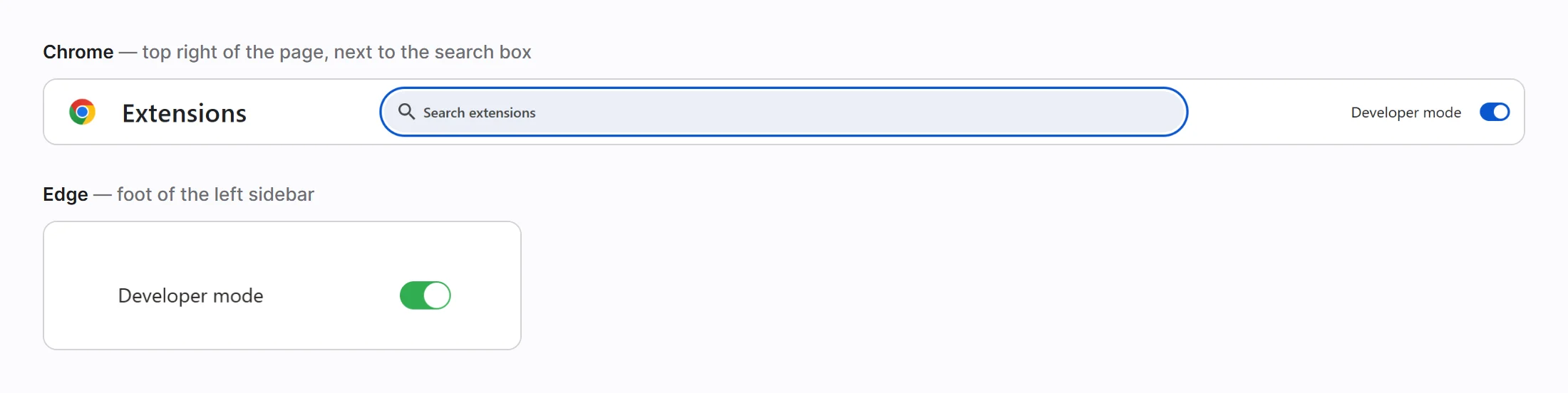
chrome://extensionsin the address bar and pressEnter— in Edge,edge://extensions. These addresses have to be typed; a browser won’t follow a link to one. You can also click the puzzle-piece button next to the address bar and choose Manage extensions. - Turn on Developer mode. In Chrome the switch is at the top right of the page, on the same row as the search box. In Edge it’s at the foot of the left sidebar. Click it on.
- Click Update. The button only exists while Developer mode is on. In Chrome it’s the third button in the row that has just appeared under the search box. In Edge a Developer options row appears above the list, with the same three buttons at its right-hand end.
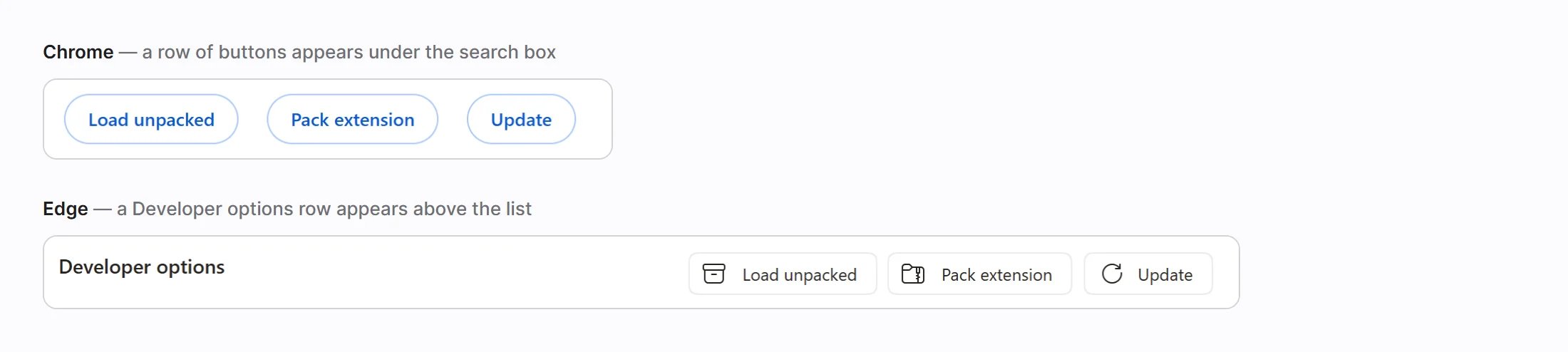
Chrome puts a short Extensions updated message at the bottom of the page. That only means the check ran, not that anything was downloaded, so check the version next.
- Check the version. With Developer mode on, Edge prints the version next to the extension’s name. In Chrome, click Details on Second Bookmark Bar’s card and read it there. It should now be 3.1.127 or later.

- Reload the page the bar was missing from. Go back to that tab and press
F5(orCtrl+R;Cmd+Ron a Mac). A page that was already open keeps running the old version until it reloads, so this step is the one people skip and then think the update didn’t work.
If the version hasn’t moved, wait a minute and click Update again. A browser that has just started, or one that has been offline, can take a moment before it will fetch anything.
You can switch Developer mode off again afterwards. It changes nothing about how the bar works — it only decides whether those three buttons are on the page.
Private windows (Incognito and InPrivate)
Browsers leave extensions off in private windows until you allow them. To allow it, open the extension’s Details on the Extensions page and turn on Allow in Incognito (in Edge, Allow in InPrivate).
There’s also a choice inside the extension. Open Settings → Quick hide and look at Incognito windows:
- Same as normal follows your excluded-sites list. This is the default.
- Always show in incognito ignores the excluded list inside private windows. (It does nothing in the “only on these sites” mode, where your list decides.)
- Never show in incognito keeps private windows free of the bar. If the bar is missing only in private windows, check that this isn’t selected.
The bar is there, but empty
If the bar appears but says This folder is empty or No bookmark folder is selected yet, or the popup says No folder selected, no folder is assigned to the button you’re on. A fresh install normally fills the bar with starter folders, so this is rare. To pick one:
- Open Settings and choose Folders.
- Click a numbered button, then click a folder card. You can also drag a folder card onto a button, or press Use default folder.
The bar shows a link to Settings when it’s in this state. Install and first setup walks through the same screen.
Chrome’s own bookmarks bar is separate
Chrome’s built-in bookmarks bar and this bar are two different things. The second bar is drawn at the top of the web page itself. Showing or hiding Chrome’s own bar (Ctrl+Shift+B, Cmd+Shift+B on a Mac) doesn’t turn it on or off, and the extension can neither see nor change that setting. If Chrome’s bar is off and you can’t see the second bar either, the cause is one of the ones above.
Still stuck?
Contact us and include three details. They let us find the cause much faster:
- Your browser and its version, for example Chrome or Edge plus the number. Type
chrome://versionin the address bar (edge://versionin Edge) to see it. Please add the extension’s version from the Extensions page too. - What the extension’s icon shows when you click it: the two switches, the folder name, or a message such as Not available on this page.
- The kind of page where the bar is missing: a normal website (which one), the New Tab page, a private window, and so on.