Most “bookmark tips for developers” posts give you ten disconnected suggestions and leave the actual assembly to you. This isn’t that. This is the specific setup I use — slot by slot, with the reasoning for each one — because I’m the developer who built this extension, and I use it the same way every day I’m writing code.
The layout: three slots, three jobs
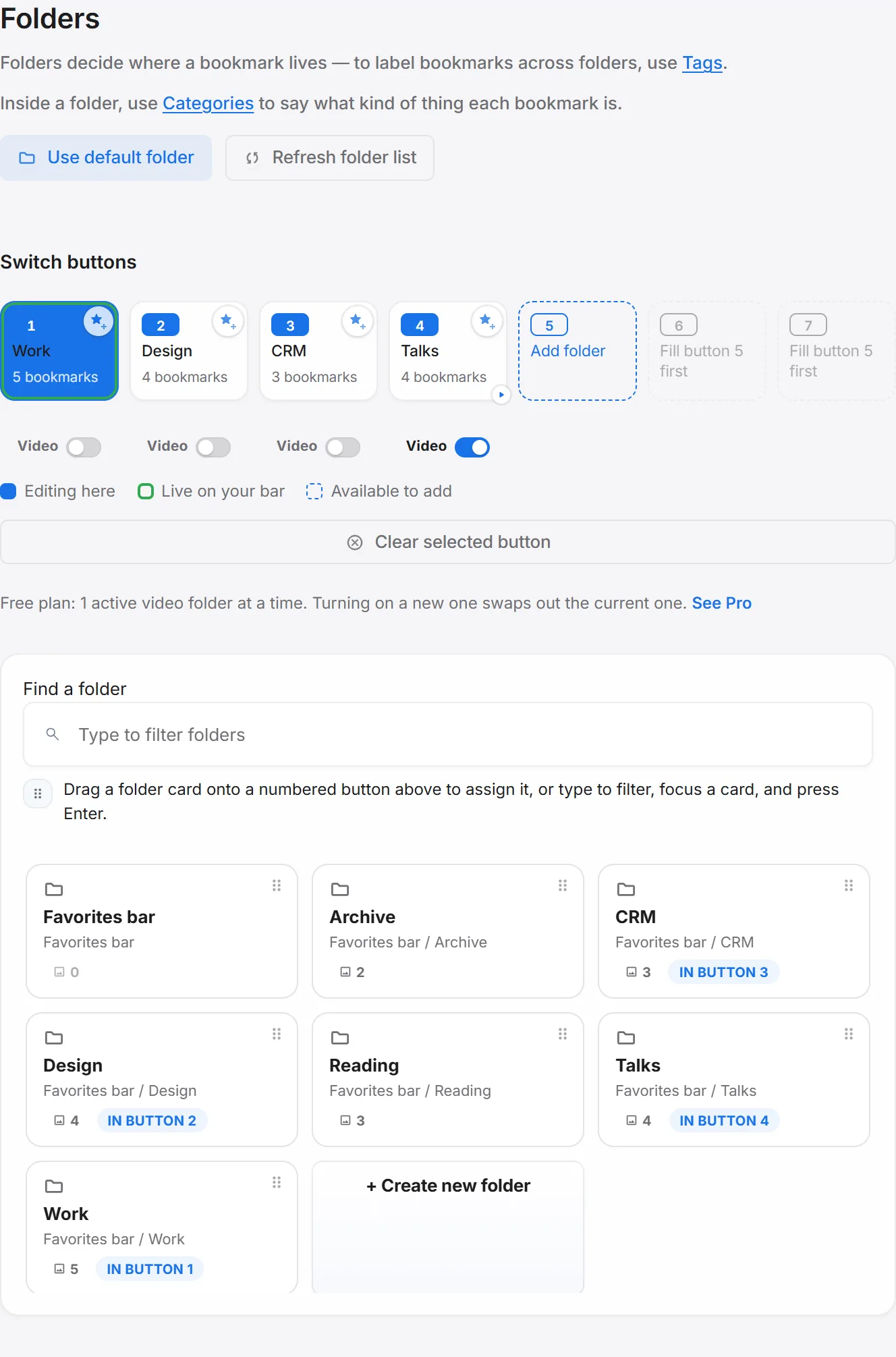
Second Bookmark Bar gives you up to seven quick-switch folder slots, each with its own icon so you can tell them apart at a glance (pick from the built-in Material Symbols icon set rather than relying on plain numbers). For development work, three slots do most of the job:
- Slot 1 — current project. Repo, local dev URLs, the specific tickets or docs I’m touching right now. When I’m juggling more than one project at once, each browser window keeps its own active folder independently, so window A can sit on project A’s slot while window B sits on project B’s — no shared global state fighting between them.
- Slot 2 — docs and references. Language docs, framework references, Stack Overflow threads I keep coming back to, API references for whatever I’m integrating this month. This one barely changes week to week, which is exactly why it earns a permanent slot instead of living in browser history.
- Slot 3 — dashboards. Cloud consoles, CI pipeline status, monitoring, deploy logs — the pages I check without really “browsing” to them, just glancing at status and leaving.
Alt+1, Alt+2, Alt+3 jump straight to these three from the keyboard, which matters more than it sounds like it should. If switching slots takes a mouse trip, you stop doing it, and the whole setup quietly degrades back into one crowded folder.
Adaptive rules so slots switch themselves
Beyond the manual jump, adaptive domain switching means the bar can pick the right slot for you based on where you are:
github.com(or your git host of choice) → project slot- Documentation domains → references slot
- Your cloud console’s domain → dashboards slot
A small star indicator on the slot switcher shows when a site-based rule is what put you there, rather than a manual choice — worth knowing, because manual override always stays available. If a rule sends you to the wrong slot for some edge case, clicking a different slot number just overrides it for that tab; the rule doesn’t fight you for control.
Search and memory ranks for “I know it’s a docs page somewhere”
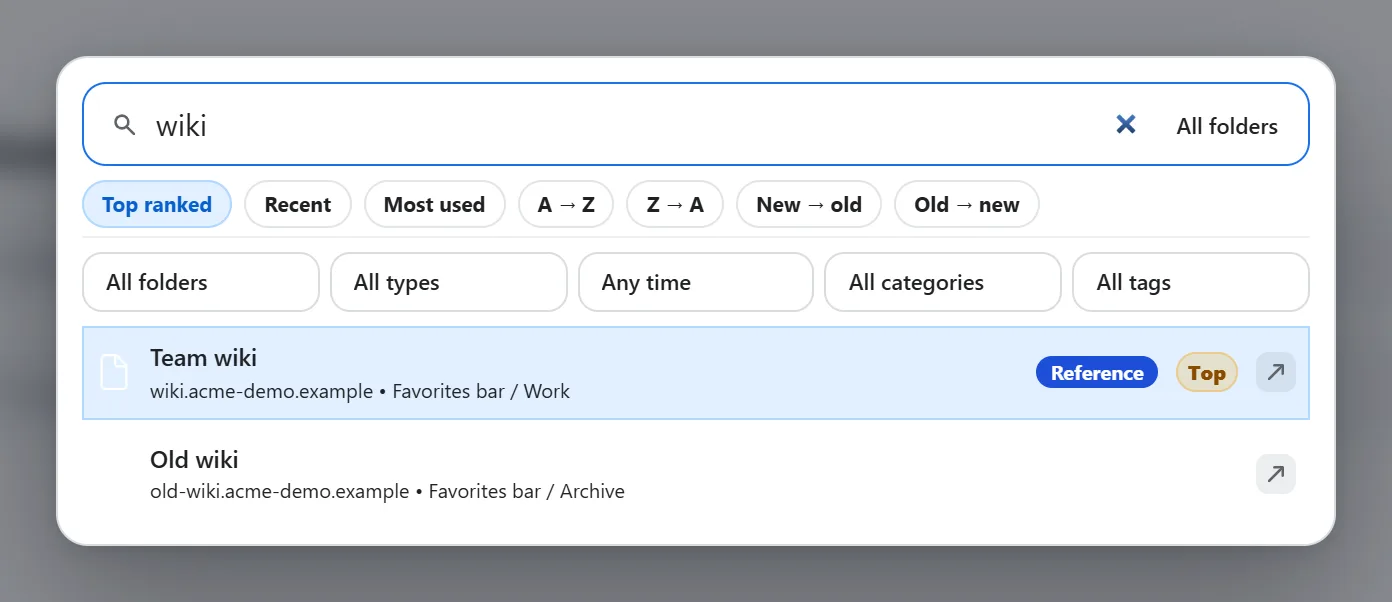
The in-bar search includes folder and domain context in results, which matters for the specific way developers lose track of pages — you remember it was some docs site, or that you saved it while working on this feature, but not the exact title. Search surfacing “which folder, which domain” alongside the result title turns “I know it’s around here” into an actual retrieval instead of a guess.
For the references pile specifically, right-click and rank a bookmark Low, Mid, or Top. In practice: Top is the reference you’d be stuck without (the one weird internal API’s actual doc page), Mid is “useful, consult occasionally,” Low is “saved for now, maybe never opens again.” That ranking surfaces in search too, so the pages you’ve marked Top don’t get lost once a references folder has grown to eighty links over a year.
Snapshotting a debugging session
Mid-debug, ten tabs open across different services’ logs and a couple of GitHub issues — Ctrl+Shift+A sweeps every open tab in the window into the active folder in one shot. I use this constantly right before closing a debugging session for the day: sweep into the project slot, close the tabs, and pick the investigation back up from the folder instead of trying to remember which combination of ten tabs I had open. The same shortcut works for any kind of tab pile, not just debugging — it’s the general fix for “too many tabs open to close them yet.”
The part that makes this setup portable
Here’s the actual kicker, and it’s the reason I bothered writing this up as one setup instead of a features list: settings export includes the folder slot configuration itself, not just cosmetic preferences. Export creates one backup file with your slot assignments, adaptive site rules, excluded sites, and quick-hide shortcuts all included — so this exact three-slot layout, rules and all, is something you export once and reimport on a new machine or after a reinstall, instead of rebuilding it from memory every time.
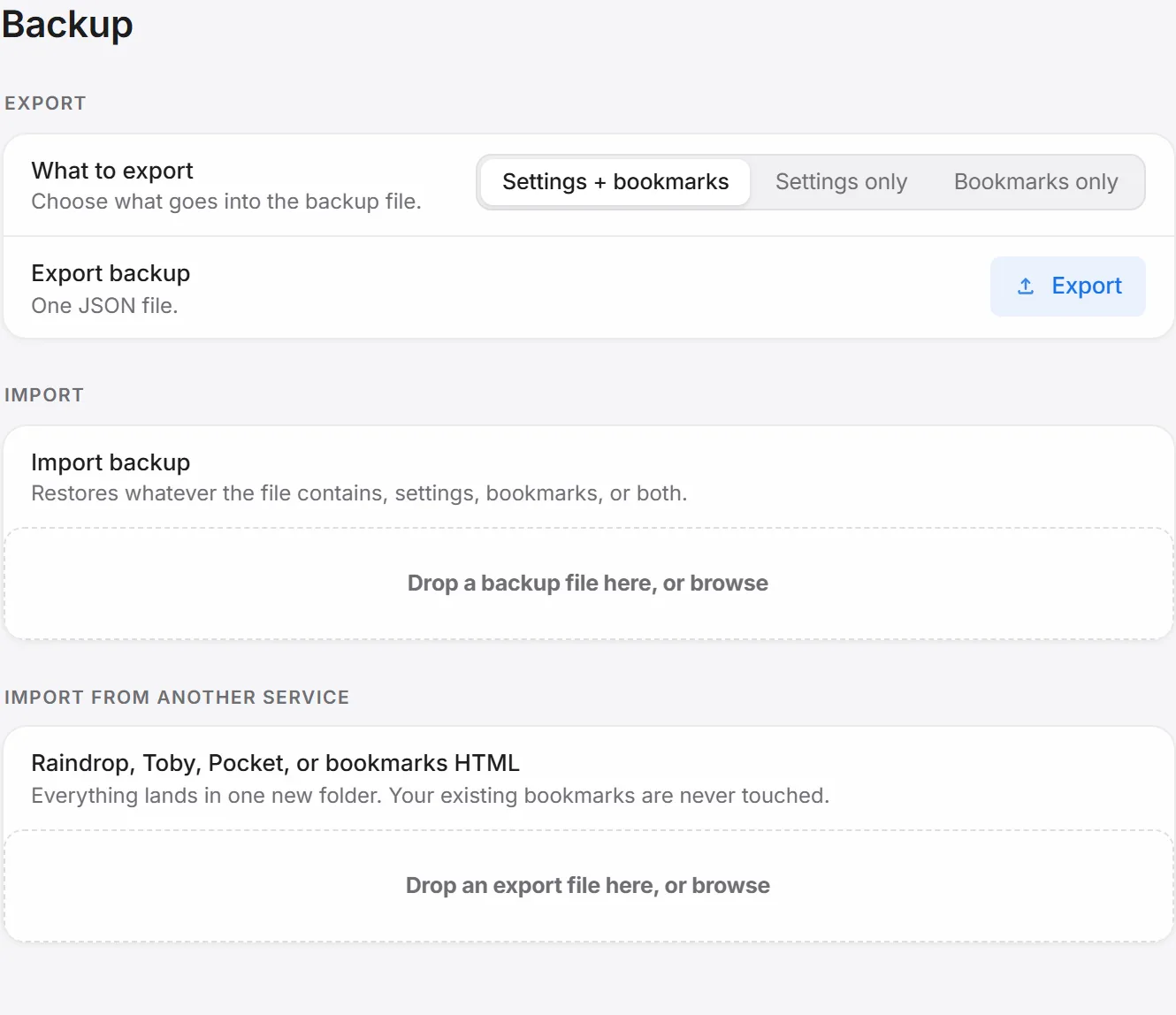
That’s the difference between a setup you describe in a blog post and a setup you can actually hand yourself later. Copy the three slots above, wire up the adaptive rules for your own tool domains, and you’ve got a layout that took ten minutes to build the first time and travels with you from here on — new laptop, reformatted machine, second monitor rig at the office, doesn’t matter.
What a day actually looks like with this running
Morning starts on slot 3 — a glance at overnight CI runs and monitoring, no active browsing, just status. Open the editor, switch to a project’s repo, and the adaptive rule already has slot 1 showing before you’ve touched the keyboard. Hit a wall on something unfamiliar mid-morning, jump to slot 2 for the framework docs, Alt+1 back to slot 1 the moment you’ve got the answer. None of those are conscious “let me go find my bookmarks” moments — each one is a single keypress or an automatic switch that already happened by the time you looked up.
The point isn’t that any single piece of this is complicated. It’s that a static, single-row bookmarks bar makes you choose between cramming all three contexts into one crowded list or not bookmarking half of it at all, and most people quietly pick the second option and just retype URLs instead. Three slots removes that choice entirely — there’s always a place for it, and it’s never more than a keypress away.
Why this is worth setting up deliberately
The alternative most developers default to is browser history and muscle memory: retyping localhost:3000, hitting the back button until the right Jira ticket shows up again, keeping fifteen pinned tabs that survive until the next crash wipes them. That works until it doesn’t — a new machine, a bad week, a context switch between three projects in one afternoon — and the cost shows up as five minutes of hunting instead of one click. Three slots and a couple of domain rules is a small setup cost against that.
If splitting contexts by domain sounds useful beyond just development work — work versus personal, or one client versus another — the adaptive-switching feature covers that more generally than the developer-specific version above. And if you’re still deciding whether the free plan covers a setup like this at all, it does — nothing described here needs Pro.