Your tab strip is a bookmark bar with no memory and a RAM bill. Every tab you’re keeping open “just in case” is a bookmark you haven’t made yet, sitting there using memory, waiting for a browser crash or an accidental window close to take it with it. If you’ve got twenty-plus tabs open right now for exactly that reason, this is the fix — and it’s one keyboard shortcut, not a new habit you have to build.
Jump straight to the steps in Save all tabs, or set the shortcut itself if you just want the keybinding.
What Chrome already does
Chrome has a native way to bookmark every open tab: Ctrl+Shift+D. It opens a naming dialog, asks what to call the new folder, and drops that folder into your bookmarks — usually wherever your last-selected bookmark folder was, or the bookmarks bar root if nothing else is set.
It works, but it has real friction. You have to name the folder on the spot, mid-task, which is exactly the moment you don’t want to stop and think of a name. And once it’s saved, the result is easy to lose — it’s one more folder buried in a tree you already have to dig through, not something that lands anywhere visible unless you go looking for it.
The one-shortcut version
Second Bookmark Bar’s Ctrl+Shift+A (Cmd+Shift+A on Mac) does the same core job — every open tab in the window, saved as bookmarks — with one difference that matters: the destination is already chosen. A panel opens, but your active folder, the one already showing on the second bar, is preselected in it, so Enter commits and you’re done. Two keystrokes, no name to invent. The tabs you just swept land somewhere you were already going to look, because it’s the folder that’s already sitting on your bar.
That one difference is the whole point. Chrome’s version makes you name a new folder on the spot and then files it into the bookmark tree, somewhere. This one defaults to the folder you’re already using, and only asks for a name if you want one.
Because the panel exists, a few other things fit into the same two keystrokes rather than needing their own feature. It tells you how many tabs it’s about to save and how many it’s skipping (pinned tabs, chrome:// pages) before anything happens. It offers a New folder whose name is prefilled with today’s date, for when a dated pile genuinely is what you want. It has a Close tabs after saving checkbox, shown every single time rather than hidden in settings, so a sweep is never silently destructive. And the confirmation carries an Undo that removes every bookmark it just created and reopens any tabs it closed.

Real ways to actually use this
- End-of-day sweep. Before closing the laptop,
Ctrl+Shift+Ainto a “Later” slot instead of leaving fifteen tabs open overnight. Tick Close tabs after saving and tomorrow the tabs are gone; the links aren’t. - Research session capture. Mid-research with a dozen tabs open across sources, sweep the whole set into a project folder — or into a fresh dated one, which the panel offers by default — in one shot instead of bookmarking them one at a time as you go.
- Pre-restart save. About to update Chrome, or your machine’s been sluggish for an hour and a restart is overdue — sweep first, restart without the “wait, what was I reading” moment afterward.
Pair this with already-saved awareness: if you run the same sweep twice in one session — you Ctrl+Shift+A, keep working in some of the same tabs, then sweep again later — Second Bookmark Bar recognizes pages that are already saved instead of quietly creating duplicates. It’s worth being honest that sweeping isn’t the same as organizing, though: saving forty tabs you’ll never read again is still hoarding, just with a folder icon on it instead of a crowded tab strip. Once they’re saved, going back through with duplicate cleanup and Low/Mid/Top ranking is the part that actually turns a tab dump into something usable later.
What this doesn’t replace
It’s worth being clear about what Ctrl+Shift+A is and isn’t. Chrome also has tab groups, which are genuinely useful for organizing tabs while they’re still open — color-coding a set of tabs you’re actively working through in a single session. That’s a different job. Tab groups die with the window (or at best survive a session restore) and were never meant to be permanent; bookmarks are the thing that’s still there next week, next month, on a different machine after a fresh install. Groups are for the next hour. A folder is for the rest of the project.
That’s also why sweeping into the active folder matters more than it first sounds. If tab groups already tell you which tabs belong together, sweeping that window’s tabs into whichever slot matches that context turns a temporary grouping into a permanent one with the same shortcut you’d use anyway — you’re not choosing a destination on top of everything else, the destination is just wherever your bar is already pointed.
The rest of the keyboard surface
Ctrl+Shift+A isn’t the only shortcut worth setting up. Chrome lets you assign your own keys to Second Bookmark Bar’s commands at chrome://extensions/shortcuts — focusing search, quick-saving the current page, and showing or hiding the bar are all there, unbound out of the box, so pick whatever combo is free and fits your hands. Beyond that, Alt+1, Alt+2, and Alt+3 jump straight to your first three folder slots by default, and quick-hide has its own assignable shortcut in settings, separately for Windows and Mac — nothing bound there either until you set one — for hiding the whole bar in an instant when you need it gone.
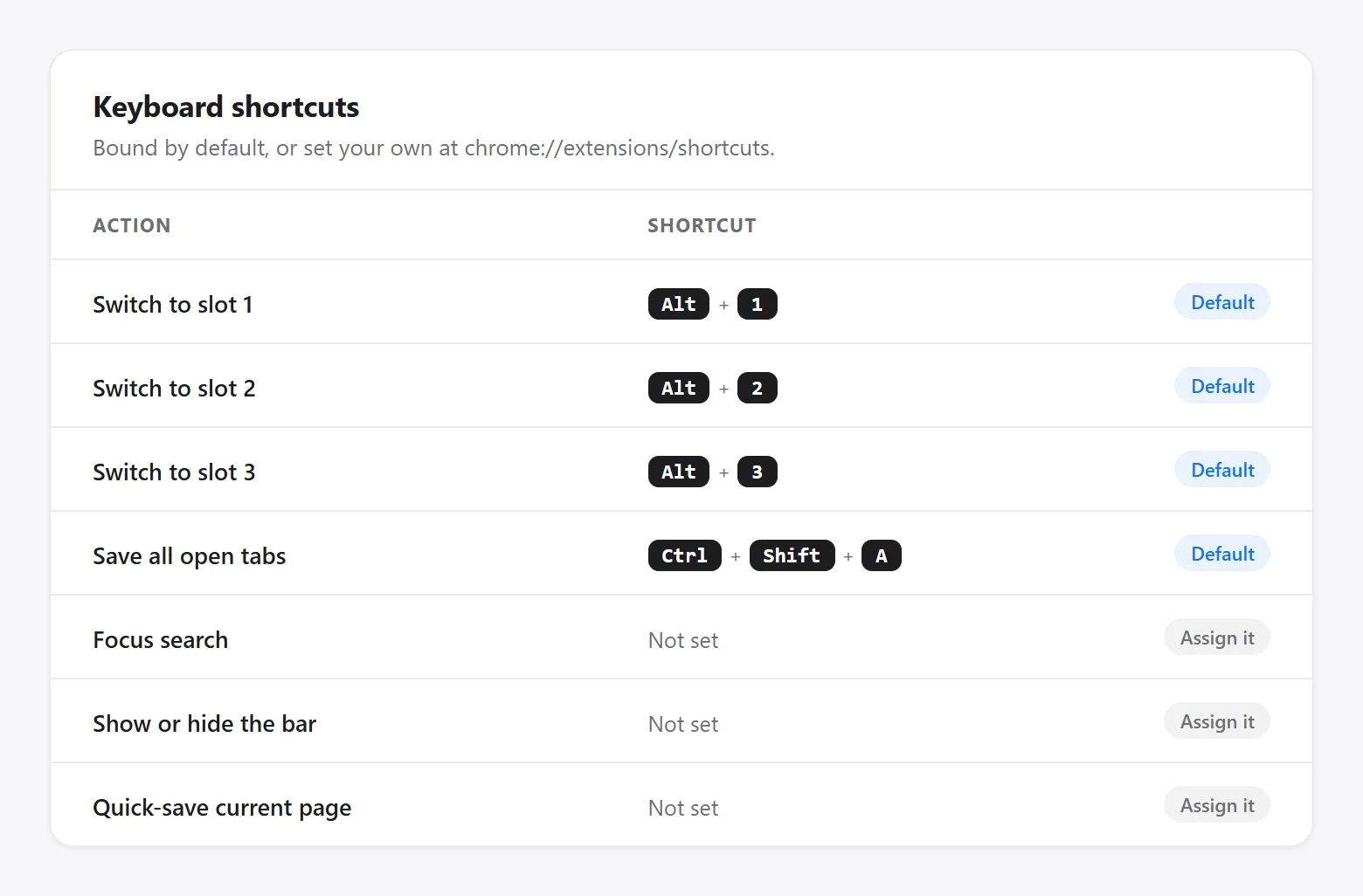
None of this replaces actually deciding what to keep — that’s still on you. What it removes is the friction of getting tabs out of the tab strip and into a folder in the first place, which for most tab hoarders is the step that never happens because it always feels like too much clicking for what should be one motion. If keeping those saved tabs sorted by context rather than one long pile is the next problem, splitting work and personal (or per-project) tabs into separate quick-switch folders is the natural next step once the sweep habit is in place.