Chrome profiles are an identity-separation tool that a lot of people abuse as a bookmark-separation tool — and then pay the tax for it every single day.
I want to say that carefully, because profiles are a genuinely good feature for what they’re built for: keeping your work Google account’s cookies, extensions, and sign-in state fully isolated from your personal one. If your company requires that separation for compliance reasons, or your work account is managed by an IT policy that pushes extensions and bookmarks you don’t control, profiles are the right answer and nothing I’m about to say changes that. Use them. Don’t let a blog post talk you out of a control your employer requires.
Ready to try the one-window version instead? Quick-switch slots covers the setup.
But most people reaching for profiles aren’t solving an identity problem. They’re solving “I don’t want my work links and my personal links in the same bookmarks bar,” and profiles solve that by giving you two of everything: two windows, two separate login sessions, two sets of extensions to keep in sync, and a constant question of which window you’re even in right now. That’s a real cost, paid daily, for a problem that’s really just about where bookmarks live.
What Chrome profiles actually cost you
To be fair to the alternative before proposing one: switching profiles in Chrome means switching windows (or at minimum, Chrome re-rendering as a different identity), which means:
- Every extension you rely on has to be separately installed or separately signed into per profile, if it needs an account.
- Tabs open in one profile don’t exist in the other — no quick glance across contexts without a full window swap.
- You’re logged into work Google services in one window and personal ones in the other, which is exactly the point of profiles, but also means “quickly check something” turns into “which window has that logged in.”
- Muscle memory breaks. Cmd/Ctrl+Tab cycles tabs within a window, not across profiles — so a work-then-personal-then-work rhythm means repeatedly reaching for the profile switcher in the corner.
None of that is a flaw in Chrome’s design. It’s the honest cost of true isolation, and for people who need isolation, it’s worth paying. For people who just want two bookmark sets, it’s overkill.
The middle path: quick-switch folder slots
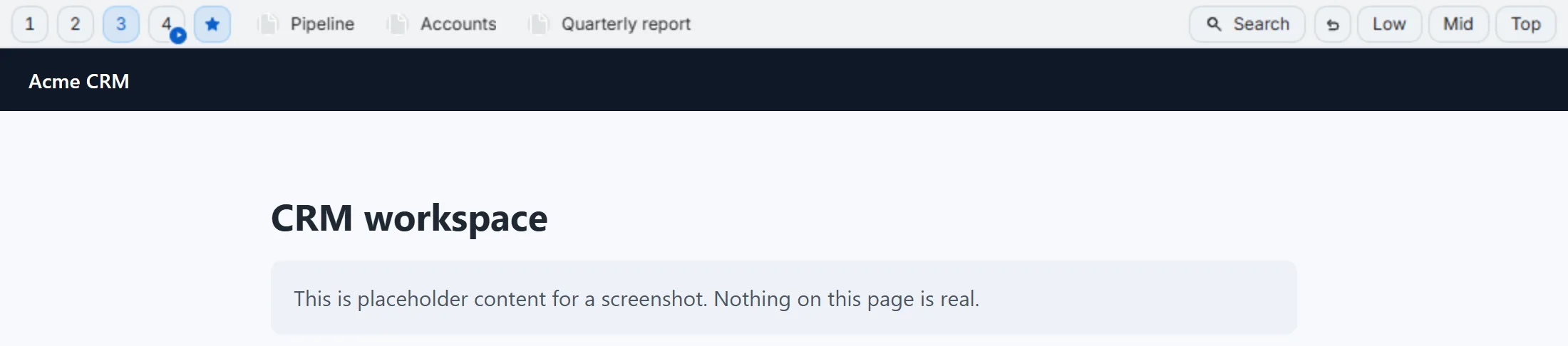
Second Bookmark Bar adds a second row with up to seven quick-switch folder slots, each with its own icon. Put work bookmarks in slot 1, personal in slot 2, and switching between them is one click on the slot switcher — or Alt+1 / Alt+2 from the keyboard — in the same window, with the same tabs, the same logged-in sessions you already have open.
This isn’t folder-nesting dressed up as something new. It’s closer to what a physical desk does: one drawer for work stuff, one for personal stuff, both in the same room, both reachable without getting up. You’re not maintaining two browsers-inside-a-browser. You’re maintaining two folders and a switcher.


A day with slots instead of profiles
Here’s roughly what that looks like in practice. Slot 1 is work — issue tracker, staging dashboard, the docs site I check ten times a day. Slot 2 is personal — a couple of recipe sites, my bank, a reading list. Slot 3 is a side project I only touch a few evenings a week. All three are one click apart, in one window, with one set of open tabs. When a work Slack thread references a doc I need, I don’t open a new window and lose my place — I click the slot, grab the link, click back. The whole detour costs less time than reading this sentence took.
Compare that to the profile version of the same moment: switch profiles (a few seconds of Chrome re-rendering, sometimes a flash of “restoring session”), find the right tab in a window that doesn’t have the personal tabs I had open a second ago, then switch back the same way. It’s not that either step is slow on its own — it’s that it happens dozens of times a day, and dozens of small frictions is where an afternoon actually goes.
Adaptive switching: the bar does it for you
The quick-switch slots solve the “I want to switch” case. Adaptive domain switching solves the “I forgot to switch” case — the more common failure mode in practice. Configure a rule so that visiting your CRM, your project management tool, or any work domain automatically flips the bar to your work folder; leave it on personal everywhere else. A small star indicator on the slot switcher shows when a site-based rule is active, so the automation stays visible instead of silently changing things behind your back. Manual override always stays available — the rule sets a default, it doesn’t lock you in.
That single behavior — bar follows the domain, not the other way around — is most of what people actually want from “separate work and personal bookmarks.” You open your work dashboard, work bookmarks are already there. You open a shopping site at lunch, they’re not.
For the reverse problem: excluded sites
Sometimes the goal isn’t switching folders, it’s showing no bar at all — a video call where a bookmark row would be visible to everyone on screen, for instance. Excluded sites hide the second bar entirely on specific domains; it ships with sensible defaults already excluded (meet.google.com, for one), and you can add your own. Pair that with the quick-hide shortcut — a user-assignable key with separate Windows and Mac bindings — for the “hide this in under a second” moment when a screen share starts and you didn’t plan ahead.
It’s worth naming why this matters for the work/personal question specifically: the failure case people actually worry about isn’t “my personal bookmarks are disorganized,” it’s “someone screen-sharing or looking over my shoulder sees a folder labeled with a client’s name, or a personal one they shouldn’t.” Excluded sites and quick-hide solve the visibility half of that worry directly, which profiles — for all their session isolation — don’t solve any faster than closing a window would.
When per-window folders are the actual fit
If your version of “work vs. personal” is really “this specific window is my personal one, that window is my work one” — say, you keep a dedicated window open for a side project — each browser window can carry its own independent active folder. That’s a lighter-weight version of profile isolation: separate folder state per window, same login session, same extensions, none of the profile-switching overhead.
The decision, honestly
| Chrome profiles | Quick-switch slots | |
|---|---|---|
| True account/session isolation | Yes | No |
| Compliance/managed-account requirement | Handles it | Doesn’t |
| Switch cost | New window, re-orient | One click / Alt+1 |
| Shared tabs across contexts | No | Yes, same window |
| Setup | Built into Chrome | Requires the extension |
| Best for | Separate identities that must stay separate | Separate bookmark sets within one identity |
If you need identity separation, use profiles — that’s not a close call. If what you actually want is your links sorted without leaving the window you’re already working in, quick-switch slots plus adaptive rules solve it without asking you to run two browsers side by side. It’s answered in short form in the site FAQ too, but this is the version with the reasoning attached.