You’re screen-sharing on a client call, someone asks you to pull up a doc, and there it is at the top of your browser — a bookmark named after a competitor, or a folder called “job search,” sitting in full view for the whole meeting. If you’ve had that moment, you’ve probably gone looking for a way to hide the bookmark bar on just the sites where it’s a problem, like your video-call tab, and left Chrome’s settings without finding one.
That’s not you missing a menu. Chrome genuinely doesn’t have that setting.
Second Bookmark Bar does — see every way to hide the bar on specific sites for the exact steps, including limiting an exclusion to just one path on a domain.
Why Chrome can’t do this per-site
Ctrl+Shift+B toggles Chrome’s bookmarks bar — but globally, everywhere, for every tab, all at once. There’s no per-site version because the bookmarks bar isn’t part of the page you’re looking at. It’s browser chrome: the frame Chrome draws around whatever site is loaded, the same category as the address bar and the tab strip. A website has no way to reach into that frame and turn it off for itself, and Chrome doesn’t expose a “hide on this domain” setting because the bar was never designed to vary by site in the first place. It’s one global switch, not per-tab state.
That’s a genuine limitation, not an oversight you can work around with a flag or a hidden setting — which is why “hide bookmark bar on certain sites chrome” keeps coming up as a search with no real native answer.
What Second Bookmark Bar can control instead
The second bar Second Bookmark Bar adds isn’t part of Chrome’s own browser chrome — it renders per-page, in an isolated iframe above the site’s content. That’s a real technical difference, and it’s what makes per-site hiding possible for this bar, even though it isn’t for Chrome’s native one.
Two ways to use that:
- Excluded sites. Add a domain to the excluded list in settings and the second bar simply doesn’t render there — no toggling required, it’s just gone every time you land on that site. Fresh installs already exclude seven domains by default —
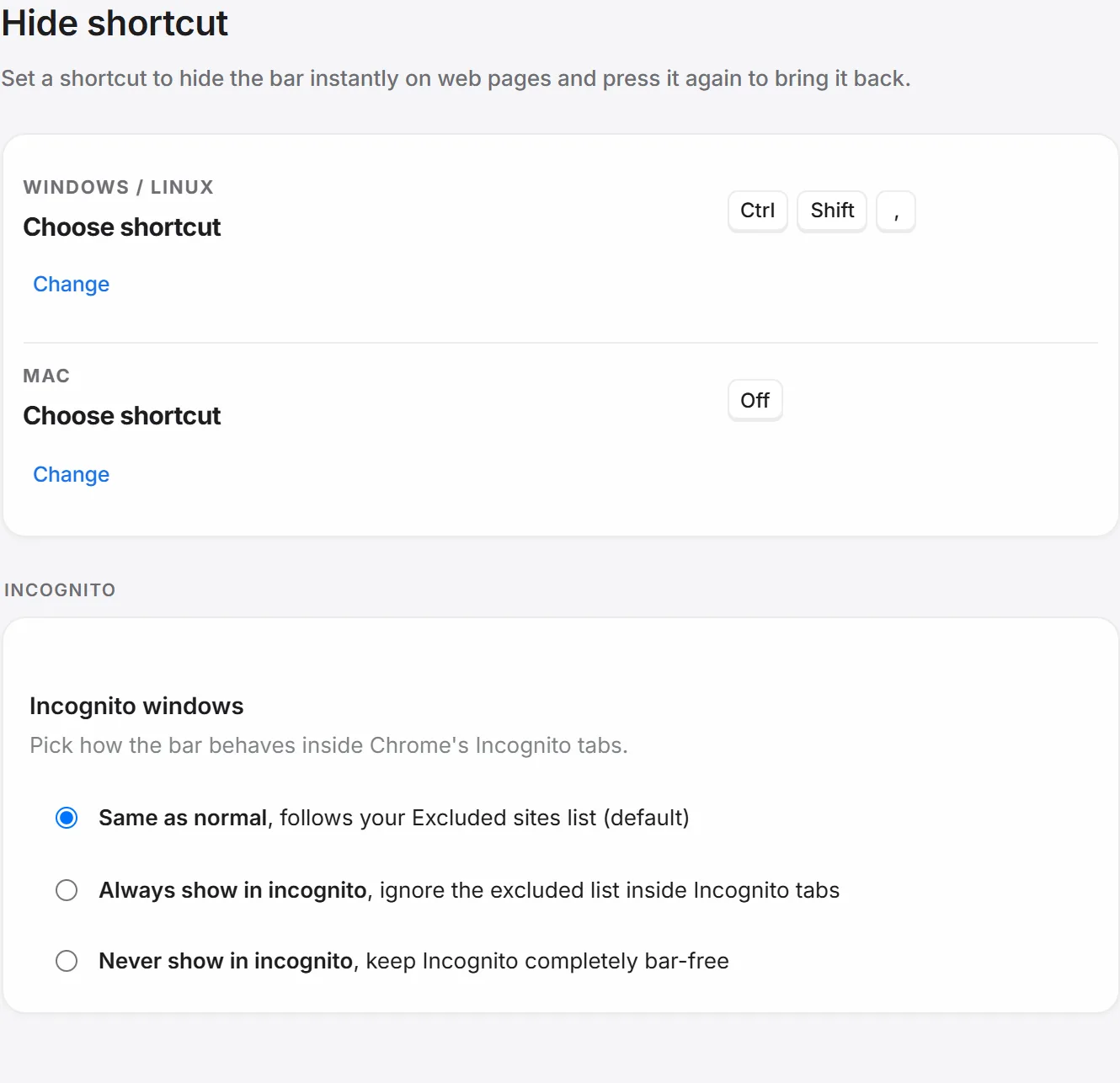
meet.google.com,gemini.google.com,aistudio.google.com,console.cloud.google.com,accounts.google.com,docs.google.com, anddrive.google.com— because a video call, an AI console, or a Google Doc showing the second bar mid-task turned out to be common enough friction to fix out of the box rather than leave for everyone to discover on their own. - Quick-hide shortcut. A dedicated keyboard shortcut you pick yourself in settings — with separate choices for Windows and Mac, since the two platforms don’t share the same comfortable modifier keys — hides the bar instantly and brings it back with the same key. This is the one for the moment excluded sites don’t cover: someone walks up to your desk, you’re about to share your screen unexpectedly, and you need the row gone in under a second without digging through a settings page.
Hide it on one part of a site, like Google Maps
Some of the sites you’d want the row gone from aren’t whole sites. Google Maps lives at google.com/maps, and excluding google.com would take the row out of Search, Gmail and Drive along with it — which is exactly the wrong trade if Maps was the only thing bothering you.
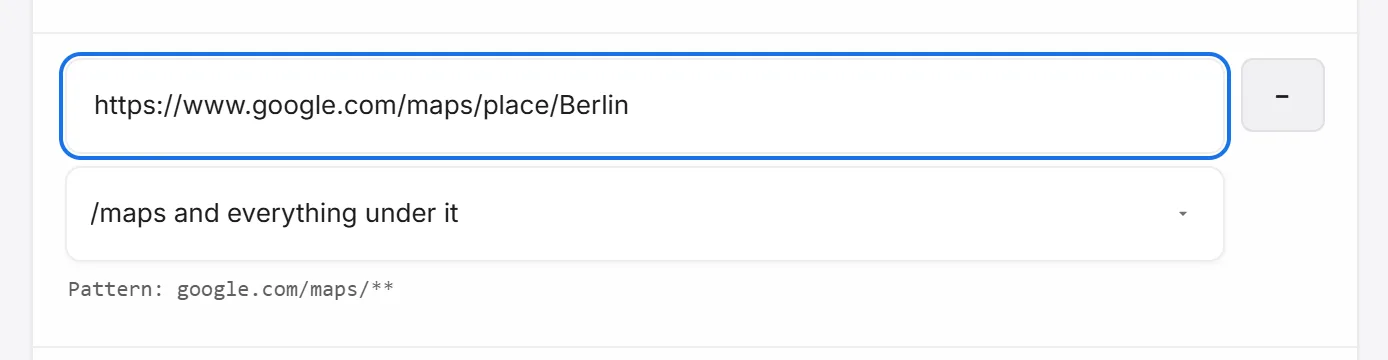
So an excluded entry doesn’t have to mean a whole site. Copy the address of the page you want it gone from, paste it into Settings → Excluded sites → Add domain, and press Enter. Instead of quietly saving google.com, the row asks how much of the site you meant, and offers the parts of the address you pasted — /maps and everything under it, then the deeper levels below that. Pick one and the row disappears on Maps while Search and Gmail keep theirs.
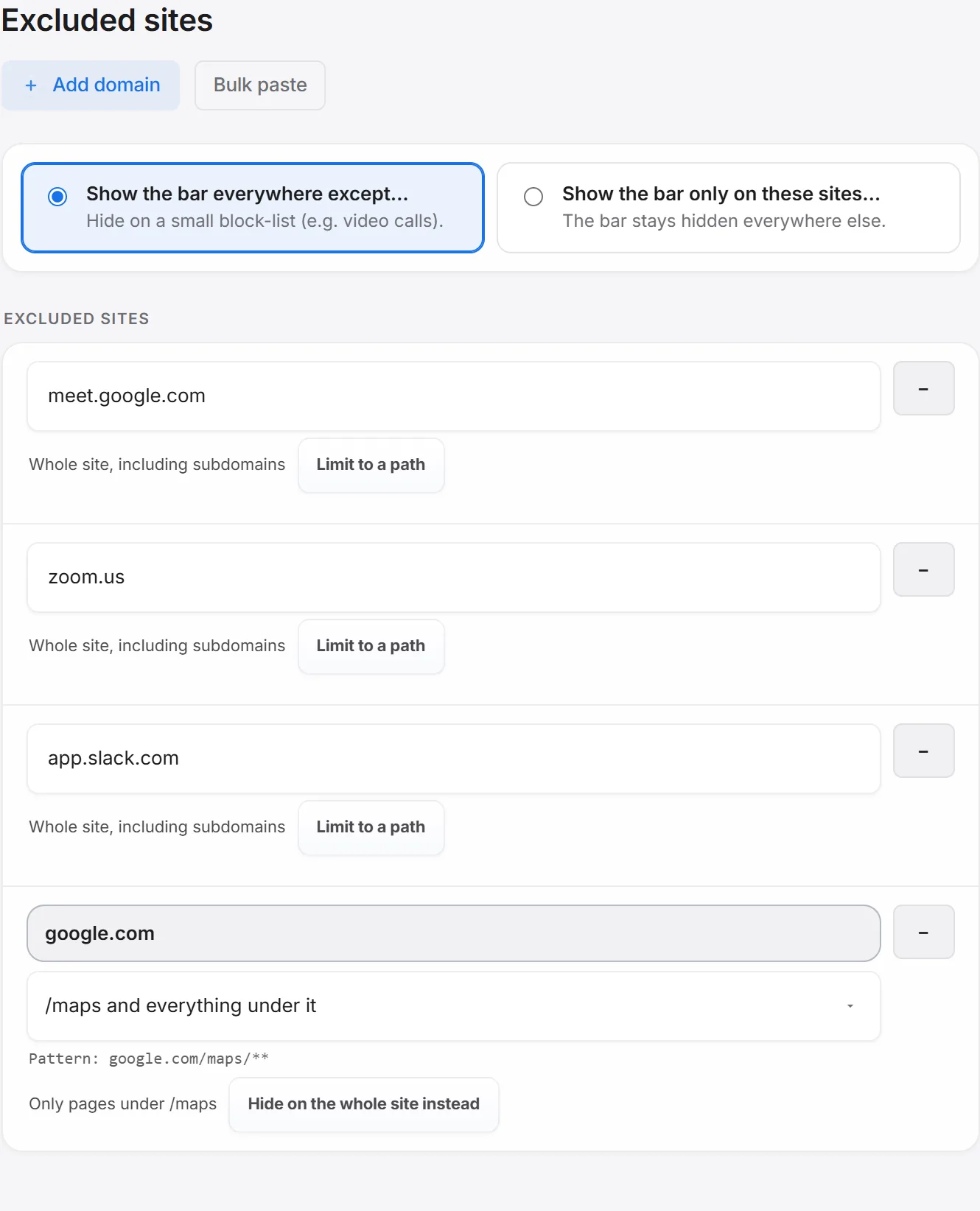
It works in both directions and it isn’t a one-time choice at the moment you paste. Any whole-site entry has a Limit to a path button if you decide later that you narrowed too little, and any path-limited entry has Hide on the whole site instead if you narrowed too much. Subdomains get the same treatment — docs.google.com/spreadsheets can be limited the same way google.com/maps can.
Why a row can even do this
A second bar that lives inside the page also has to reserve its space carefully so it doesn’t break modern app-shell layouts — profile menus, send buttons, and other bottom-of-page UI need to stay clickable instead of getting pushed off-screen by an extra row up top. That’s a real tradeoff of building the extra bookmark space as a row instead of a sidebar or a separate dashboard page, and it’s the same tradeoff that makes per-site show/hide possible in the first place — a page-level row can be turned off per page; a sidebar squeezing the whole layout usually can’t, cleanly. If you’re curious about that broader decision, I wrote up why a row won out over the other UI patterns bookmark tools use.
Set both up together
Because Second Bookmark Bar’s row and Chrome’s native bar are two separate pieces of UI, hiding one doesn’t hide the other. If you want a genuinely clean screen for something like screen-sharing:
- Add sites you routinely present or screen-share from (video call tools, your CRM if you demo from it) to Second Bookmark Bar’s excluded sites list, so its row disappears there automatically.
- Set your own quick-hide shortcut in settings for the moments excluded sites don’t anticipate.
- Pair that with Chrome’s own
Ctrl+Shift+Bfor the native bar, since that one still needs its own toggle.
Two shortcuts instead of one is a real asymmetry, not a bug I’m glossing over — the native bar is Chrome’s to control, and I can’t reach into that from an extension any more than a website can. What I can do is make the row I do control disappear exactly where and when you need it to, which for most people covers the actual problem: not a permanently hidden bar, just a bar that knows to stay out of the way on a handful of specific pages.
If keeping separate bookmark sets for different contexts — not just hiding the bar, but showing the right folder automatically depending on the site — is closer to what you actually want, that’s a deeper feature in its own right worth reading about. And if you’re still deciding whether a second row is worth adding to your bar at all, the case for it covers the space problem this same row solves the rest of the time.