You switched to Chrome, or you’re running both, and your bookmarks are still sitting in Safari. Chrome’s own import dialog has a Safari option right there in the list, so you click it, and nothing happens the way it should. Either the option is greyed out, or you pick it and get a vague success message with no actual bookmarks folder to show for it.
Every article I could find on “transfer safari bookmarks to chrome,” including a MacRumors piece from March 2021 that still ranks, teaches the same workaround: export from Safari as an HTML file, then import that file into Chrome. That works, and I’ll cover it below. But it’s a workaround for a problem those articles never explain, and understanding the actual cause is what makes the rest of your migration go smoother.
Why the direct import is greyed out
Chrome’s Safari importer isn’t fake, it’s real and built in. On macOS specifically, it depends on something none of the popular guides mention: Chrome needs Full Disk Access.
Safari’s bookmarks live inside ~/Library, and macOS has restricted apps from reading other apps’ data in that folder since Mojave. A Brave Community thread from March 2019 states the underlying mechanic plainly: “Safari’s bookmarks are stored in ~/Library, and that folder is restricted as of Mojave.” Chrome is just another app as far as macOS is concerned, so without an explicit grant, it can’t see into Safari’s data at all, and its import dialog quietly greys out the option instead of explaining why.
A MacRumors thread from April 2026 has a user describing the exact same confusion, six years after the restriction shipped: “I never understood why you couldn’t import Safari bookmarks into Chrome on macOS without exporting/importing a manual file.” Another reply in the same thread names the fix: “macOS requires apps to have full disk access to read Safari so if you give that to Chrome there will now be a Safari option when you try to import bookmarks.”
To grant it: open System Settings → Privacy & Security → Full Disk Access, turn on Google Chrome (you may need to unlock the pane first, and to fully quit and reopen Chrome afterward for the permission to take effect), then go back to Chrome’s three-dot menu → Bookmarks and lists → Import bookmarks and settings. Safari should now appear as a real, selectable source instead of a greyed-out one.
Worth being honest about the tradeoff before you do this: Full Disk Access is a broad grant, covering more than just Safari’s bookmarks file, and Chrome uses it for nothing else. If that’s more access than you want to hand over for a one-time import, the manual export below avoids granting it entirely.
Three more traps worth knowing
Even once you understand the Full Disk Access mechanic, three more things trip people up, and most write-ups skip past them.
It’s also greyed out while Safari is still running. Quit Safari completely (not just close its windows) before attempting the import, and the option should become available again if Full Disk Access is already granted.
A partial import if iCloud hasn’t finished syncing. If you use iCloud Bookmarks and recently added something on another device, Safari on your Mac might not have pulled it down yet at the moment you export or import. Give it a minute, check that a bookmark you know you saved elsewhere is actually visible in Safari on this Mac first, and only then migrate.
The reverse direction fails silently. Going Chrome to Safari has its own failure mode, documented in an Apple Communities thread from August 2024 (macOS 14.5): “I’m doing File > Import > and I get the message that there were bookmarks that were added but I’m not getting any bookmarks folder with my imports.” Chrome claims success, and the bookmarks are nowhere to be found. If you’re migrating in that direction instead, don’t trust the confirmation message alone, actually go looking for the imported folder before assuming it worked.
The manual route, if you’d rather skip Full Disk Access
This is the workaround every other article leads with, and it’s a fine choice if you don’t want to grant broad file access for a one-time job:
- In Safari, go to File → Export Bookmarks, and save the resulting HTML file somewhere you’ll find it.
- In Chrome, open the three-dot menu → Bookmarks and lists → Import bookmarks and settings, then choose “Bookmarks HTML File” as the source instead of Safari directly.
- Point it at the file you exported.
This produces a standard Netscape-format bookmarks file, the same format nearly every browser and bookmark tool can read and write. It’s slower than a direct import (two apps, one file, two manual steps) but it sidesteps the permission question entirely.
What Apple itself hasn’t solved
The part worth naming plainly: Apple ships an iCloud Bookmarks extension for Chrome that’s built to keep Safari and Chrome bookmarks in sync automatically. It’s Windows-only. It requires iCloud for Windows and has no macOS counterpart. The one person most likely to want a Chrome-Safari bookmark bridge, someone running both browsers on the same Mac, is the one Apple’s own tool doesn’t serve. If keeping both in sync long-term rather than doing a one-time move is what you’re actually after, I’ve written up what’s realistically possible today, and the honest answer is narrower than you’d hope.
What happens to the mess after either route
Whichever path you take, you’ll land with a wall of unfamiliar Safari folder names sitting inside Chrome’s bookmark tree, usually nested under an “Imported” or “Safari Bookmarks” folder you didn’t ask for. Second Bookmark Bar’s own importer reads that same Netscape HTML format Safari exports, and it’s built around not making the mess worse:
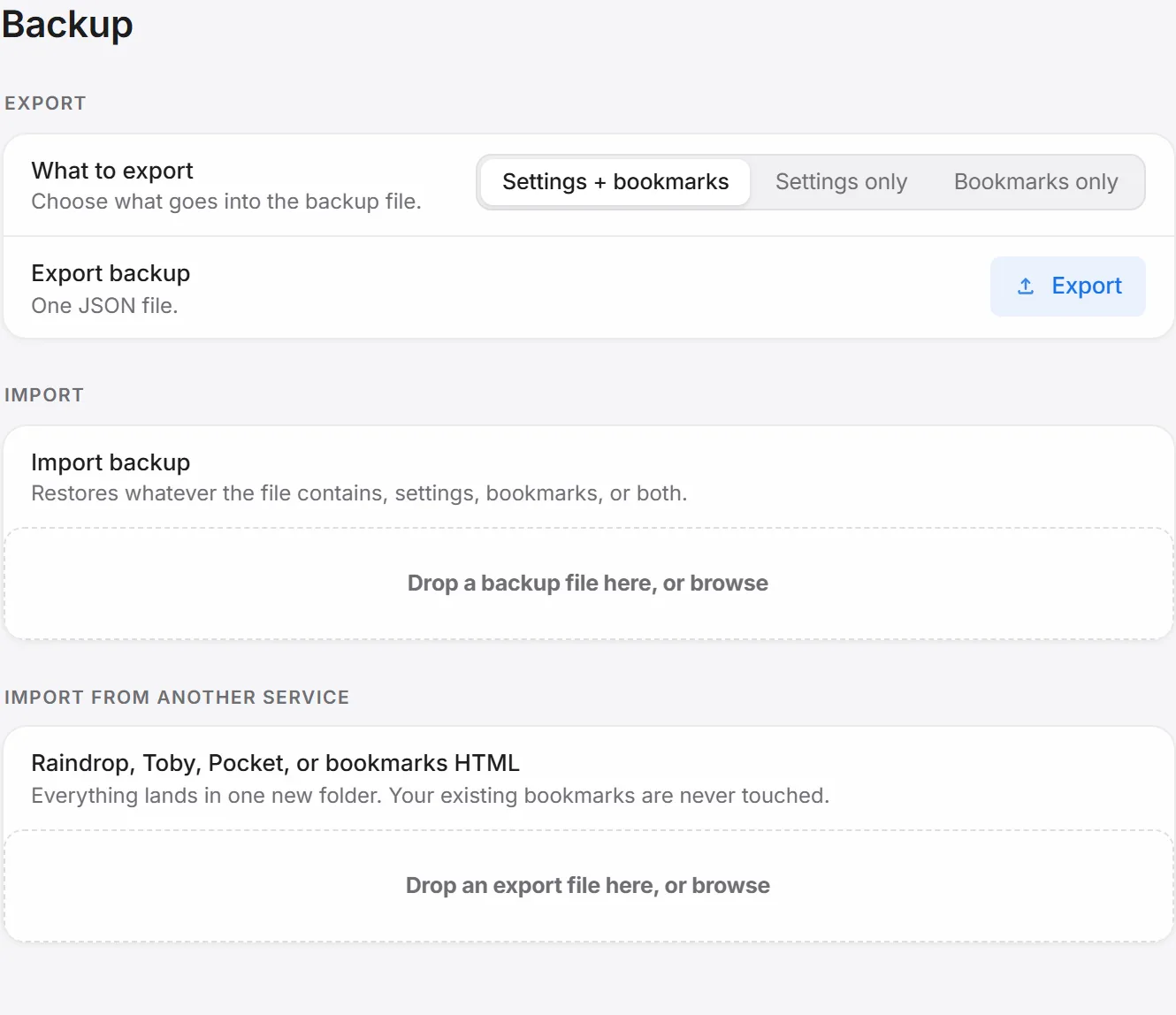
- It shows you what it found in the file before writing anything, so you’re not committing to hundreds of unfamiliar entries blind.
- Everything lands in one new folder, so whatever you already had bookmarked in Chrome is never touched or merged into.
- The whole import is a one-tap undo if you land somewhere you didn’t expect.
It’s the same underlying idea as Chrome’s own importer, additive, not destructive, but with a preview step Chrome’s built-in dialog doesn’t offer. If the pile you land with after import genuinely needs sorting rather than just organizing, the safe way to clean up duplicates without losing anything covers what comes next.
For what it’s worth, none of this needs Pro. Import, the preview, the one-new-folder behavior, and the undo are all on the free plan, same as everything else that isn’t cloud sync or extra video folders.