Course videos break in a specific way that regular YouTube watching doesn’t. A tutorial you watch for entertainment, you finish in one sitting or you don’t finish it at all — no real cost either way. A lecture in a course you’re actually trying to complete is 40 minutes long, you’ve got 12 of them, and you’re realistically watching in 10-to-15-minute chunks spread across several days. Your progress ends up split between YouTube’s own history (which only half-remembers, and only if you’re signed in on the same device) and whatever the course platform itself tracks, if it tracks anything at all. Neither one gives you a syllabus-ordered queue you control.
The setup: one folder, one course
The mechanism here is the same video folder every other video use case uses — nothing course-specific needed on the extension’s end, just a specific way of using it:
- One video folder = one course. Free accounts get one active video folder, and for “the course I’m actively working through right now,” one is exactly the right number — more on that below.
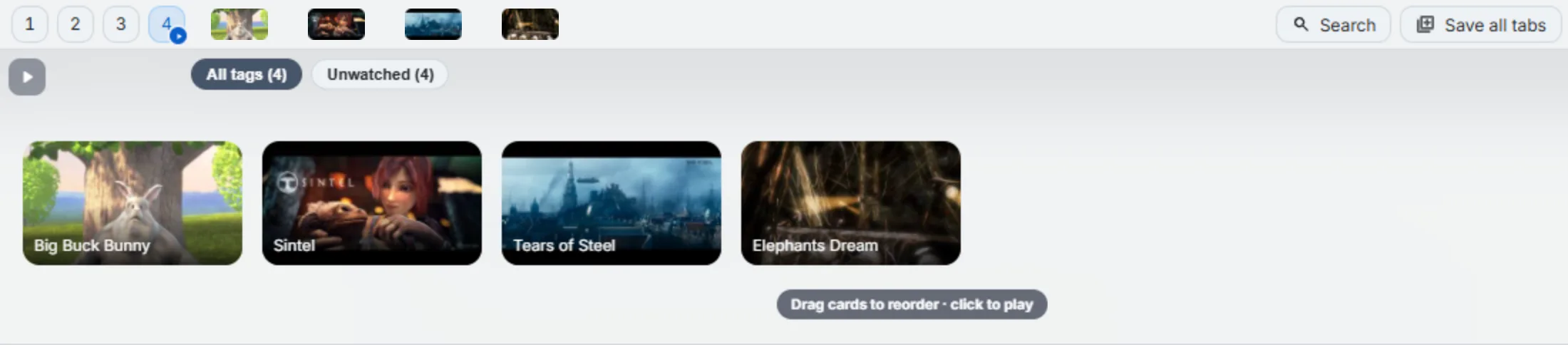
- Drag lectures in as you find them. From the video page, an open tab, or the address bar — each drop captures a real thumbnail, title, and duration where the page provides them, so the strip reads like an actual syllabus instead of a wall of identical link icons.
- Tag by topic or unit with right-click tags, if the course has natural sections you want to find later without scrolling the whole strip.
- Drag-reorder into syllabus order. Save order and watch order are rarely the same — you’ll find lecture 3 before lecture 1 sometimes — so reorder the cards into the sequence you actually intend to watch them in.
- Play-all for a study session. Once the order’s set, Play-all runs through the folder in sequence, auto-advancing when one lecture ends and moving to the next.
Concretely: a 12-lecture intro course might end up tagged “week 1,” “week 2,” “week 3” as you work through it, or tagged by topic if the course isn’t strictly linear — “theory,” “worked examples,” “review” — so a specific lecture is findable by more than just scrolling the strip and reading titles. The tags don’t change the play order; they’re a second way to find something without touching how Play-all runs the folder.
Resume is the actual killer feature here
For a tutorial you watch once, resume-from-timestamp is nice. For a 12-lecture course you’re picking back up across a week of scattered 15-minute sessions, it’s the difference between “found my place in five seconds” and “scrubbed a 40-minute video for three minutes trying to remember where I stopped.” That second version is a genuinely common experience with long-form video and no deliberate resume point — YouTube’s own history-based resume only works if you’re signed in on the same device with the same account, and it’s passive, not something you controlled.
Here’s exactly how it works: drag the video from the playing player (not a thumbnail, not a link — the actual player lane while it’s running) and the position you stopped at gets captured along with the thumbnail and title. Click that card again later and it opens back at that exact point instead of 0:00.
One scope note worth being precise about, because it’s easy to oversell: this applies to YouTube links specifically. The resume point rides in the URL as YouTube’s own documented ?t= start-time parameter, and that’s a YouTube convention — there’s no equivalent standard for arbitrary video sites, so a non-YouTube link plays from the beginning even if a position was captured for it. For a course that’s YouTube-hosted lectures (a lot of free courses, university channels, and creator-run courses are), this covers you completely. For paid platforms, see below.
Free tier fit: one course at a time is a feature, not a limit
I’ll make the actual case for this rather than just noting it as a constraint: the free plan’s one active video folder maps almost exactly onto “the one course I’m actually working through right now.” If you’ve got four courses half-started at once, you probably don’t need four simultaneous video folders — you need to finish one. The single-folder limit nudges toward exactly that, and it’s genuinely enough for most single-course study.
Where it stops being enough is if you’re deliberately running multiple courses in parallel — a language course alongside a technical one, say — and want each to keep its own folder, its own order, its own resume points, without merging into one pile. That’s what Pro’s other six slots are for: all seven become video folders instead of one, plus cloud sync if you’re studying from more than one machine.
Honest boundaries: DRM’d and embedded course platforms
Not every course lives on YouTube. Plenty of paid platforms — the ones with real DRM, or that wrap their player in a cross-origin embed — sit outside what a browser extension can see into. Two specific limits worth knowing before you rely on this for a paid course:
- Capture still works, but sometimes without the extras. Dragging a link or the page itself still saves a bookmark. What might be missing is the auto-captured thumbnail and duration — those come from reading the page’s actual video element, and if the player is embedded from a different origin (common on some course platforms), the extension can’t reach inside that frame to read it. You still get a card with a title and a link; it just won’t always have a real thumbnail.
- Resume doesn’t apply outside YouTube’s canonical hosts. As above — no
?t=equivalent for most course platforms, so timestamp resume specifically is a YouTube-only piece of this workflow, not a general one.
Neither of these breaks the core workflow — folder, drag order, tags, Play-all all work regardless of host — it’s specifically the thumbnail-capture and resume pieces that are YouTube-shaped. For a mixed course (some YouTube lectures, some platform-hosted), you’ll notice the difference card by card rather than the whole folder failing at once.
If free vs. paid matters for your decision — a single course on one machine is squarely a free-plan use case — the honest breakdown of what’s actually free forever covers it without a sales pitch.
If you’re also carrying old-fashioned YouTube Watch Later habits into your course-watching, Watch Later has the same decay problem here that it has everywhere else — worth breaking on purpose rather than by accident.
Putting it together
The actual workflow, once it’s set up, is boring in the way that’s the point: open the folder, hit Play-all, watch until you stop, close the tab. Next session, open the same folder, click back into whichever lecture you left off on — YouTube ones pick up exactly where you stopped — and keep going. No scrubbing, no cross-referencing two platforms’ progress trackers, no rebuilding a “where was I” mental model every time you sit back down.
That’s really the whole pitch: not a study app, not a course platform, just the same folder-and-tags mechanism built for organizing any YouTube video, pointed at a syllabus instead of a random watch pile.