Watch Later isn’t a feature. It’s a landfill with a bookmark icon.
I don’t say that to be cute — I say it because I built the opposite bet on purpose, and the reasoning only makes sense once you look at what Watch Later actually is: one flat list, sorted by nothing you control, that you have to go looking for. Nobody designs a system like that if the goal is “get watched.” You design a system like that if the goal is “collect the click and move on.”
Why Watch Later fails structurally
Open Watch Later right now and you’re looking at a single unbroken list. No folders. No tags. No way to say “these five are for tonight” and “these forty are aspirational, don’t judge me.” Everything you’ve ever added sits in the same bucket, in whatever order YouTube’s interface decides to show it, and the newest add is buried under everything that came before it — or the reverse, depending on the day, because sort options for Watch Later have been quietly inconsistent for years. There are YouTube Community threads going back to at least 2019 asking why sorting broke, and newer ones asking the same thing in 2024. That’s not a one-off bug report; that’s a feature nobody at YouTube seems to be actively maintaining.
Then there’s the cap. YouTube doesn’t publish an official number for how many videos Watch Later can hold — I looked, and the closest thing to an authoritative answer is scattered across YouTube’s own community forums and third-party breakdowns, which converge on 5,000 videos as a hard ceiling shared with Liked Videos and every other playlist. The fact that YouTube has never put that number in a help article is itself a signal: this isn’t a feature they’re proud enough of to document.
And it’s buried. Two clicks from a normal viewing session — into the Library tab, then into Watch Later — assuming you remember it’s under Library and not somewhere in your channel menu. Nothing about the design says “come back to this.” Everything about it says “we acknowledged your click and now it’s gone.”
That’s the actual failure mode. Not that YouTube is bad at video, obviously — it’s that a save-for-later list with no visibility, no structure, and no active view guarantees decay. Things you can’t see, you forget. Things you forget, you never watch. The queue becomes a monument to intentions instead of a to-do list.
I’ll admit my own Watch Later before I built any of this: over 300 videos, the oldest of which I added in what must have been a different job. I never once opened it and thought “great, let me work through this in order.” I opened it, scrolled for eight seconds, felt a small wave of guilt, and closed the tab. That’s not a productivity system. That’s a drawer you’re afraid to open.
The two-click burial, mapped
It’s worth being specific about the friction, because “it’s buried” undersells it. From a video you’re currently watching, getting to Watch Later means: open the Library tab (not visible from the watch page itself — you have to navigate away), find Watch Later inside a list of auto-generated playlists that also includes History, Liked Videos, and whatever else YouTube has decided to surface that week, then scroll a flat list with no search-within-playlist option worth relying on for a few hundred entries. Compare that to a folder that’s already rendered on the bar above the page you’re on — the difference isn’t “slightly faster,” it’s the difference between a destination and a piece of furniture.
What a visible queue changes
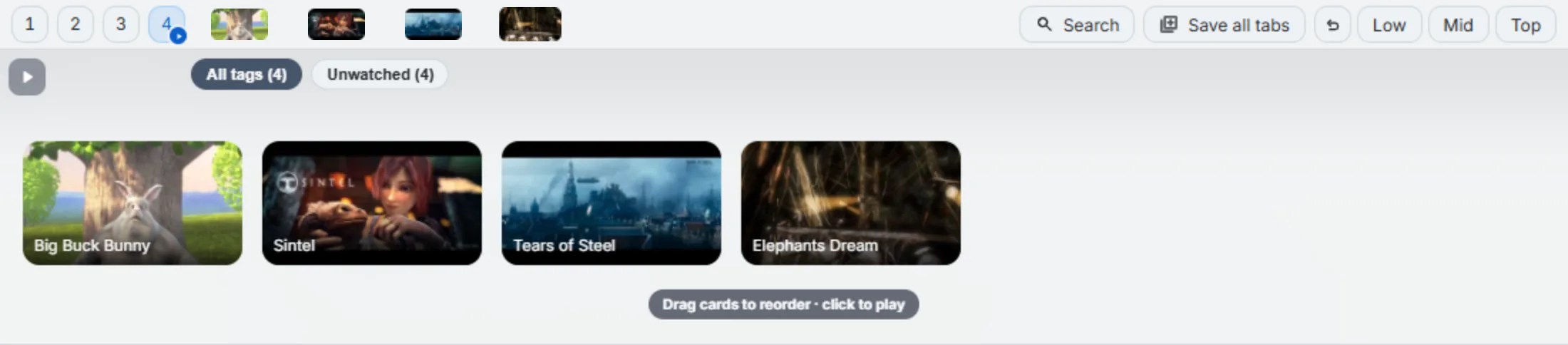
The fix isn’t cleverer sorting inside YouTube’s own list — it’s making the queue something you see without going anywhere. Second Bookmark Bar has a folder type built for exactly this: mark any of its quick-switch folders as a video folder and the bookmarks in it stop rendering as text links and start rendering as thumbnail cards, right there on the bar, with duration badges baked in. Hover the row and a strip drops down — real 16:9 thumbnails, titles over the image, the cards gently magnifying as you move across them.
The difference sounds cosmetic until you actually live with it. A text bookmark titled “Advanced TypeScript Generics — Full Course” tells you nothing about whether it’s 12 minutes or 90. A thumbnail card with a 1:34:12 badge on it tells you immediately why you haven’t started it yet, and whether tonight’s the night. Out of sight, out of queue. In sight, every time you open a tab — that’s the whole mechanism, and it’s not more complicated than that.
The actual triage workflow
Here’s what using it day to day looks like:
- Capture. Drag a video — from the YouTube page itself, the player, a link, or the address bar — toward the bar. A drop strip appears; drop it, and the bookmark saves with the thumbnail, title, and duration pulled straight from the page. No dialog box, no “name this bookmark” prompt.
- Split the pile. Right-click a card to tag it. This is where “actually watching this week” gets separated from “saved because the thumbnail looked interesting at 1am.” The tags are yours — there’s no YouTube taxonomy imposed on top.
- Reorder. Drag cards around the strip to set the order you actually want to watch them in. This isn’t a display-only reorder — it moves the real bookmarks underneath, so the order holds the next time you open the folder.
- Play-all. Once a folder has a handful of cards in the order you want, Play-all runs them in sequence. No manual “next video” hunting, no algorithm deciding what plays after — the folder itself is the playlist.

None of that requires touching your YouTube account, your subscriptions, or your history. It sits entirely on top, in the browser.
A realistic version: Sunday evening, I drag five videos into a “This Week” folder — a conference talk, two tutorials, a long-form interview, and something my sister sent me. I tag the conference talk and the interview as “background,” the tutorials as “focus,” and reorder so the shortest tutorial is first, because I know I won’t finish a queue I open with a 90-minute video. By Wednesday three are done, Play-all is still running the other two in order, and nothing has quietly vanished into a 300-item scroll. That’s the entire trick — not smarter software, just a queue that stays where you can see it.
Honest scope
This replaces the queue — the “I’ll get to this” pile — not YouTube’s recommendation engine and not your subscriptions feed. If your problem is that YouTube keeps suggesting videos you don’t want, that’s a different fight, and this doesn’t touch it. What it fixes is specifically the thing Watch Later gets structurally wrong: a save-for-later list that nobody can see and nobody maintains.
And here’s the part I’d rather say up front than have you discover after installing: the free plan includes exactly one active video folder. I’m not going to pretend that’s a teaser tier designed to make you feel cramped into upgrading — for the specific job of “replace my Watch Later graveyard with something visible,” one folder is genuinely enough. Your entire Watch Later fits in the free plan. If you later find yourself running a separate video folder per course, per client, or per topic, that’s when Pro’s seven video-folder slots start to matter — but that’s a “later” problem, not a “today” one.
If Watch Later has become a scroll of thumbnails you don’t recognize anymore, the fix isn’t a better sort button inside YouTube. It’s not putting your queue somewhere you have to go looking for it in the first place.