Playlists are a playback structure. Folders are a filing structure. YouTube only ever gave you the first one, and if you’ve ever dumped forty videos into “Watch Later” and never opened the list again, you’ve felt the gap between the two without necessarily being able to name it.
This isn’t a knock on playlists — they’re good at what they do. It’s that “what they do” isn’t organizing your own stuff for your own later use, and treating them like a filing system is why your Watch Later list looks the way it does right now.
For the setup steps: turn a folder into a video library.
What playlists are actually for
A YouTube playlist is built for playback and publishing. It has an order, it can be public or unlisted, you can share the link, you can embed it on a site, and anyone who opens it watches the videos in the sequence you set. That’s the whole point — it’s a broadcast structure, not a personal one.
Two things follow from that design:
- Reordering a playlist changes what everyone sees, not just your own view of it. If you’re using playlists as a private scratch space, you’re fighting the tool’s actual purpose the whole time.
- There’s no nesting. You can’t put a playlist inside a playlist, so once you have more than a handful, you’re scrolling a flat list of playlist names looking for the right one — the exact problem you were trying to solve.
Where that leaves Watch Later
Watch Later is the closest thing YouTube has to a personal inbox, and it’s still just one flat list with no folders and no way to split “actually going to watch tonight” from “saved eight months ago and I don’t remember why.” That flat-list design is a big part of why it turns into a graveyard for most people instead of a working queue.
Folders that actually render as a video library
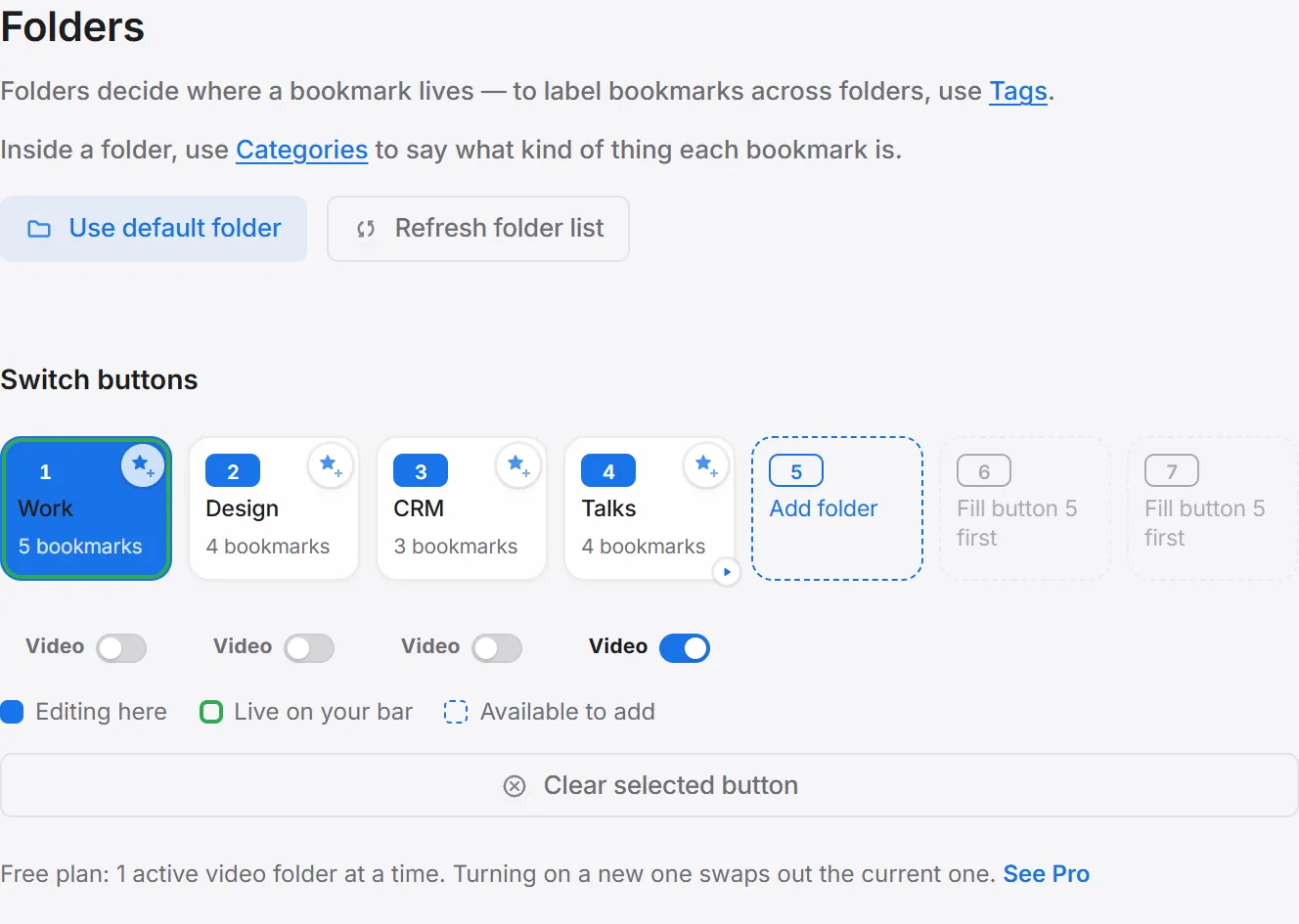
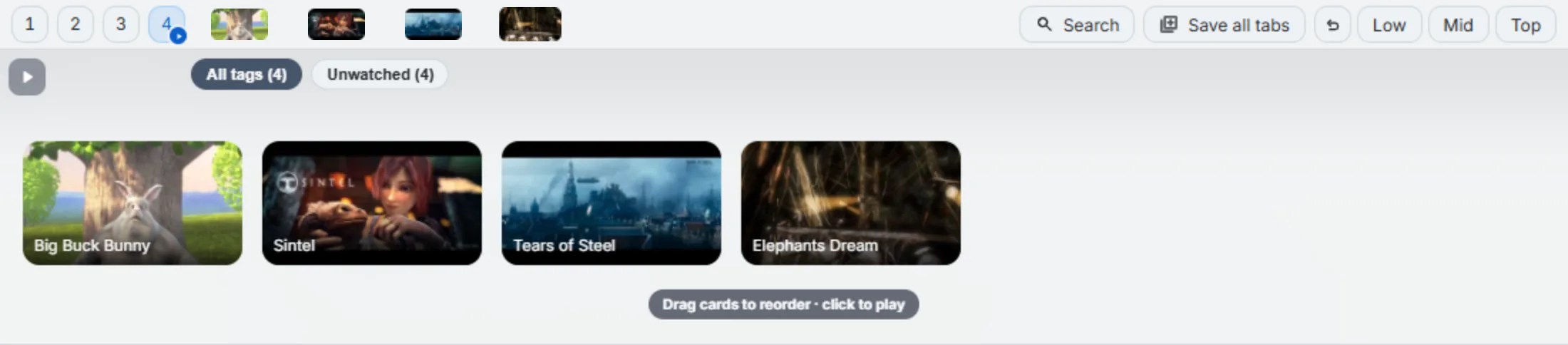
Second Bookmark Bar’s video folders are the filing structure YouTube doesn’t have. Flip any of the extension’s seven bookmark folder slots into video-library mode with the Video switch in settings, and the folder stops looking like a list of text links and starts looking like a library: small thumbnails with duration badges sit right on the bar, and hovering drops down a strip of larger 16:9 cards — title over the image, gently magnifying as you move the cursor along the row.
Click a card to play in the current tab, or set clicks to open a new tab instead if you’d rather keep your current page intact. Card size is adjustable in settings too, so the strip can run dense (more videos visible at once) or larger (easier to read titles at a glance).
Tags and playlists you define yourself
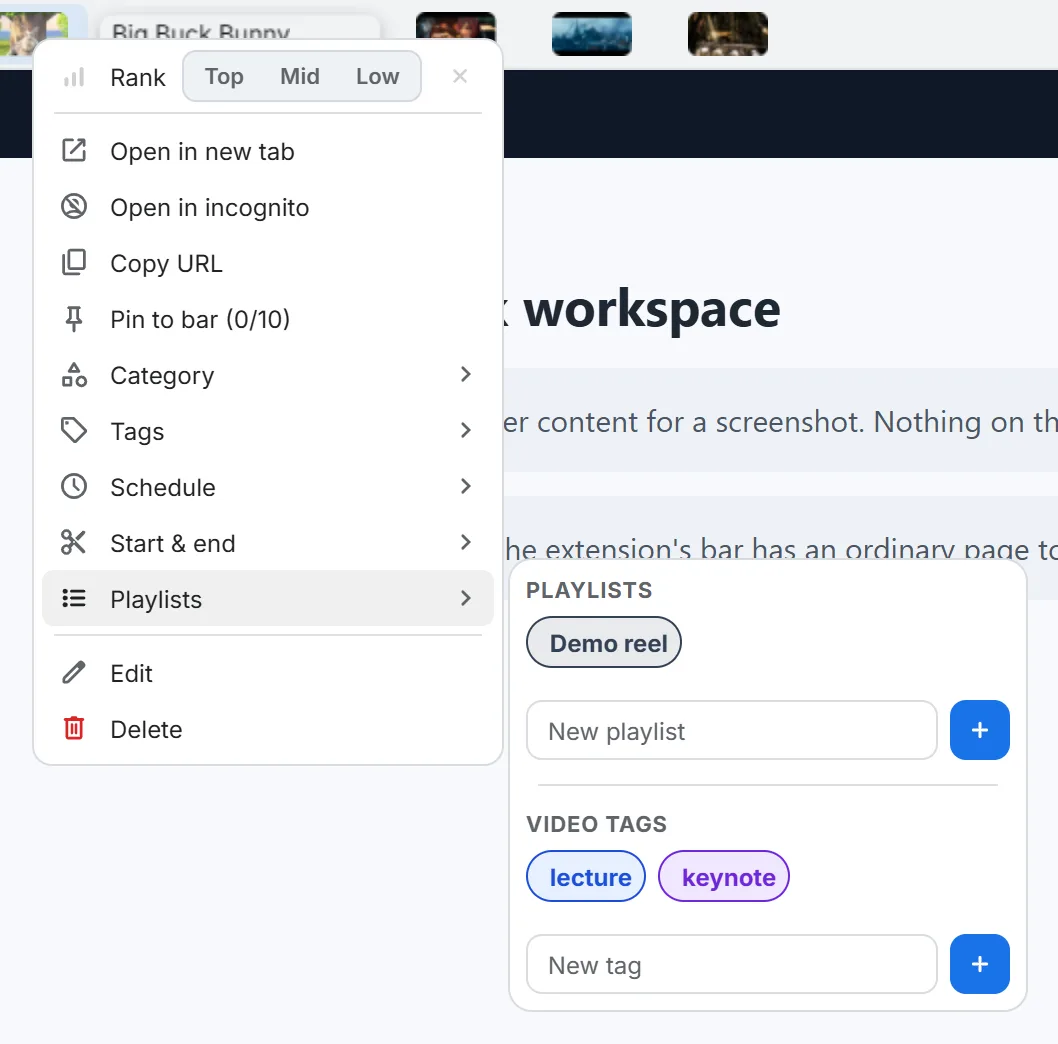
This is the part that actually replaces what a filing system needs to do: right-click a saved video card and you can tag it, or add it to a playlist — but these are groupings you create and assign yourself, entirely separate from your YouTube account. On the free plan, a video can carry up to two tags and live in up to two of your own playlists (Pro raises both ceilings, for anyone tagging more heavily than that), and none of it touches the video’s actual YouTube metadata. It’s a private index layered on top of a public video, which is the opposite of what YouTube’s playlists are built to do.
Saving is drag-first, not menu-first
You don’t add videos to a folder through a menu — you drag them. Drag a video thumbnail, a link, the player itself, or the URL from the address bar toward the bar, and a drop strip appears. Drop it there and the page saves into your video folder along with its picture, title, and duration when the page provides them. If you don’t have a video folder yet, the first drop creates one for you.
If the bar is already showing that folder, you can aim the drop between two existing thumbnails and it files exactly there — and the same drag motion works for reordering afterward, which moves the real bookmarks underneath rather than just changing a display order.

A worked example: three folders, one channel habit
Say you watch a mix of long-form tech reviews, a couple of ongoing course series, and the occasional recipe video. In a single Watch Later list, those three categories blend into one undifferentiated scroll, sorted by whenever you happened to save them rather than by what they’re actually for. Split across video folders instead, it looks more like: one folder tagged by course for the series you’re actively working through, one folder for reviews you’ll get to eventually, one for recipes you’ll want again next month. Same videos, same YouTube accounts, same viewing habits — the only thing that changed is that “where do I look for the thing I saved” now has a specific, findable answer instead of “somewhere in that one long list.”
When playlists are still the right tool
None of this makes playlists obsolete. They’re still the better choice when the job is genuinely playback-and-publishing rather than personal filing:
| Situation | Better tool |
|---|---|
| Sharing a curated list publicly or with a client | YouTube playlist |
| Embedding a video sequence on a website or course page | YouTube playlist |
| Building something other people will watch in your order | YouTube playlist |
| Keeping a private, personal working set across topics | Video folder |
| Filing one video under more than one of your own categories | Video folder (tags) |
| Finding what you saved without scrolling a flat list | Video folder |
If you’re doing both — publishing curated lists and keeping your own private working set — there’s no conflict in running both at once. They’re solving different problems.
Do I need Pro to organize videos this way?
No, and this is worth saying plainly: the free plan includes one active video folder, which covers casual tagging and filing — two tags and two playlists per video — enough for most people’s version of the workflow described above. Pro unlocks all seven slots as video folders instead of one and removes that per-video tag/playlist ceiling, which matters once you want separate libraries per topic (courses vs. work references vs. personal watch list) or you tag more heavily than the free cap allows. I wrote up the actual free-vs-Pro breakdown if you want the honest version of that decision before you install anything.
If your videos pile up faster than you can watch them and you’d rather run through a folder in sequence than pick one at a time, that’s a separate feature worth reading about too — folders aren’t just for filing, they can play themselves back in order once you’ve built one.