There’s a gap between YouTube’s two ways of watching more than one video. The queue (the “Add to queue” button you get mid-video) is genuinely useful and genuinely temporary — close the tab or restart the browser and it’s gone. A playlist survives, but making one means naming it, deciding if it’s public or unlisted, and adding videos through a menu that’s built for a permanent collection, not five links you want to watch back to back tonight. Nothing sits in between: quick to set up, and still there tomorrow.
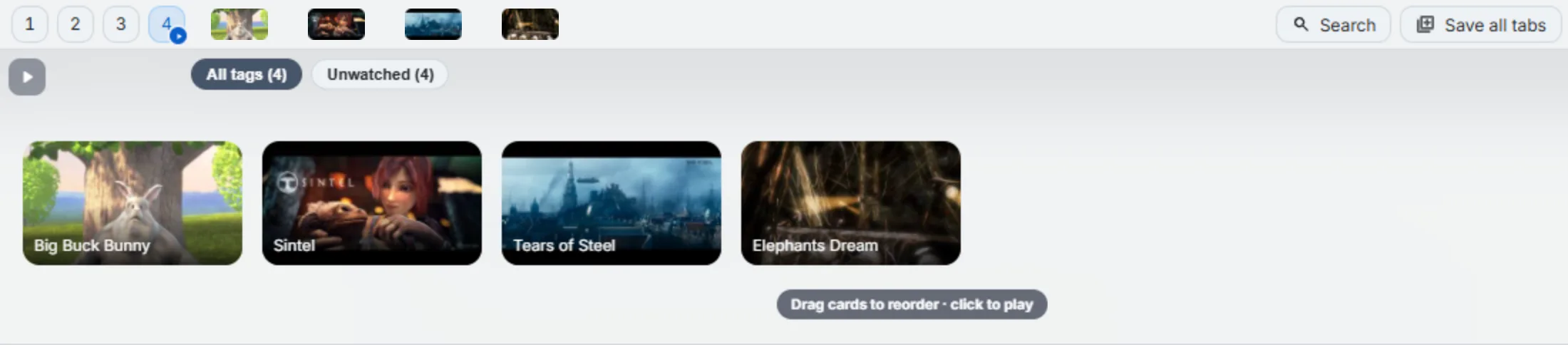
That gap is what Play-all is for. The short version: a video folder on the second bar already holds your saved videos as a row of thumbnail cards, in whatever order you’ve dragged them into. Play-all just plays that row, in that order, without you building anything playlist-shaped first.
For the exact controls: Play all, video tags, and playlists.
What Play-all actually does
Hover the bar to open the thumbnail strip for a video folder and there’s a small play button pinned in the corner. Click it and here’s the mechanical truth, not the marketing version:
- It opens your first video in a new tab dedicated to the queue — it doesn’t hijack the tab you’re currently browsing in, because that tab is running the content script that’s driving the bar and panel, and navigating it out from under itself would break both.
- When that video ends, Play-all auto-advances to the next one. It does this by watching for the browser’s own
endedevent on the page’s video player — the same signal the page itself gets. That works on YouTube and on most other sites that use a standard HTML5<video>element for playback. - Where auto-detection can’t reach — a video embedded in a cross-origin iframe, for instance, which is common on some course and blog platforms — you still get a working queue. It just doesn’t advance itself; a Next button on the playing card moves you along by hand. Worst case, it’s a curated queue you click through instead of one that clicks through itself. Either way, nothing silently stalls.
- A small counter shows where you are — “3 of 5” — plus Previous/Next controls, so you’re not stuck watching in the original order if you change your mind mid-session.
I’ll say plainly what this isn’t: it’s not the YouTube IFrame API, it’s not an injected player, and it’s not guessing at video duration with a timer. Those approaches fight every site’s autoplay policy and content-security rules and break constantly. Watching for the real “this video ended” signal is boring and it works.
Drag-reorder is your play order
The strip’s order isn’t cosmetic — it’s the literal order Play-all uses, and it’s the literal order of the bookmarks in that folder. Drag a card to move it, and you’re not just changing what you see next time you hover the bar; you’re reordering the actual bookmarks underneath. That means the order survives closing the browser, restarting your machine, and — if you’re on Pro with cloud sync — showing up in the same order on another device.
There’s no separate “queue” data structure to keep in sync with your bookmarks. The folder’s order is the queue’s order, which is why there’s nothing to configure before you hit play — you already did the configuring when you dragged the cards into the order you wanted.
Combine it with resume
If a video in the queue is a YouTube link and it’s got a saved timestamp — because you dragged it in from the point in the player where you stopped watching — Play-all opens it there instead of from 0:00. That’s the resume-from-timestamp feature applying itself inside a queue instead of a single click. It’s scoped to YouTube specifically: the resume point rides in the URL as YouTube’s own ?t= parameter, which is a YouTube convention, not a general video-site one, so a non-YouTube item in the same queue just starts at the beginning.
A five-video example
Say you’re doing a short study session: five videos on the same topic, saved over the past week in whatever order you happened to find them. Before you hit play:
- Drag the cards into the order you actually want to watch them — probably not save order.
- Hit Play-all. The first video opens in its own tab and plays.
- It ends, the next one loads automatically. If one was a YouTube video you’d stopped partway through before, it picks up where you left off.
- If video three turns out to be a dud, hit Next and move on — the queue doesn’t punish you for skipping.
- Close the tab whenever you’re done. Nothing is lost; the folder’s still sitting there in the same order for next time.
That’s the whole workflow. No playlist was created, nothing was made public or unlisted, and there’s no cleanup step afterward — the folder just goes back to being a folder.
The honest scope
This replaces the “quick sequence of videos” use case, not YouTube playlists generally, and it’s not trying to fix Watch Later’s design problems or replace folder-based organization — those are separate, related jobs a video folder also does. If you’re building something meant to be shared, embedded, or kept as a public collection, a real YouTube playlist is still the right tool for that specific need.
And it works fine on the free plan: one active video folder is the whole allowance, and one folder is exactly what Play-all needs. If you end up wanting a separate folder per course or per project running its own queue, that’s what Pro’s other six slots are for — but for “play these five videos in order,” the free tier already does the whole job.