I want to get the fake fight out of the way first: Raindrop is a better bookmark library than Second Bookmark Bar will ever be, and it’s not close. Full-text search across the content of saved pages (down to searching inside YouTube videos by what was said), permanent web-archive copies so a link still works after the original page dies, highlights and annotations, native apps on every platform, thousands of integrations. If what you want is an archive — a place where things you’ve saved go to actually stay findable — Raindrop is built for exactly that, and has been for years.
What I built is a different tool for a different moment: not “where do I put this so I can find it in six months,” but “I open this same folder fifty times a day, why am I still clicking through to reach it.”
What Raindrop is actually good at
Checking their current comparison page (raindrop.io/pro/buy) rather than guessing: the free plan is genuinely generous — unlimited bookmarks, unlimited collections, unlimited devices, highlights, browser extensions, and native apps, with the only real free-tier cap being 100MB of file uploads per month. Import and export both work, and there are 2,600+ third-party integrations.
Pro (roughly $3/month billed annually as of when I checked — confirm current pricing yourself, since this kind of number drifts) is where the archival features live: full-text search, permanent web-archive snapshots, an AI assistant and AI tag suggestions, reminders, duplicate/broken-link detection, daily backups, and a bump to 10GB of monthly uploads. That’s a fair trade for what it unlocks — those are exactly the features that make an archive trustworthy over years, not gimmicks.
If your actual problem is “I read a lot and I want to be able to find any of it later, from any device,” that’s Raindrop’s whole reason to exist. I’m not going to pretend a second bookmark row does that job better.
The category difference
The reason this isn’t really an apples-to-apples comparison is that Raindrop and Second Bookmark Bar solve for different verbs. Raindrop is something you go into — a new tab, an app window, a sidebar panel — to search, browse, or archive. Second Bookmark Bar is a row that sits above every page you’re already on. One is a library you visit; the other is a shelf you walk past constantly.
That distinction matters more than any feature list, because it changes what a single interaction costs. Reaching into a library — even a fast one — means a context switch: open the app, find the thing, come back. Reaching for a folder on a permanently visible row costs one click and zero navigation, because the row was already there the whole time you were doing something else — and it can already be showing the right folder, too, since Auto-switch rules flip it per site (a design tool opens to the design folder) before you ever look up.
Where they actually differ
| Raindrop | Second Bookmark Bar | |
|---|---|---|
| Where it lives | New tab / app / sidebar you open | A second row, always visible above the page |
| Context awareness | Same library everywhere | Auto-switch: bar flips to the folder you mapped to the current site |
| Save flow | Save to inbox, sort later (or choose a collection at save time) | Picker-first — pick the destination folder before the save completes |
| Video handling | Link card with a preview thumbnail | Thumbnail cards with duration badges, drag-first capture, resume-from-timestamp, Play-all |
| Data location | Raindrop’s own hosted database | Chrome’s native bookmark tree (chrome.bookmarks) |
| Offline / export | Full export supported | Same tree Chrome already exports — no separate export step needed |
| Cross-device | Native apps on every platform | Optional cloud sync, paid tier, opt-in |
The data-location row is the one I’d actually weigh heavily if I were choosing. Second Bookmark Bar doesn’t keep its own database — it reads and writes Chrome’s real bookmark tree through the same API Chrome’s own bookmark manager uses. Uninstall the extension and every bookmark it ever touched is still sitting in chrome://bookmarks, completely ordinary. Raindrop’s bookmarks live in Raindrop’s own system; that’s exactly what makes cross-device sync, full-text search, and permanent archiving possible, but it also means your data’s home is Raindrop, not Chrome.
Finding things without opening anything
Search is where the “library vs. row” distinction shows up most concretely. Raindrop’s full-text search is genuinely powerful — Pro can search inside the actual content of saved pages, and even inside what was said in a saved YouTube video, which is a real capability a bookmark row has no equivalent for. Getting to it means opening Raindrop first, though: a new tab or the extension popup, then the search box, then scanning results.
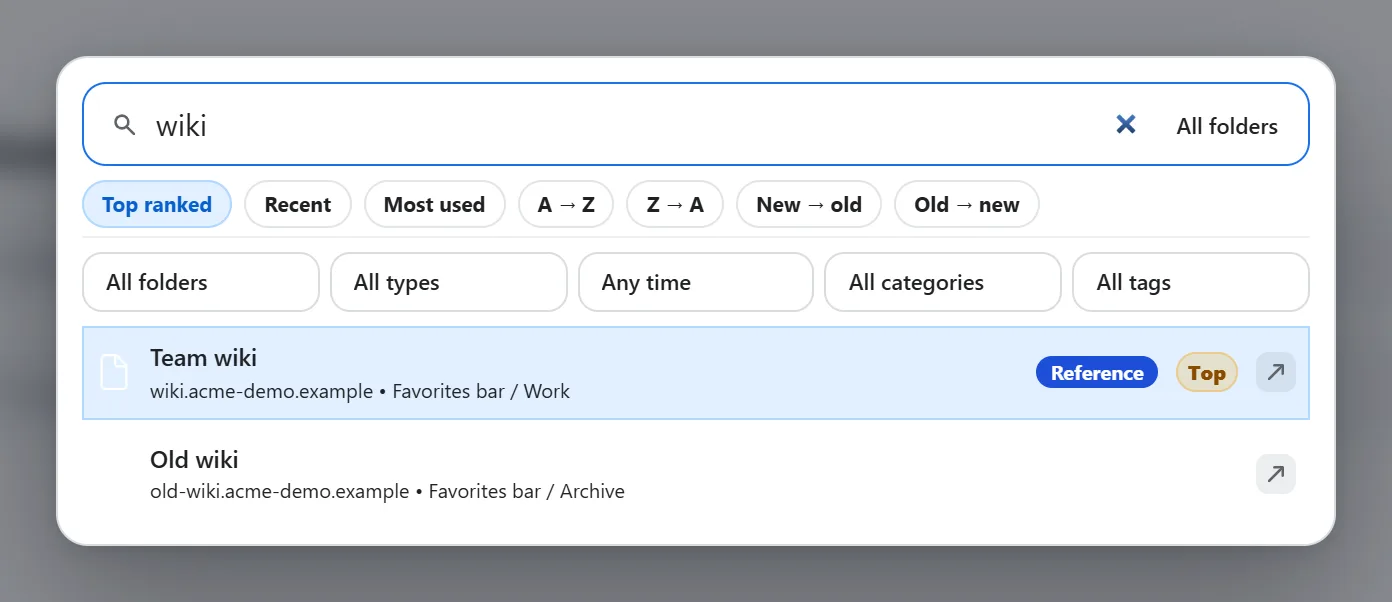
Second Bookmark Bar’s search is a narrower tool used differently — a search box built into the bar itself, so you can search your bookmarks without leaving the page you’re on. It matches on title and URL rather than full page content, and results show which folder and domain each match came from, so “I remember it was in my client folder somewhere” is enough to find it. It even remembers your in-progress query for a few minutes, so reopening the panel picks up where you left off. That’s a much shallower search than Raindrop’s — it can’t find a bookmark by a phrase buried three paragraphs into the saved page — but it doesn’t need you to leave what you’re doing to use it, which is the entire design bet the row is built around.
Moving between them
If you’re coming from Raindrop and want to try a row instead, the honest note is that there’s no purpose-built “convert my whole Raindrop library into a live second-bar setup” tool — nor should there be, since a hundred-collection research archive isn’t what a five-to-seven-slot quick-switch row is for. But for moving a working set of folders over, Second Bookmark Bar added a direct Raindrop importer on August 4, 2026: export your Raindrop collections as CSV (Raindrop’s own export includes a url and folder column, folder paths separated by /), drop that file into Settings → Backup, and it parses the folder structure straight in — up to 5,000 bookmarks and 500 folders per import, with a preview of exactly what it found before you confirm, and a one-tap undo afterward that removes only the folder the import created. Tags and notes don’t carry over — the importer deliberately doesn’t map them, even though Second Bookmark Bar does have its own category-and-tag system now (Settings → Categories & Tags); you’d add tags to the imported bookmarks by hand afterward. That’s still a real gap if you lean on Raindrop’s tagging for a large library, worth knowing before you commit to a move.
Who actually wants which
If your bookmarking is fundamentally archival — you save more than you’ll ever revisit, and when you do go back you’re searching, not clicking a known folder — Raindrop’s model fits how you actually work. That’s a real pattern: researchers building a reading archive, people saving articles they may cite months later, anyone whose bookmarking volume outpaces their bookmarking frequency.
If instead you’ve got a handful of folders you reach into constantly through the day — the same CRM, the same docs site, the same design tool, the same cloud dashboard, the same five sales or SEO tabs you’re in and out of dozens of times, jumping between them with Alt+1 / Alt+2 / Alt+3 instead of reaching for the mouse — a row that’s already visible beats a library you have to open, every single time, by the accumulated cost of all those small context switches. That’s a different kind of heavy user: not someone who saves a lot, necessarily, but someone who returns a lot.
Plenty of people legitimately want both: Raindrop for the long-tail research archive, a second bar for the daily-driver folders that don’t need archiving, just quick reach. I use it that way myself — a handful of research rabbit holes live in Raindrop where I might search them again in six months, and the folders I’m actually in and out of all day live on the row where reaching them doesn’t cost anything. Neither tool is trying to be the other one, and the comparison only gets useful once you stop pretending it should.
If the underlying question is less “Raindrop vs. this” and more “what’s the best way to organize bookmarks in Chrome generally,” that’s a bigger question than one comparison post can answer fairly — see the full interaction-cost breakdown of row vs. sidebar vs. dashboard for that argument in full, or the second-bar setup guide for the row side specifically.