Chrome ships with exactly one bookmarks bar, and there’s no hidden setting, no chrome://flags entry, and no menu toggle that turns on a second one. If you’ve been digging through Chrome’s settings looking for it, you’re not missing anything — it genuinely isn’t there.
That’s a real limitation once you’re juggling more than one context in the same browser: work links and personal links, a client project and your own tools, or just more bookmarks than one row can hold. So let’s cover what Chrome can do natively, where that falls short, and what an actual second bar looks like.
Already sold and just want the setup steps? Install and set up your first folders.
Can Chrome have a second bookmark bar natively?
No — not as a second visible row. The two workarounds people try instead:
- Nest everything into folders. You can drop a folder on the bookmarks bar and it opens as a dropdown. This buys you organization, but it’s still one row, and every folder is one more click away from the page you actually want.
- Keep a second browser window open with its own bar. Technically two bars are visible if you tile two Chrome windows side by side. In practice this eats screen space and doesn’t survive you closing back down to one window, which most people do by the end of the day.
Neither one gives you a second row that lives inside your normal, single-window browsing. That’s the actual gap — and a common enough question that it’s one of the first ones answered in the site FAQ.
What a real second bar looks like
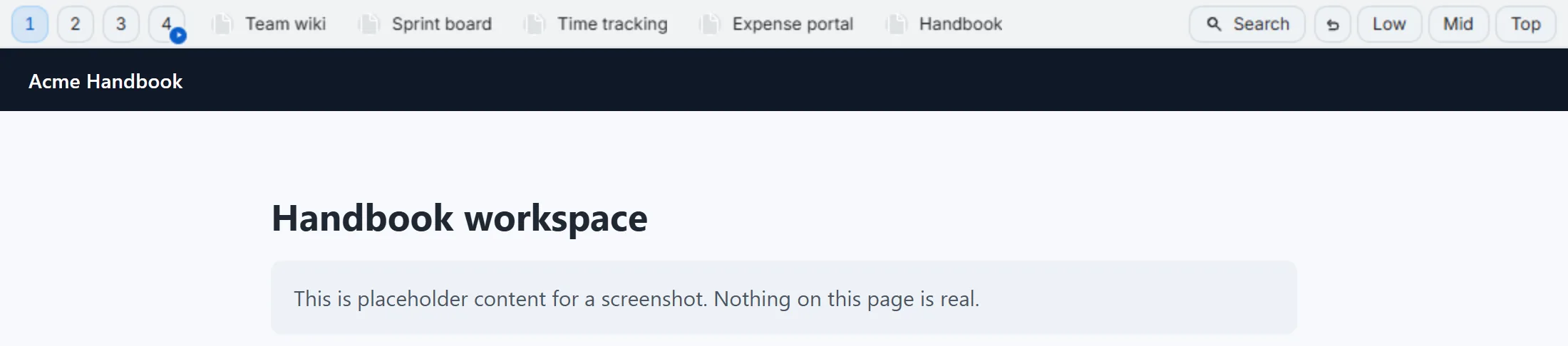
Second Bookmark Bar adds a second, compact row under Chrome’s own bookmarks bar — a real second row, not a dropdown or a second window. A few things about how it works, since “another toolbar” can mean a lot of things:
- It’s folder-based, like Chrome’s own bar. You still organize bookmarks into folders; the second row just gives those folders a permanent, one-click home instead of burying them in a dropdown.
- Up to seven quick-switch slots, each with its own icon, so you can jump between folder sets — work, personal, a specific project — without hunting through menus.
Alt+1,Alt+2,Alt+3jump straight to the first three slots from the keyboard. - Each browser window keeps its own active folder. If you already run separate windows for separate contexts, the second bar respects that instead of forcing one global state.
- Dark and light themes, so the bar matches the rest of your setup instead of standing out.
- Video folders, not just link folders. The same second row also has a folder type built for saving YouTube videos as thumbnail cards with resume-from-timestamp, if that’s more your use case than plain links.
None of this touches your existing bookmarks bar — it’s additive. Your current bar, your current bookmarks, your current habits all stay exactly where they are; you just get a second row underneath for everything that doesn’t have a home yet.
Setting it up
- Install the extension from the Chrome Web Store (link below).
- It adds the second row automatically under your existing bookmarks bar.
- Drag bookmarks into it, or create folders directly in the new row, the same way you would on Chrome’s own bar.
- Assign icons to your quick-switch slots so you can tell folders apart at a glance.
That’s it — no account required to get the second row itself working, and everything stays local on your device unless you turn on the optional cloud sync features.
Once the second row is running, most of the setup is just moving bookmarks into it the way you’d already use folders — the quick-switch slots are what make separate contexts (work, personal, a specific project) fast to jump between instead of just organized.