I’m going to name a concept and just own it: adaptive bookmarks. Not because it needs a fancier name than “a bookmark bar that changes,” but because almost nobody else has built this, and a feature with no name is a feature people can’t search for or ask about. So — adaptive bookmarks: a bookmark bar that automatically switches which folder it’s showing based on the site you’re on.
Want the exact setup steps rather than the reasoning behind it? See Auto-switch by site in the help center.
The problem, as a shape of your day
Think about what your bookmark needs actually look like across a normal working day. At figma.com, you want your design assets and component library links. At your CRM, you want customer records and pipeline dashboards. At a docs site, you want your references — API docs, style guides, whatever you cross-check against. None of those needs overlap much, and none of them are what you need at the other two.
A static bookmarks bar — Chrome’s own, or a second row set to one folder — is wrong for most of your day by construction. It shows one set of links regardless of where you are, which means it’s either cluttered with everything you might ever need (defeating the point of a quick-access row) or it’s tuned for one context and irrelevant everywhere else. You end up manually switching folders yourself, if you remember to, which in practice means you mostly don’t.
How the rules actually work
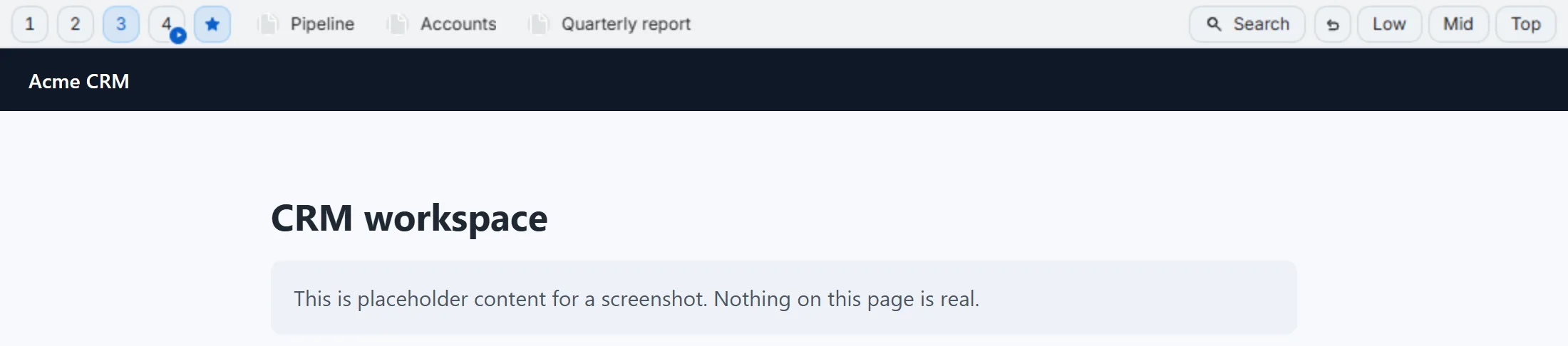
Second Bookmark Bar lets you configure a set of matching rules: when the domain you’re on matches a rule, the bar automatically switches to the folder slot mapped to that rule. Open your design tool, the bar flips to your assets folder. Open your CRM, it flips to your workflow folder. Close that tab and switch to something unmatched, and it falls back to whatever your manually-selected default is.
The part I care about more than the mechanism itself is the star indicator. When a site-based rule is currently active, a small star shows on the slot switcher. That’s a deliberate design choice, not a decorative one: invisible automation is how people lose trust in their own tools. If your bookmark bar silently changes underneath you with no signal, the first time it shows you the “wrong” folder because a rule didn’t match the way you expected, you stop trusting the bar altogether and start manually checking every time — which defeats the entire point of automating it. The star means you always know why you’re looking at what you’re looking at, and manual override always stays available if a rule guessed wrong for the moment.
Three worked recipes
Design tool → assets folder. Match figma.com (or your design tool of choice) to a folder holding your component library, brand assets, and any shared design-system links. You open the tool already knowing you’re pulling from the right set, instead of digging through a general folder for the one asset link you need.
Docs site → references folder. Match your team’s docs domain, or a cluster of common reference sites, to a references folder — API docs, internal wikis, style guides. This is the folder you want present the moment you’re deep in “wait, what’s the exact syntax for this” mode, not two clicks away.
Analytics dashboard → reporting folder. Match your analytics or BI tool’s domain to a folder of saved dashboard links, report templates, or the specific queries you re-run often. Analytics work tends to involve jumping between several dashboards in a session — having them one click apart, already surfaced by the domain match, cuts a lot of the “which tab was that report in again” hunting.
None of these need to be exotic. The value isn’t in clever rule logic — it’s in not having to remember to switch folders yourself, dozens of times a day, across contexts you already know by muscle memory.
Where it interlocks with the rest of the bar
Adaptive rules don’t work in isolation — they’re one layer of a system built around the same slots:
- Slots. A rule doesn’t create a new folder; it targets one of your existing quick-switch slots. The rule is really just “when this domain matches, jump to slot N” — the same slots you can also switch to manually with
Alt+1/Alt+2/Alt+3. - Excluded sites. The inverse idea: instead of switching to a folder, some sites should show no bar at all. If adaptive rules answer “what folder fits this site,” excluded sites answer “no folder fits this site, hide it.” They’re two sides of the same “match the bar to the context” philosophy.
- Per-window folders. If you’d rather split contexts by browser window instead of by domain — one window that’s always your work window, say — per-window independent folders handle that without needing a domain rule at all. Adaptive rules and per-window folders can also combine: a window’s default folder holds until a domain rule inside that window overrides it.
Setting up a rule
- Pick the slot you want a domain to jump to — it needs to already exist as one of your quick-switch folders.
- Open settings and add a matching rule: the domain (or a pattern covering a few related domains, like your whole docs subdomain cluster) mapped to that slot.
- Visit the matching site. The bar should switch automatically, and the star should appear on the switcher — that’s your confirmation the rule fired, not just that it saved.
- If a rule ever guesses wrong for a specific moment, manually switch slots the normal way. The rule sets tomorrow’s default; it doesn’t override today’s click.
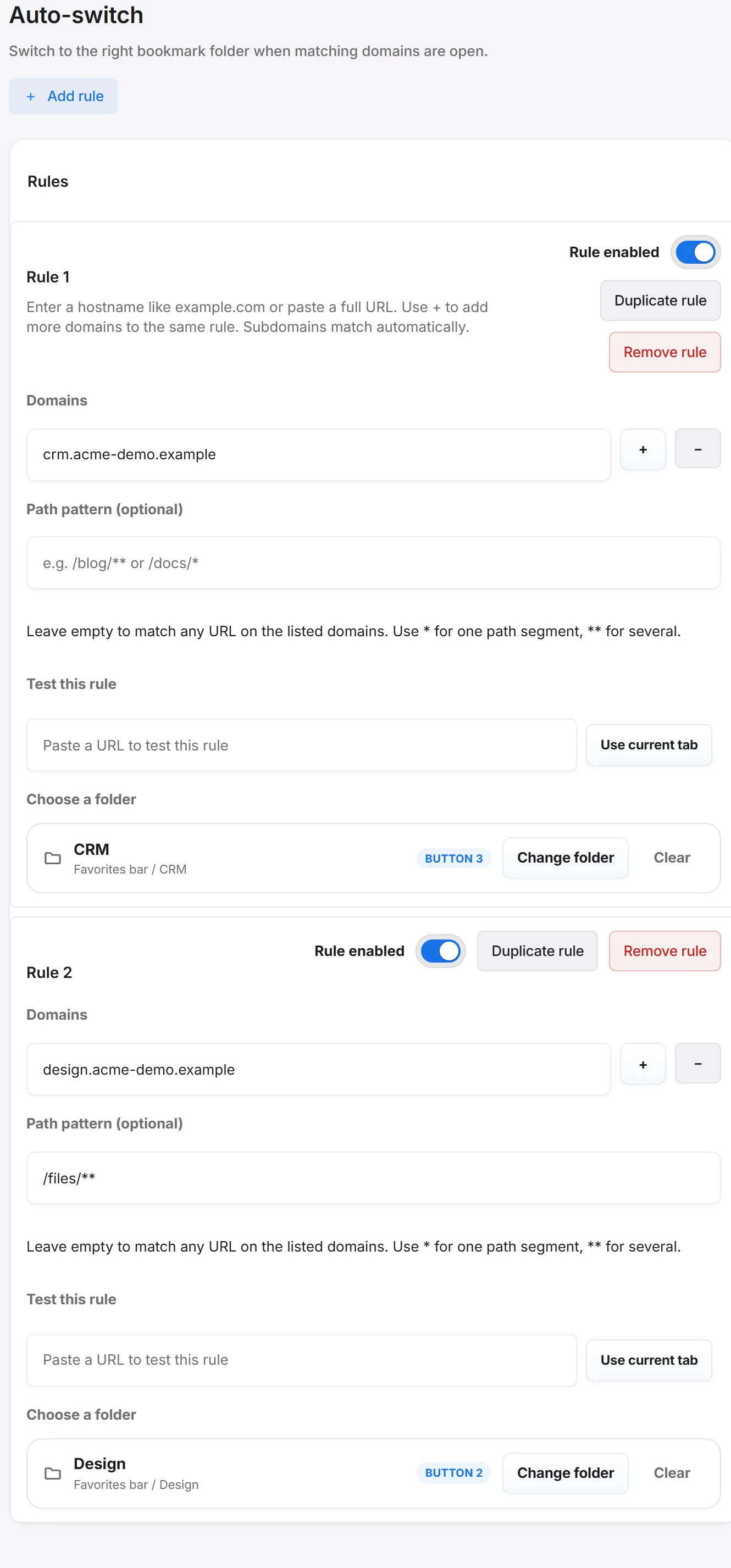
Start with one or two rules for the sites you visit most reflexively — the ones where you’d otherwise be manually flipping folders multiple times a day — rather than trying to map your entire browsing habit on day one. The star indicator makes it easy to tell later whether a rule you added is actually firing the way you expected.
If your actual goal is separating work and personal bookmarks without running two Chrome profiles, adaptive rules are usually the piece that makes quick-switch slots feel automatic instead of manual — you set the rule once, and the right folder shows up without you doing the switching yourself. It’s a short answer in the site FAQ too, but the reasoning for why the star indicator exists — and why I made the automation visible instead of invisible — is the part worth understanding before you set rules up.