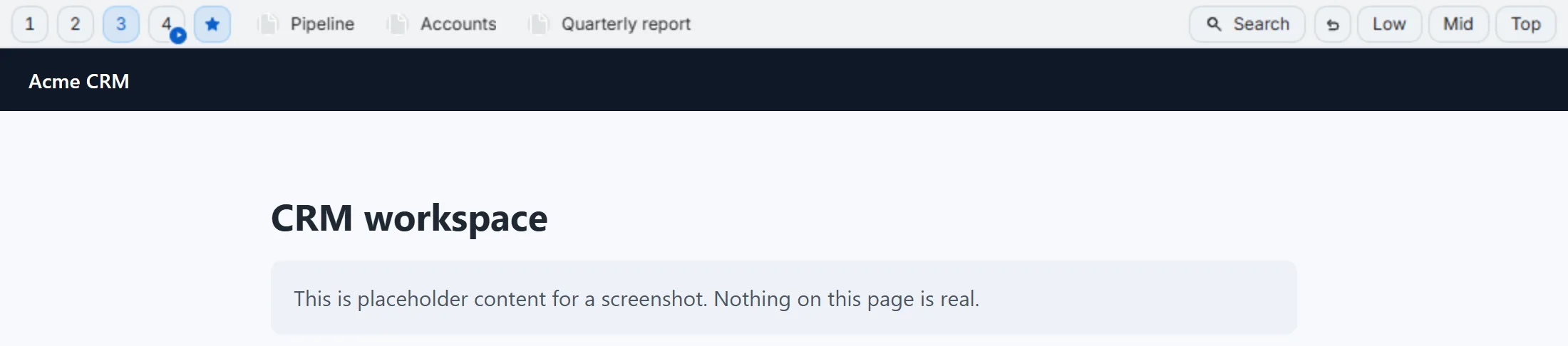
An auto-switch rule ties one or more domains to a folder. Open a matching site and the bar switches to that folder automatically; leave, and it falls back to whatever you’d picked manually.
Create a rule
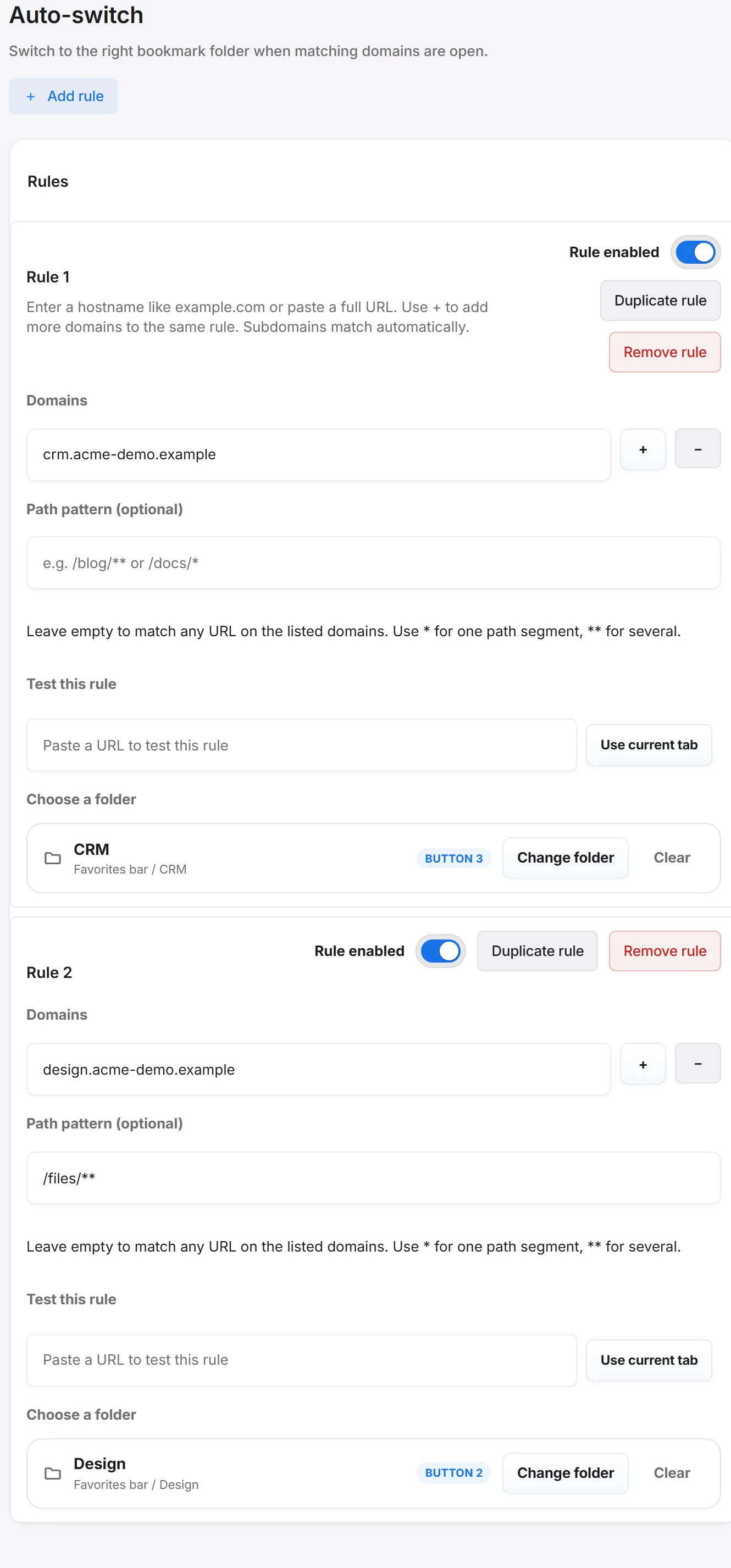
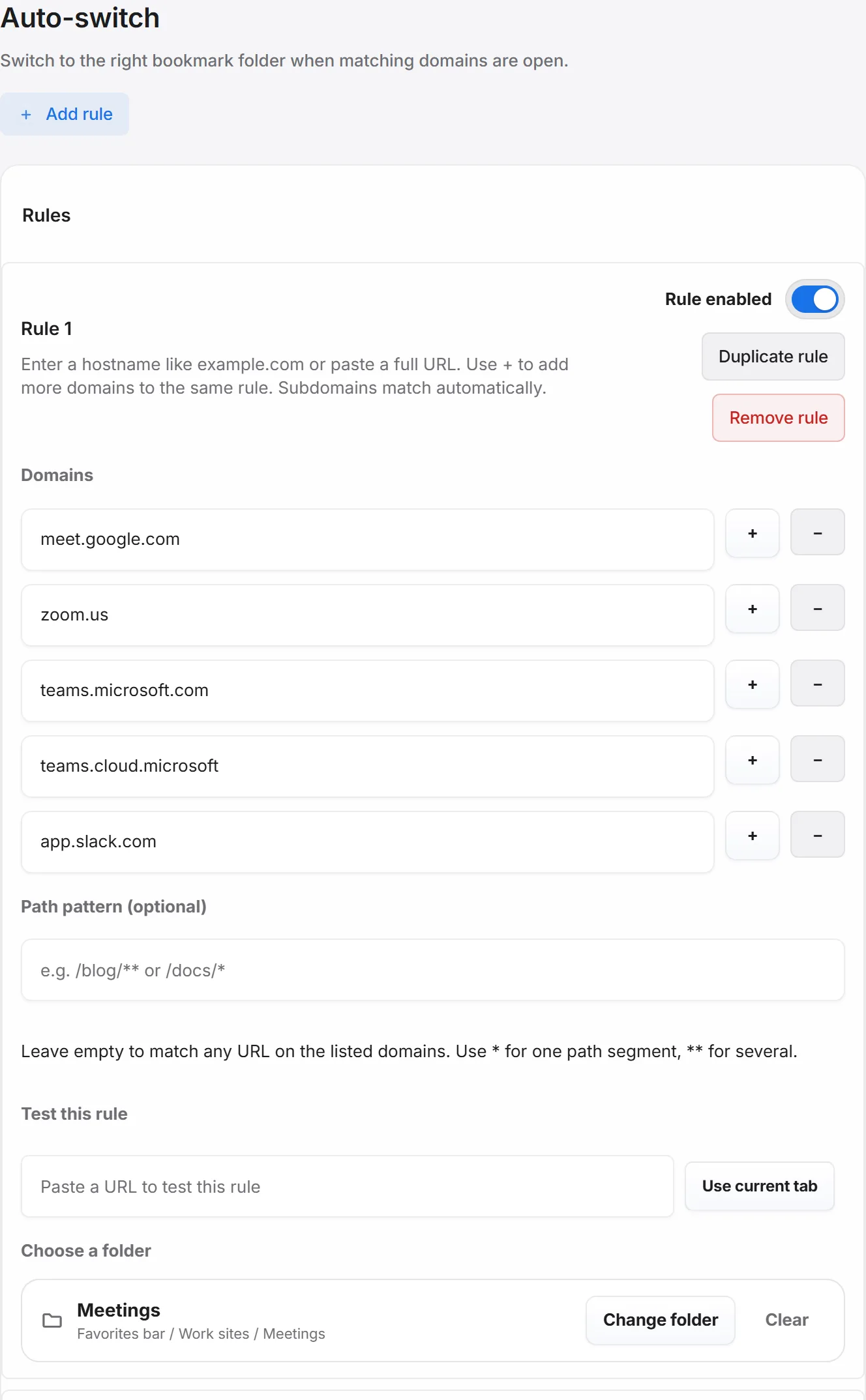
Settings → Auto-switch → Add rule: list one or more domains, an optional path pattern (* for one segment, ** for several — so a rule can target just /docs/** rather than an entire domain), and pick a folder. A tester field lets you paste a URL and confirm the rule actually matches before you save it. Rules can also be created directly from the bar’s slot right-click menu.
Or install a ready-made pack
Settings → Folders → presets includes a Work sites pack: one click creates seven folders (Meetings, Docs, Sheets, Projects, AI, Design, CRM) and seven matching rules — Docs and Sheets are two separate rules on the same domain, split only by path, which is a good example of how specific a rule can get. Installing a pack is fully reversible per domain.
Good to know
Excluded sites win over rules — if a site is on your excluded list, the bar stays hidden there even if a rule also targets it. See Hide the bar on some sites. If a pack’s rule targets a domain you’ve already excluded, the preset card warns you and offers a one-click unexclude.