
Saving a video is a drag, not a menu. Drag the video itself, the player, a link to it, or the address bar’s URL toward the bar, and a drop strip appears — release it there and the video lands with its thumbnail and title already attached.
Resume where you stopped
Once a video is saved, its bookmark quietly remembers your playback position. The card shows a thin progress bar and a Resume pill, and clicking it picks up exactly where you left off instead of restarting from zero. This can be turned off in Settings → Folders for anyone who’d rather every video always start from the beginning.

Trim a start and end
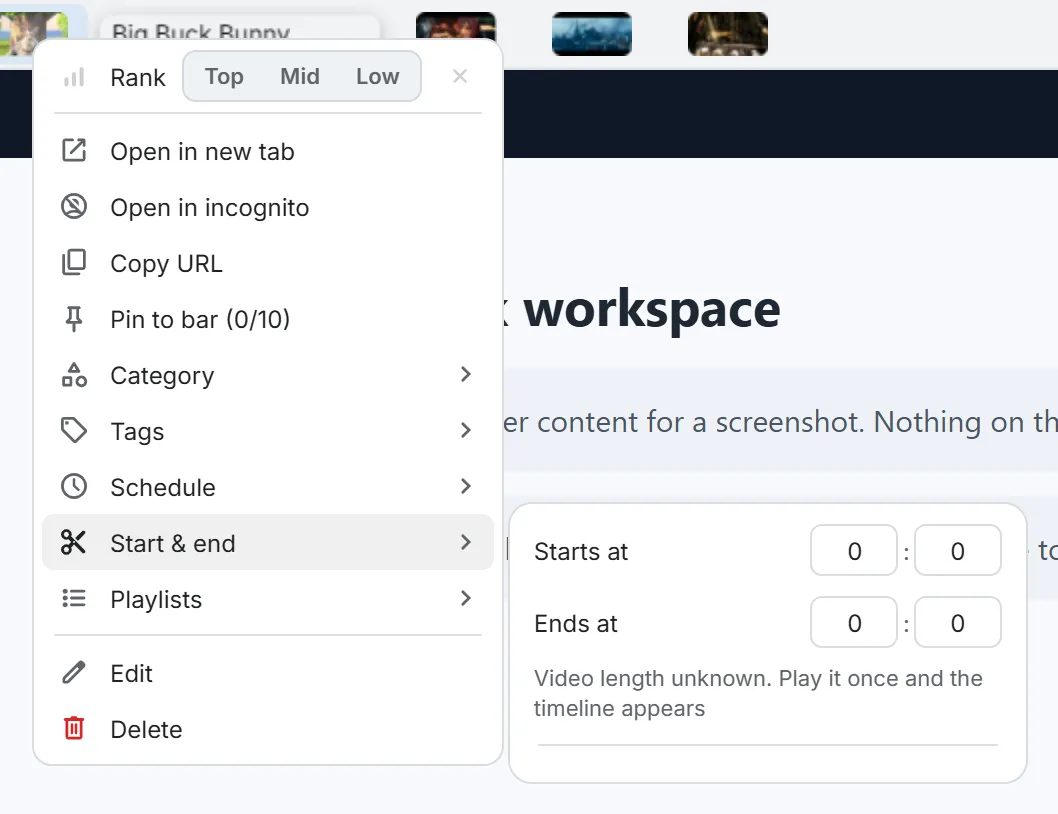
Right-click a video’s chip on the bar, choose Start & end, and set minutes:seconds for where playback should begin and, optionally, where it should stop. There’s also a play to end option and a one-click way to clear the trim entirely.
Good to know: resume and trim only work on sites the extension can actually seek within a player, like YouTube — the row simply doesn't appear on a video bookmark it can't control.