You’re twenty minutes into a long tutorial, you close the tab, and a day later you’re back on YouTube trying to remember where you stopped. Sometimes the little red progress bar on the thumbnail remembers for you. Sometimes it doesn’t — you’ve switched devices, you weren’t signed in, or the video simply isn’t in your recent history anymore. There’s no way to force it to remember, and no way to save “this video, at this minute” on purpose.
That’s the actual gap: YouTube tracks some progress passively, but it doesn’t let you deliberately save a timestamp the way you’d bookmark a page.
For the steps: save a YouTube video and resume where you stopped.
What Second Bookmark Bar does differently
Second Bookmark Bar has video folders — a part of the second bar built specifically for saving videos, not just links. A few things about how it actually works:
- Drag-and-drop capture. Drag a video (from YouTube or most other video pages) into a video folder and it saves as a real thumbnail card — actual video thumbnail, title, and duration pulled from the page, not a generic bookmark icon.
- Resume from timestamp. The panel tracks where you paused and offers to resume from that exact point the next time you open the saved video — deliberately, not as a side effect of being signed into an account with history enabled. Resume itself is YouTube-only, though — on other video pages, capture and Play-all still work, but the video starts over at 0:00.
- Right-click tags. Tag saved videos so a “watch later” pile doesn’t turn into an unsorted wall of thumbnails. Tag by topic, by project, by “actually going to watch this,” whatever grouping matches how you think about them.
- Play-all, in order. Once you’ve saved a handful of videos into a folder, Play-all runs through them sequentially — you can drag to reorder the queue first, so it plays in the order you actually want, not upload order or algorithm order.

Setting it up
- Install the extension and open a video folder from the second bar (free accounts get one active video folder to start).
- Drag any YouTube video onto the folder — from the video page itself or from an open tab — to capture it as a thumbnail card.
- Watch as far as you want, close the tab. Next time you open that card, resume picks up from your last position.
- Right-click a card to add tags, or drag cards to reorder a folder before hitting Play-all.
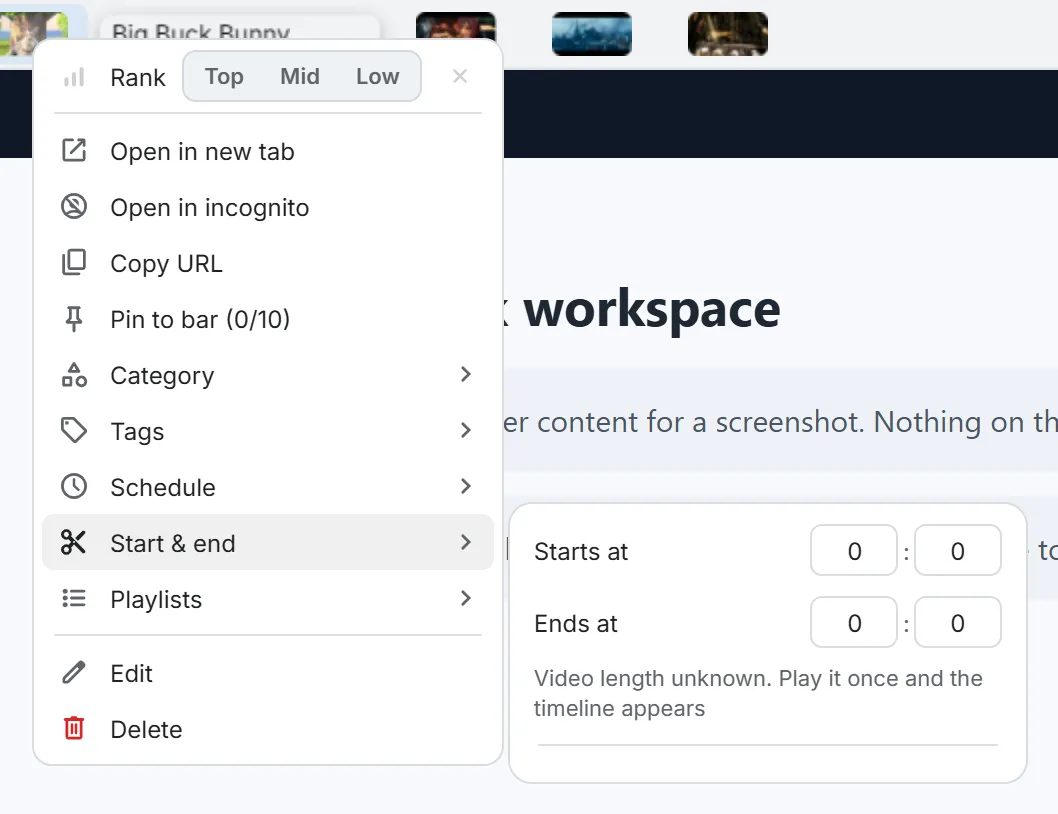
If you’d rather set the start point by hand — or stop a video at a set time — right-click the video’s chip and choose Start & end.
The free plan includes one active video folder, which covers most people’s “stuff I’m actually watching right now” pile. Pro unlocks all seven quick-switch slots as video folders plus cloud sync, if you want separate folders per topic or per device — the same quick-switch slots that solve a crowded bookmarks bar can double as video folders.
If your actual problem is closer to “I have forty YouTube tabs open and none of them are watched yet,” this is the same feature set — just start with tags instead of Play-all, and let the thumbnail row replace the browser tabs.