Every bookmark cleaner I’ve ever seen leads with the same pitch: “we found 847 duplicates.” It’s a satisfying number and it’s usually the wrong thing to optimize for. A big duplicate count feels like progress, but bulk cleanup tools routinely flag things that look disposable and aren’t — the same article saved with and without a tracking parameter, the same page bookmarked once as “read later” and once as “actual reference,” a link you saved twice on purpose because it belongs in two different folders. Blind bulk deletion doesn’t know the difference. The number that actually matters isn’t how many duplicates got found — it’s how many of your bookmarks you can get back if the cleanup was wrong about one of them.
For the step-by-step version: duplicates, restore points, and backup, and finding bookmarks whose site has stopped answering entirely.
What you can do with nothing but Chrome
Before reaching for any extension, Chrome’s own bookmark manager (chrome://bookmarks) already covers the basics, and it’s worth using regardless of what else you do:
- Search and sort manually. The search box matches title and URL, and you can right-click a folder to sort it (though native Chrome’s sort options are limited compared to what an extension adds).
- Export first, always. The three-dot menu → “Export bookmarks” writes a standard HTML file of your entire bookmark tree. This is the one step that costs nothing and undoes almost any mistake — if cleanup goes wrong, you can re-import the export and get your bookmarks back, even without any extension installed. Do this before touching anything, not after you’re worried.
That’s genuinely useful on its own, extension or not — do it today, regardless of what you read past this point. The gap is that Chrome has no concept of safe bulk cleanup: no duplicate detection built in, no undo on a bad manual sort, no automatic checkpoint before you import a file that might overwrite something. Everything past “export a backup” is manual and irreversible, which is fine for small, careful edits and genuinely risky once you’re doing anything at scale — hundreds of bookmarks, a big import, a folder restructure you’re not 100% sure about.
Why bulk duplicate killers cause real damage
The failure mode with automated dedupe tools isn’t hypothetical. Two bookmarks pointing at what looks like the same article can differ by a ?utm_source= tracking parameter or a #section fragment — same page, technically different URLs, and a naive matcher either misses the duplicate entirely or, worse, treats near-identical-but-meaningfully-different URLs as safe to merge. A documentation page bookmarked at its general URL and again at #installation is two different bookmarks that happen to share a domain, not one duplicated by accident — merging them loses the specific anchor you actually wanted.
Or the URLs really are identical, but you saved the page twice on purpose: once in “Read later” because you haven’t gotten to it, once in “Client reference” because you’ll need it again regardless of whether you’ve read it. A tool that only sees “same URL, delete the extra” doesn’t know which copy you’d have kept — it doesn’t know about your folders, only about the URL string.
Preventing duplicates beats cleaning them up later
The cleanest fix for duplicate bookmarks is not creating them in the first place, which is a save-time problem more than a cleanup-time one. If you try to save a page that’s already bookmarked, the save area recognizes it and reopens as a compact memory strip for the existing bookmark instead of quietly creating a second copy you won’t notice until a cleanup pass finds it. That’s the same already-saved awareness doing the work — it’s a small thing at the moment it happens, and it’s the reason a well-used setup doesn’t accumulate hundreds of duplicates in the first place, rather than needing a bulk cleanup to catch up on months of them.
What Second Bookmark Bar does differently
The design choice here is that cleanup should never be a one-click bulk operation you can’t take back:
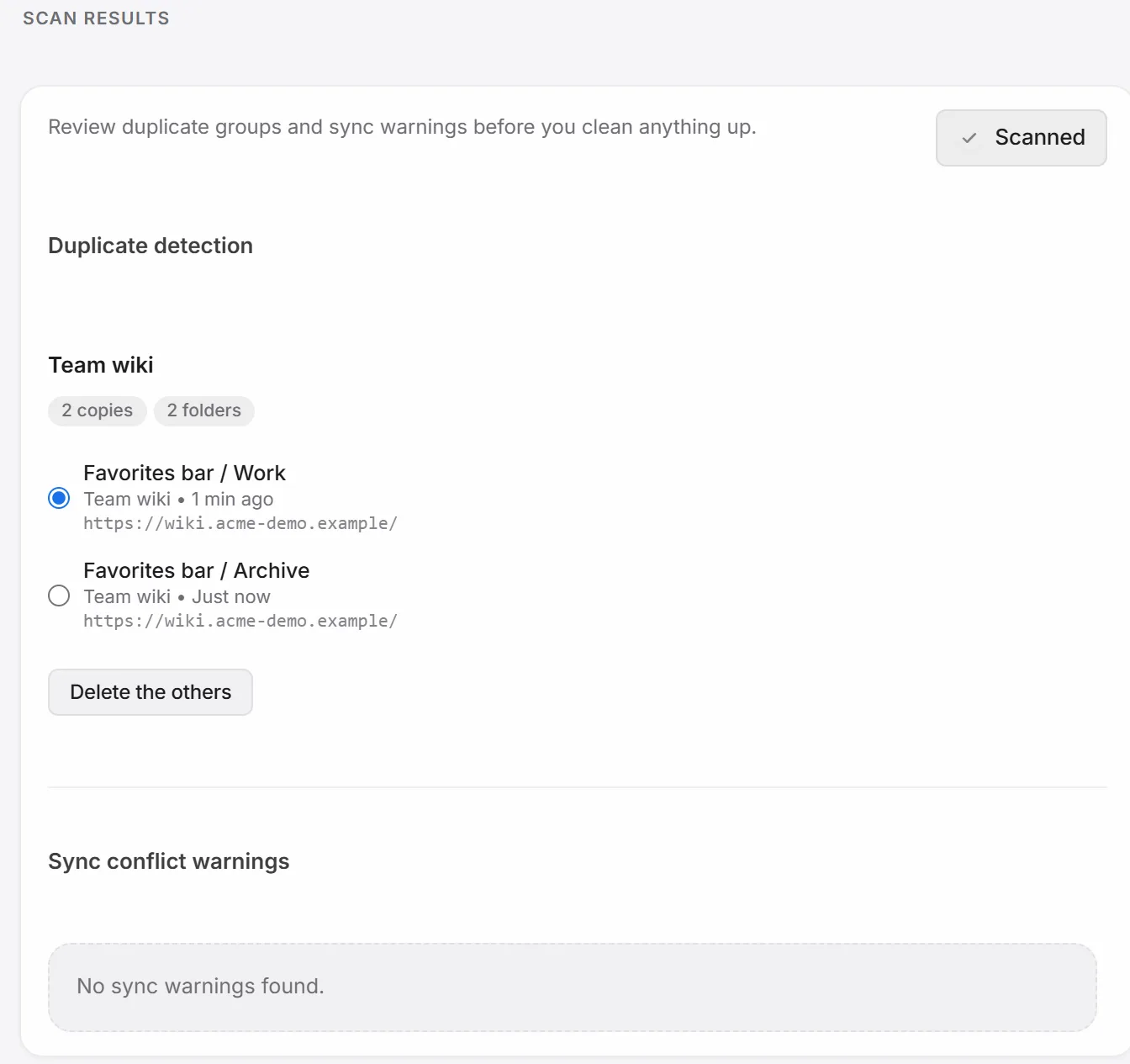
- User-directed duplicate detection. It surfaces duplicate groups, but you pick which copy survives — it doesn’t guess and doesn’t act until you confirm. That matters exactly in the near-duplicate cases above, where an automated match would get it wrong.
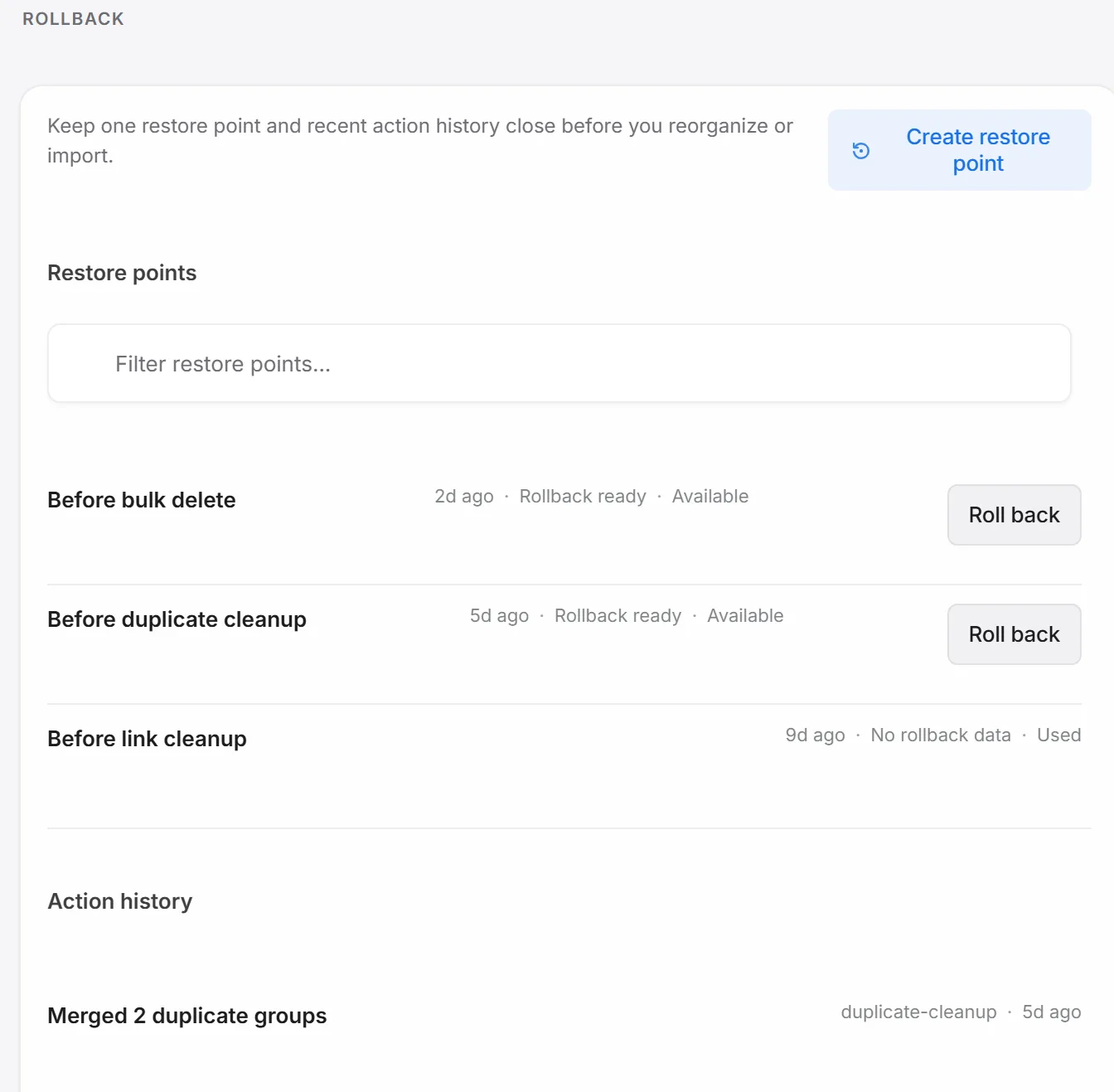
- Restore points before risky operations. Imports and cleanup passes each create a restore point automatically before they run — up to 24 restore points are kept at a time, so a bad cleanup pass isn’t a single point of no return.
- Undo on folder sorts. The safer sort options (newest, oldest, A→Z, Z→A) each come with undo for the last sort, so a sort you regret is one click to reverse, not a rebuild-from-memory.
- Action history for forensics. An 80-entry action history log is there for the “why did this bookmark come back” moments — genuinely confusing when Chrome sync re-creates something you already deleted on another device, which is a real sync behavior, not a bug in this extension. The history and accompanying sync-warning diagnostics exist specifically to make that traceable instead of mysterious.
- Export and import, same as native Chrome, plus a separate shared-space export/import file for anything set up as a shared space.
- Right-click actions for individual cleanup, without a bulk tool at all — copy the URL, edit the title or URL directly, or delete one bookmark at a time when a whole-folder pass is overkill and you just want to fix the one entry you noticed is stale.
None of this replaces backups — it’s a second layer under them.
A safe-cleanup runbook
If you’re about to do a real cleanup pass — hundreds of accumulated bookmarks, years of saves, that kind of thing — this is the order that actually protects you:
- Export first. HTML export, saved somewhere you’ll remember. This is your ground truth if everything else goes wrong.
- Create a restore point right before you start (imports do this automatically; for a manual cleanup session, do it deliberately).
- Run the duplicates pass, reviewing each group instead of accepting a bulk “remove all” — the near-duplicate cases above are exactly why this step wants your eyes on it.
- Sort folders if they’ve gotten disorganized — newest/oldest/A→Z as appropriate, with undo available if a sort makes things worse instead of better.
- Verify the result looks right by actually opening a few folders, not just trusting the summary count.
- Keep the export. Don’t delete it once the cleanup looks fine — it’s cheap insurance for a mistake you notice a week later, not just today. (Exporting is also the honest fallback if you ever lapse on a paid plan — see what stays free forever — local export always works regardless of subscription status.)
The uninstall test
One more thing worth stating plainly, because it’s the actual trust question underneath all of this: if you uninstall the extension entirely, nothing about your bookmarks changes. They were always standard Chrome bookmarks, read and written through Chrome’s own bookmark API — the extension never kept a shadow copy anywhere else. Whatever cleanup you did stays exactly as you left it, in chrome://bookmarks, same as before you ever installed anything. If you’re evaluating whether to uninstall and want to leave feedback on the way out, the uninstall page covers that too, but your bookmarks were never the part at risk.
For the bigger picture on getting bookmarks organized in the first place — not just cleaned up — see the full second-bar setup guide, or check the FAQ for the shorter version of the rollback and cleanup questions covered here.