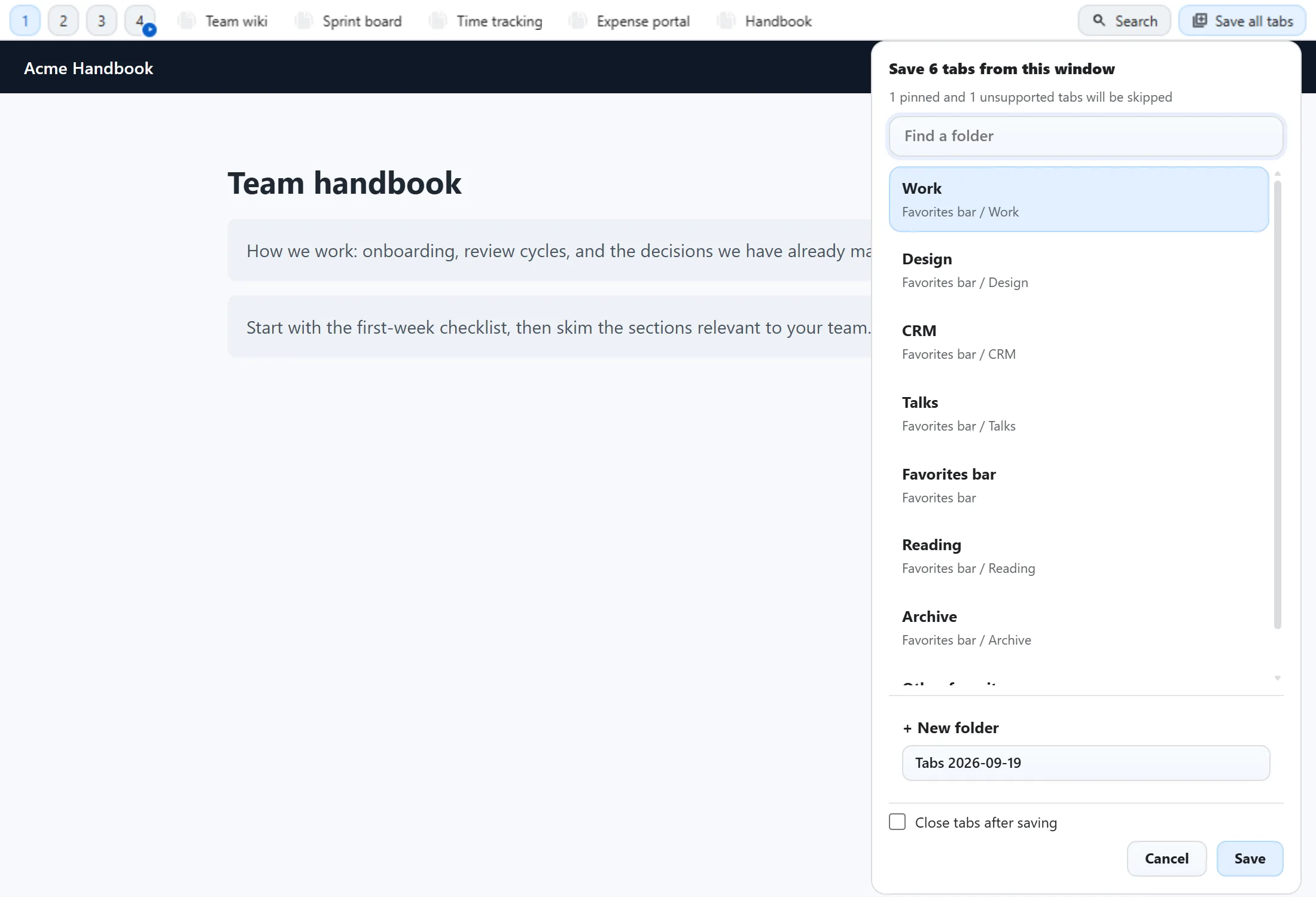
Save all tabs takes every ordinary tab in the window you’re in and files it into one folder as ordinary Chrome bookmarks. Press Ctrl+Shift+A (Cmd+Shift+A on Mac) or click the button on the bar, and a panel opens telling you exactly what’s about to happen before anything is saved.
Step by step
- Trigger it.
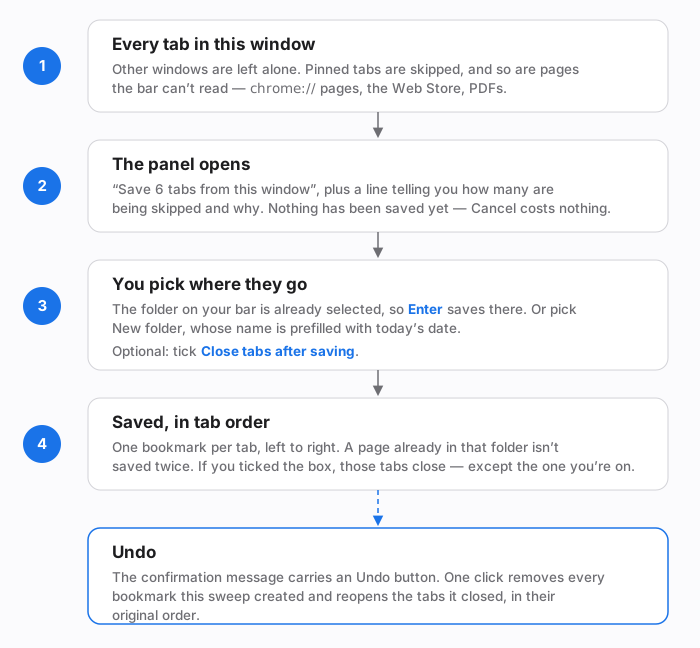
Ctrl+Shift+A, or the Save all tabs button on the bar. Both open the same panel. - Read the top two lines. The title counts what will actually be saved (“Save 6 tabs from this window”); the line under it says how many tabs are being skipped and why.
- Pick a destination. The folder currently on your bar is already selected, so pressing
Enterstraight away saves there. Type in the Find a folder box to jump to a different one, or choose + New folder. - Decide about the tabs. Close tabs after saving is a checkbox in the panel, shown every single time. Leave it alone and nothing closes.
- Save — or Cancel, or
Escape. Cancelling saves nothing and closes nothing.
What gets skipped
The panel’s second line is doing real work, so it’s worth knowing what it counts:
- Pinned tabs are left alone. A pinned tab is usually something you keep open on purpose, not something you’re trying to file away.
- Pages the bar can’t read —
chrome://pages, the Chrome Web Store, PDF documents, and any site you’ve added to excluded sites — are skipped. The extension deliberately doesn’t hold the browser permission that would let it read the address of a tab it isn’t running on, so a page where the bar isn’t present is a page it can’t file. - Other windows are never touched. The sweep is always just the window you’re in.
Background tabs are counted properly even when they’re busy. A tab you opened in the background and haven’t looked at yet can be slow to answer — the browser gives tabs you aren’t looking at less of the machine, and a heavy page can spend a long time loading in the background. Each tab notes its address when it loads, while it still has the breathing room to do so, so a sweep doesn’t have to wake a struggling tab to know what’s in it.
The one case that genuinely can’t be counted is a tab that has never finished opening its page at all — there’s nothing to file yet. If that happens the panel tells you it couldn’t read the window, rather than claiming there was nothing there to save.
Saving into a new, dated folder
Instead of an existing folder, click + New folder. The name box is prefilled with today’s date — Tabs 2026-09-19 — which you can overwrite with anything you like. The new folder is created inside whichever folder was selected above it, so it lands somewhere you’ll find it rather than loose at the top of your bookmark tree.
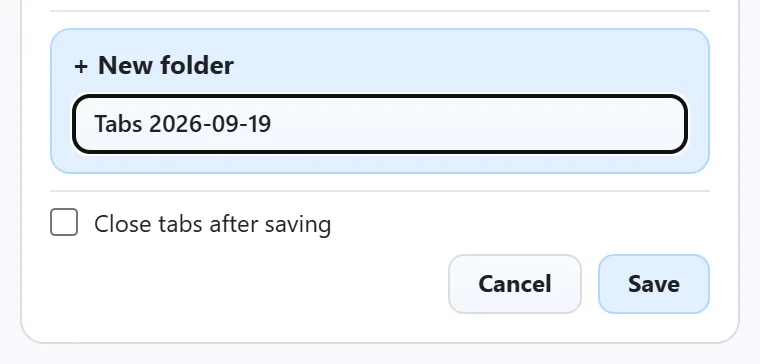
If a folder with that name already exists, the new one gets a numbered suffix — Tabs 2026-09-19 (2) — rather than becoming a second identically-named folder. And if the sweep turns out to have nothing to save, the empty folder isn’t created at all.
The panel also remembers which of the two you used last: sweep into a new folder once and the next sweep opens with + New folder already highlighted.
The confirmation, and Undo

Undo removes every bookmark that sweep created and reopens the tabs it closed, in their original left-to-right order. It’s a full reversal, not a partial one. (There’s a ceiling of 300 reopened tabs, which is well past any realistic window.)
The same sweep also writes a restore point, so even after the confirmation has faded you can roll it back from Settings → Recovery → Rollback & history. See duplicates, restore points, and backup.
Four ways people actually use this
1. Clearing the desk at the end of the day
You’ve got fifteen tabs open that you’re “keeping for later” and you want the window empty tomorrow morning.
Ctrl+Shift+A.- Pick the folder you’d actually look in tomorrow — or + New folder and let it use today’s date.
- Tick Close tabs after saving.
- Save.
The tabs close, the links don’t disappear, and the tab you’re currently reading stays open so the window doesn’t vanish underneath you. The checkbox remembers itself for next time, so the second day is one keystroke shorter.
2. Filing a research session into its own folder
You’ve been digging through a dozen sources and you want them kept together rather than mixed into an existing folder.
Ctrl+Shift+A.- Click + New folder and type a name that means something — the project, the question, the client.
- Leave Close tabs after saving unticked if you’re still reading.
- Save.
You now have a folder holding the session in the order you opened the tabs, which is usually the order you found them in.
3. Sweeping before a restart you don’t trust
Chrome wants to update, or the machine has been sluggish for an hour.
Ctrl+Shift+A, thenEnter. Two keystrokes; the active folder is already selected.- Leave the close box unticked — you want the tabs back afterwards if the restart goes fine.
If the restart eats the session anyway, the links are in a folder. If it doesn’t, you’ve lost nothing but a few duplicate-free bookmarks.
4. Sweeping the same window twice without making a mess
You swept at lunchtime, kept working in some of those tabs, and want to sweep again.
Ctrl+Shift+A.- Choose the same folder as last time.
- Save.
Pages already in that folder aren’t saved again — the confirmation says so explicitly (”… (2 were already there)”). With Close tabs after saving ticked, those already-saved tabs still close, because the whole point is that they’re safely filed.
Good to know: closing a tab this way doesn't trigger a site's "are you sure you want to leave?" prompt, so anything typed into an unsaved form in one of those tabs is gone. That's exactly why the checkbox is opt-in and is redisplayed every single time rather than being buried in Settings.
Two keystrokes, and the button is optional
Ctrl+Shift+A / Cmd+Shift+A is bound out of the box — it’s one of the four shortcuts that is (see every keyboard shortcut). Because the destination panel opens with the active folder already selected, Ctrl+Shift+A then Enter is the whole flow when you just want it in the folder you’re already looking at. Arrow keys move down the folder list, Escape backs out.
The Save all tabs button on the bar does the same thing and is on by default. Turn it off — or drag it to a different position in the bar’s button row — in Settings → Bar setup.

Is any of this limited on the free plan?
No. Save all tabs, the destination panel, the new-folder option, close-after-saving and Undo are all free, with no cap on how many tabs a sweep may save. See free vs Pro for the handful of things that do have numbers attached.