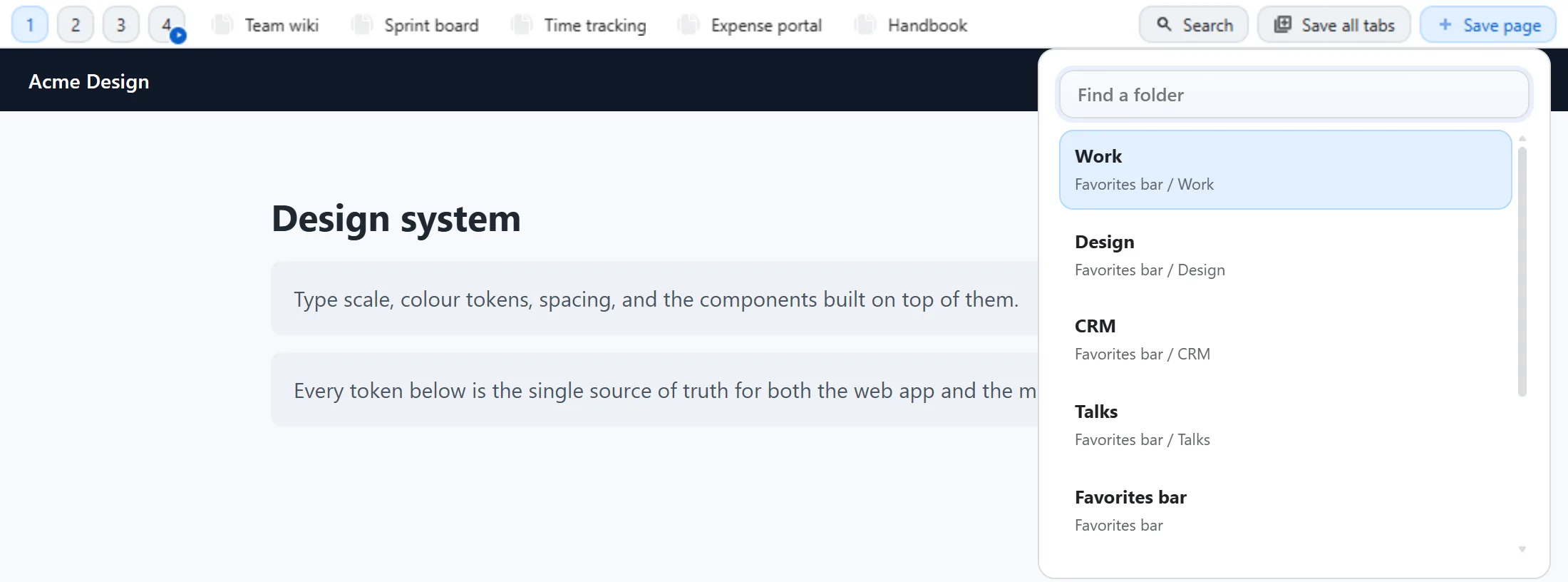
There are four ways a page gets onto the bar, and all four end up in the same place: an ordinary Chrome bookmark, filed into whichever folder you choose.
Save the current page
Turn on Quick-save in Settings → Bar setup and a Save page button appears on the bar. (A fresh install ships with Save all tabs in that spot instead, so this one is opt-in.) Click it and a small panel opens asking which folder — it defaults to whichever slot is active, but any folder is one click away. After saving, a brief undo option appears in case you picked the wrong folder.
Quick-save shortcut
Once you assign it at chrome://extensions/shortcuts (see every keyboard shortcut), this saves the current page straight to the active folder with no panel at all.
Drag it on
Drag a link, an image, or the page’s own address-bar URL onto the bar, and it drops straight into whichever folder’s chip row you release it over.
Save every open tab
Click Save all tabs (or press Ctrl+Shift+A / Cmd+Shift+A) and a panel opens over the page: it counts the tabs it’s about to save, says how many it’s skipping and why, and lets you send them to the folder already on your bar, or to a brand-new folder whose name is prefilled with today’s date. A Close tabs after saving checkbox sits at the bottom, off until you turn it on, for anyone using this as a “clear my desk” ritual rather than a backup. Nothing happens until you press Save — and if you regret it, the confirmation carries an Undo that removes the bookmarks and reopens the tabs.
The button itself is optional — turn it off, or reorder it, in Settings → Bar setup.

There’s a lot more to it — pinned tabs, duplicates, the dated folder, undoing a whole sweep. Save all tabs covers all of it.
Already saved?
Save a page that’s already bookmarked somewhere on the bar, and the panel doesn’t create a second copy — it shows a compact strip confirming it’s already saved and where, so you’re never quietly duplicating the same link.