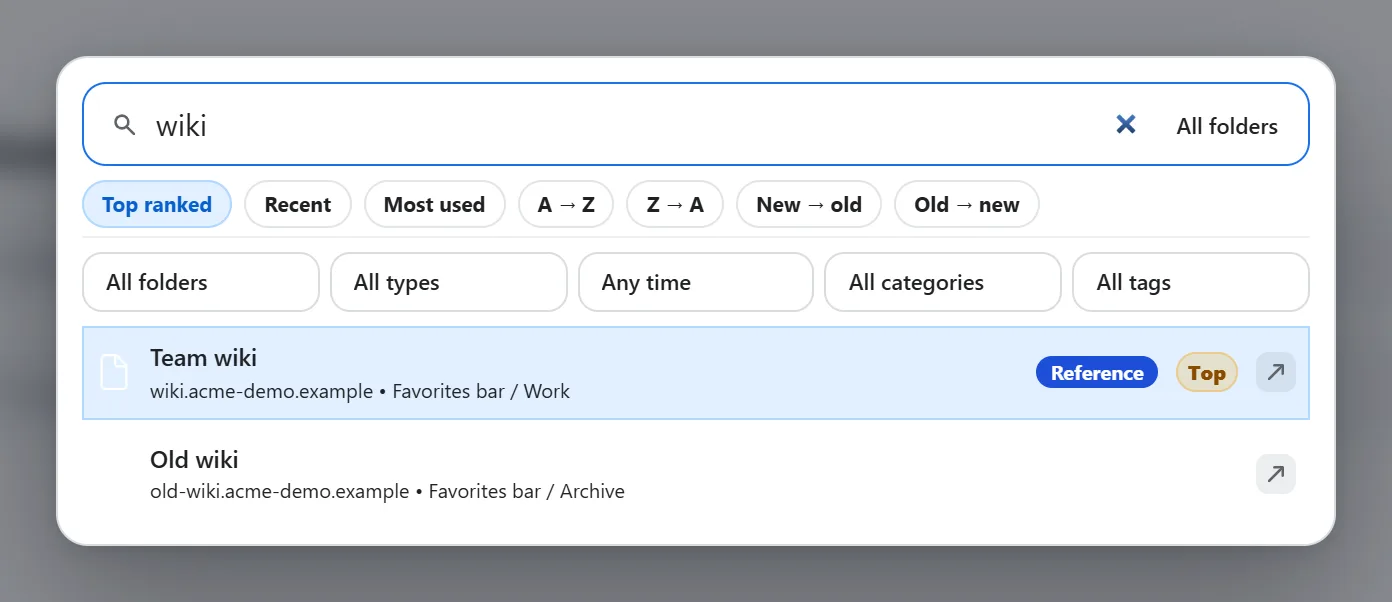
Click Search on the bar and start typing. The panel opens over the page as a search box with the results directly underneath, and it reads your whole Chrome bookmark tree — not just the folder you happen to be looking at, and not just the bookmarks pinned to a bar slot.

There’s a keyboard command for it too — Focus search — but Chrome ships it without a key combination, so it does nothing until you assign one at chrome://extensions/shortcuts. See every keyboard shortcut.
What’s in the panel
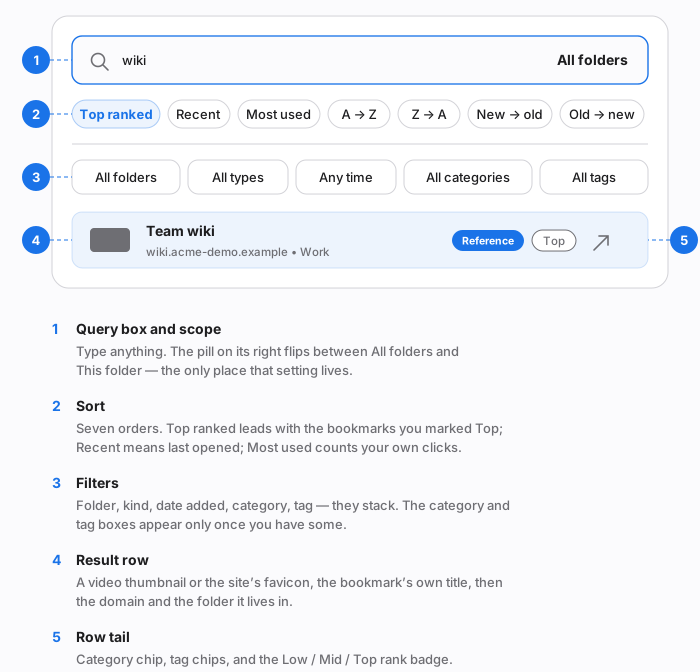
Sorting

| Chip | Orders by |
|---|---|
| Top ranked | The Low / Mid / Top rank you set on a bookmark yourself, then by how well it matches what you typed. This is the default. |
| Recent | The last time you opened that bookmark through the extension — not when Chrome last visited the site, and not when you saved it. |
| Most used | How many times you’ve opened it from the bar, a folder menu, or these results. |
| A → Z / Z → A | Title, alphabetically. |
| New → old / Old → new | When the bookmark was created. |
Ranks come from right-clicking a bookmark — see categories and tags for the rest of the right-click menu. A rank also nudges the ordinary relevance score, so a bookmark you’ve marked Top surfaces earlier even on the other sorts.
Filters
Five dropdowns, and they stack — set two and you get results matching both.
- All folders — narrow to the folder your bar is on, or to any specific folder that has matches. The list is built from your actual results, with the match count next to each.
- All types — bookmarks, folders, or videos. Videos only appears when there’s at least one video in range.
- Any time — when the bookmark was added: last 7 days, 30 days, 3 months, or 12 months.
- All categories — one per bookmark. This dropdown is hidden entirely if you haven’t created any categories.
- All tags — many per bookmark. Also hidden until you have some.
Reading a result row
Each row carries the bookmark’s own title, then a line with its domain and the folder path it lives in, so two similarly-named bookmarks are never ambiguous. On the right of the row, its category and tags share two chip slots — the category first, then tags — so a bookmark with three or more of them between it shows the first plus a +2 counter rather than spilling across the row. After those comes the Low / Mid / Top badge, if you’ve ranked it.
Folders show up as results too. Click one and the panel drills into it, listing its contents with a ← Back row; typing a new query comes straight back out.
Clicking a result opens it in a new tab, leaving the page you were on alone. Escape closes the panel.
Four things to actually do with it
1. Find a saved video by its title
Video bookmarks show a thumbnail where an ordinary bookmark shows a favicon, which makes a half-remembered title much easier to spot.
- Open Search and type any part of the title.
- Set the All types filter to Videos.
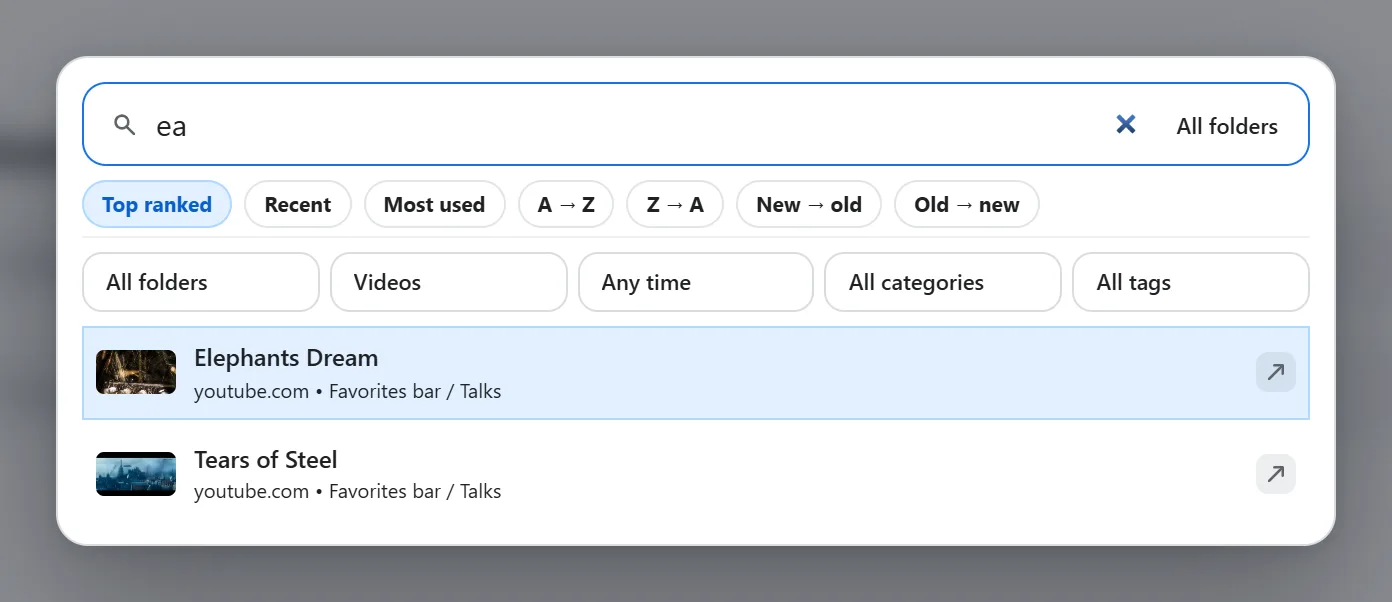
A video counts as one either because its address is a video site’s, or because it lives in a folder you’ve turned into a video library — so a video filed anywhere still shows up.
2. Narrow down by category or tag
When you know the kind of thing you’re after but not its name:
- Type something broad — a project word, a client name.
- Set All categories to the one you mean, or All tags to the label you used.
- Leave the query loose; the filters are doing the work.
Both dropdowns only list categories and tags that have matches in the current results, with counts, so an empty combination is never offered.
3. See what you actually reopen
Sorting by relevance tells you what matches. Sorting by use tells you what matters.
- Type a folder-ish word — the project, the client, the topic.
- Click Most used for the ones you come back to, or Recent for what you were in this week.
This is also the honest way to find out which of your bookmarks you’ve never opened once: sort by Most used and scroll to the bottom.
4. Search one folder instead of everything
- Open Search.
- Click the All folders pill at the right of the query box. It flips to This folder — the folder currently showing on your bar.
That pill is the scope control; there’s no separate setting for it anywhere in Settings. Your choice is remembered for next time. The All folders dropdown underneath does the same job and additionally lets you pick a specific folder that isn’t the active one.
Keyboard-only, start to finish
Assign a key to Focus search, then: type → ↓ / ↑ to move between results (Home and End jump to the ends) → Enter to open the highlighted one → Escape to close. A folder result opens under Enter in the same keystroke, so you can walk into a folder and back out without touching the mouse.
It remembers what you looked for
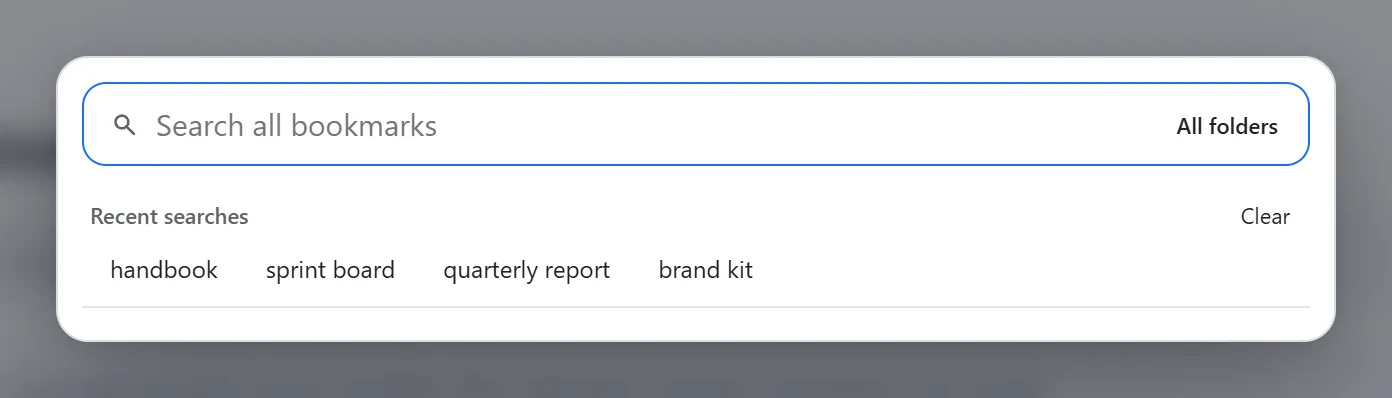
Open the panel with an empty box and you get your last ten searches as chips, ready to click. Clear wipes the list.
Good to know: search reads Chrome's whole bookmark tree, not only what's pinned to a bar slot — so it finds bookmarks in folders you've never assigned to a button. Search itself has no free-plan limit: no capped result count, no locked sorts, no locked filters.