I counted the clicks. Every way Chrome itself gives you to get back to a saved page — no extension required — timed out in clicks and keystrokes, honestly, including the ones most people never learn. Then, only at the end, the one place a second bar genuinely beats all of them. If you leave this page having picked up a native trick you didn’t already know, that’s the point — it’s also what makes the last section worth trusting instead of reading like a pitch wearing a listicle’s clothes.
If you’re already using Second Bookmark Bar, the fastest paths are search from the bar and quick-switch slots.
The bookmarks bar itself — Ctrl+Shift+B
If your bookmarks bar is already showing, reaching a bookmark on it is the cheapest retrieval Chrome offers: one click, zero navigation, done. The catch is capacity — it’s one row, and a row fills up fast once titles are longer than a word or two. If it’s hidden, Ctrl+Shift+B toggles it back on first, which makes the real cost “one keystroke combo, then one click” rather than one click alone. Either way, nothing here needs a new tab.
The omnibox: type @bookmarks
This is the one most people miss. Focus the address bar (Ctrl+L, or just click into it), type @bookmarks, hit space, and Chrome switches into a bookmark-only search scope — matching on title and URL, showing results as you type, no new tab required to search. Arrow down and Enter opens the top match in your current tab; Alt+Enter opens it in a new tab instead, if you want to keep what you’re looking at. The honest cost: a keystroke to focus the bar, roughly ten keystrokes to type @bookmarks plus a short query, and one keypress to commit — more typing than a click, but it beats scanning a crowded bar or manager visually, especially for a bookmark you can’t place by folder.
Ctrl+Shift+O — the Bookmark Manager
This is the baseline everything else gets compared against. Ctrl+Shift+O opens Chrome’s full Bookmark Manager in a new tab — every folder, a real search box, drag-and-drop reordering. It’s the most complete view Chrome has of your bookmarks, and it’s also the most expensive way to reach one: a new tab opens, you wait for it to render, then you scan or search inside it, then — if you’re trying to get back to what you were doing — you close it or switch back. Full context switch, every time.
The native bookmarks side panel
Chrome also has a Bookmarks tab inside its side panel — click the side panel icon in the toolbar if you have it pinned, or go through the browser menu to Bookmarks and lists → Show bookmarks side panel. It opens beside the page rather than replacing the tab, which is a real advantage over the Manager, but there’s no default keyboard shortcut for it in stock Chrome — it’s click-only, through a menu, until you find and pin the toolbar icon yourself.
What Chrome can’t do at all
Worth saying plainly rather than let you discover it by trying: Chrome has no native way to assign a keyboard shortcut to a specific bookmark or folder. You can jump to the address bar, toggle the bar’s visibility, or open the Manager — but “hit a key, land in my ‘Work’ folder” isn’t something stock Chrome offers. That gap is exactly where the last section of this post picks up.
The honest cost table
| Method | Cost | Context switch? | Stays on the page? |
|---|---|---|---|
| Bookmarks bar, already showing | 1 click | No | Yes |
| Bookmarks bar, hidden | Ctrl+Shift+B + 1 click | No | Yes |
Omnibox @bookmarks search | Ctrl+L + ~10 keystrokes + Enter | Yes, unless Alt+Enter | No, by default |
Ctrl+Shift+O Bookmark Manager | 1 shortcut + scan/search + click | Yes — new tab | No |
| Bookmarks side panel | 2–3 clicks through a menu, no default shortcut | No | Yes |
| Second Bookmark Bar row, right folder showing | 1 click | No | Yes |
| Second Bookmark Bar + Auto-switch | 1 click — folder-switch step already done for you | No | Yes |
Where the native ceiling is
Look at that table honestly and the pattern is clear: everything native either costs you a context switch (the Manager, the omnibox by default) or costs you a single crowded row with no way to add a second one. The side panel avoids the context switch but costs clicks through a menu to open, every time, with nothing to bind a shortcut to. There’s no native path that’s both zero-navigation and gives you more than one row of always-visible bookmarks — that’s the actual ceiling, not a marketing framing of one.
That’s the specific gap Second Bookmark Bar is built to sit in — not by replacing any of the above, but by adding a second row with a few things a static row can’t do on its own. Alt+1, Alt+2, and Alt+3 are real default shortcuts that jump between folder slots without touching the mouse — the per-folder hotkeys stock Chrome doesn’t have. Auto-switch maps a site to a folder once, then flips the bar there automatically — a star shows when it fired, and you can always override it by hand — which means the folder-switch step in that last table row is often already done before you look up; it’s the only method on this list where part of the reach can cost less than the one click everything else is stuck at. For the miss case — you don’t remember which folder something’s in — an in-bar search panel opens on the page you’re already on, results labeled by folder and domain, matching title and URL the same way the omnibox does, just without leaving the tab. And if what you’re reaching for is video links specifically, folders set up as video folders render thumbnail cards with duration badges right on the row, so recognizing the right one is visual instead of textual.
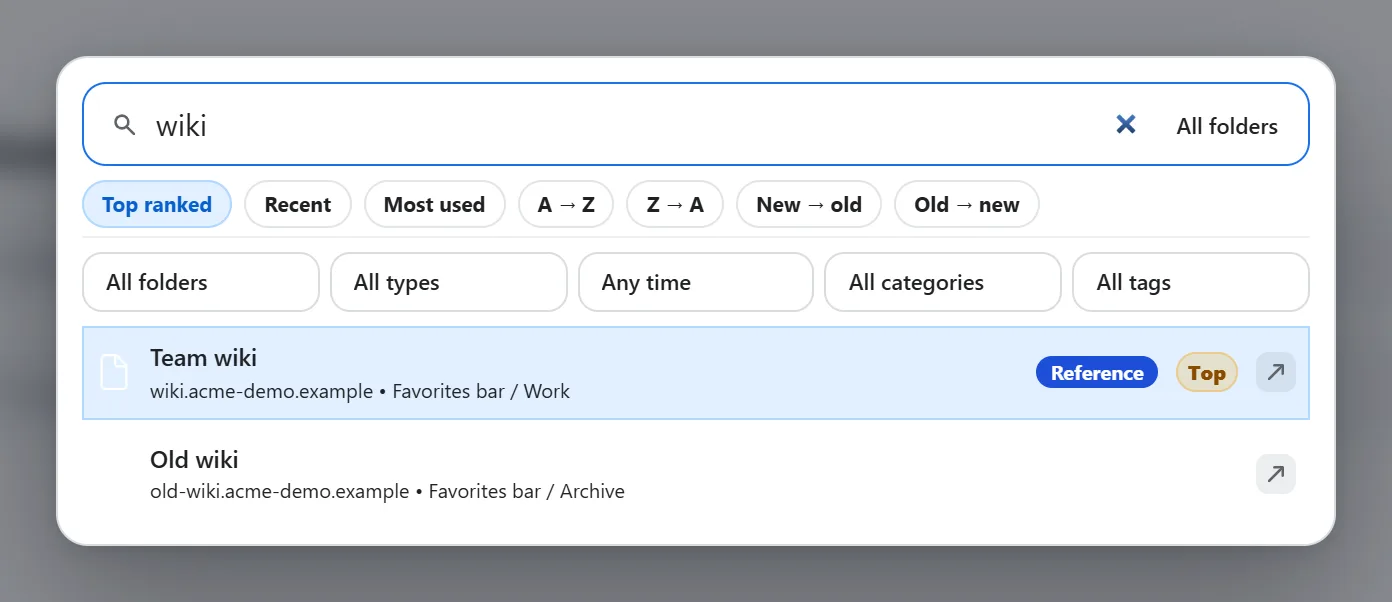
None of that is “learned” behavior — Auto-switch is rule-based: you map a site to a folder once in settings, and it’s that mapping, not a model guessing, that decides where the bar flips. Worth being exact about that distinction rather than letting it sound smarter than it is.
The boundary that applies to everything here
One limitation belongs on this page as much as any comparison post: Chrome extensions — this one included — cannot render any UI on chrome:// pages or the Chrome Web Store itself. That’s a platform restriction, not a gap specific to one tool. On those pages, the native methods above are the entire toolkit, which is exactly why they’re worth actually knowing rather than skipping straight to the extension section.
Picking one
If you retrieve bookmarks rarely, the omnibox’s @bookmarks trick alone is probably enough — it’s free, it’s already installed, and it’s faster than most people realize. If you retrieve the same handful of things constantly, all day, a static row already beats the alternatives; whether a second one is worth adding comes down to whether one row’s worth of space still isn’t enough, which is its own question with its own honest answer.
FAQ
What is the keyboard shortcut for bookmarks in Chrome?
Ctrl+Shift+B toggles the bookmarks bar on or off. Ctrl+Shift+O opens the full Bookmark Manager in a new tab. Neither one opens a specific bookmark or folder — Chrome has no native hotkey for that.
How do I search bookmarks without opening Bookmark Manager?
Type @bookmarks in the address bar, then a space, then your search term. Chrome’s omnibox searches bookmark titles and URLs directly and shows matches as you type, without opening a new tab.
Can Chrome open a bookmark folder with a shortcut?
Not natively — Chrome has no built-in hotkey for a specific folder. Second Bookmark Bar adds Alt+1, Alt+2, and Alt+3 as real keyboard shortcuts that jump between its own quick-switch folder slots.